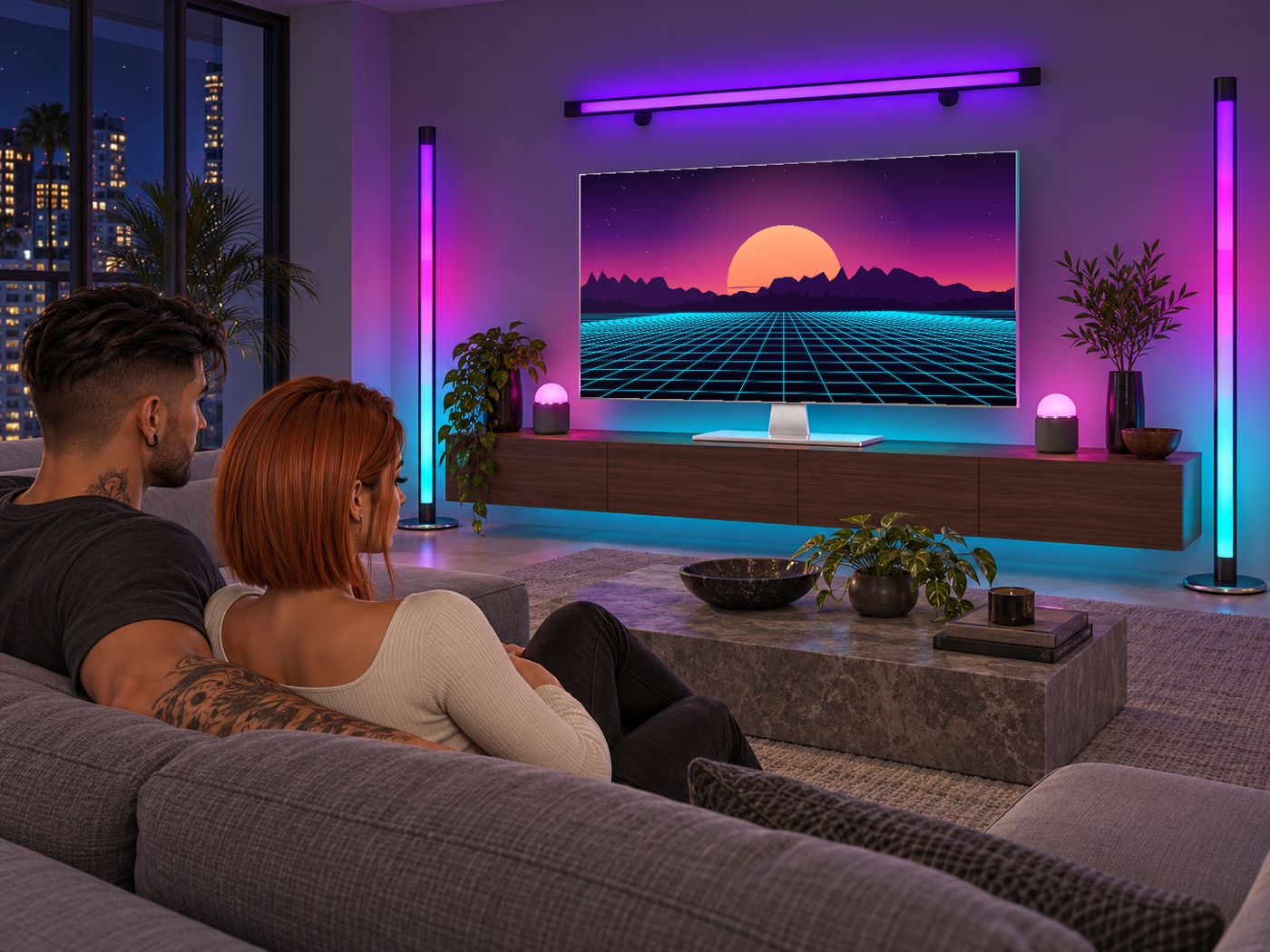
Ready in a minute
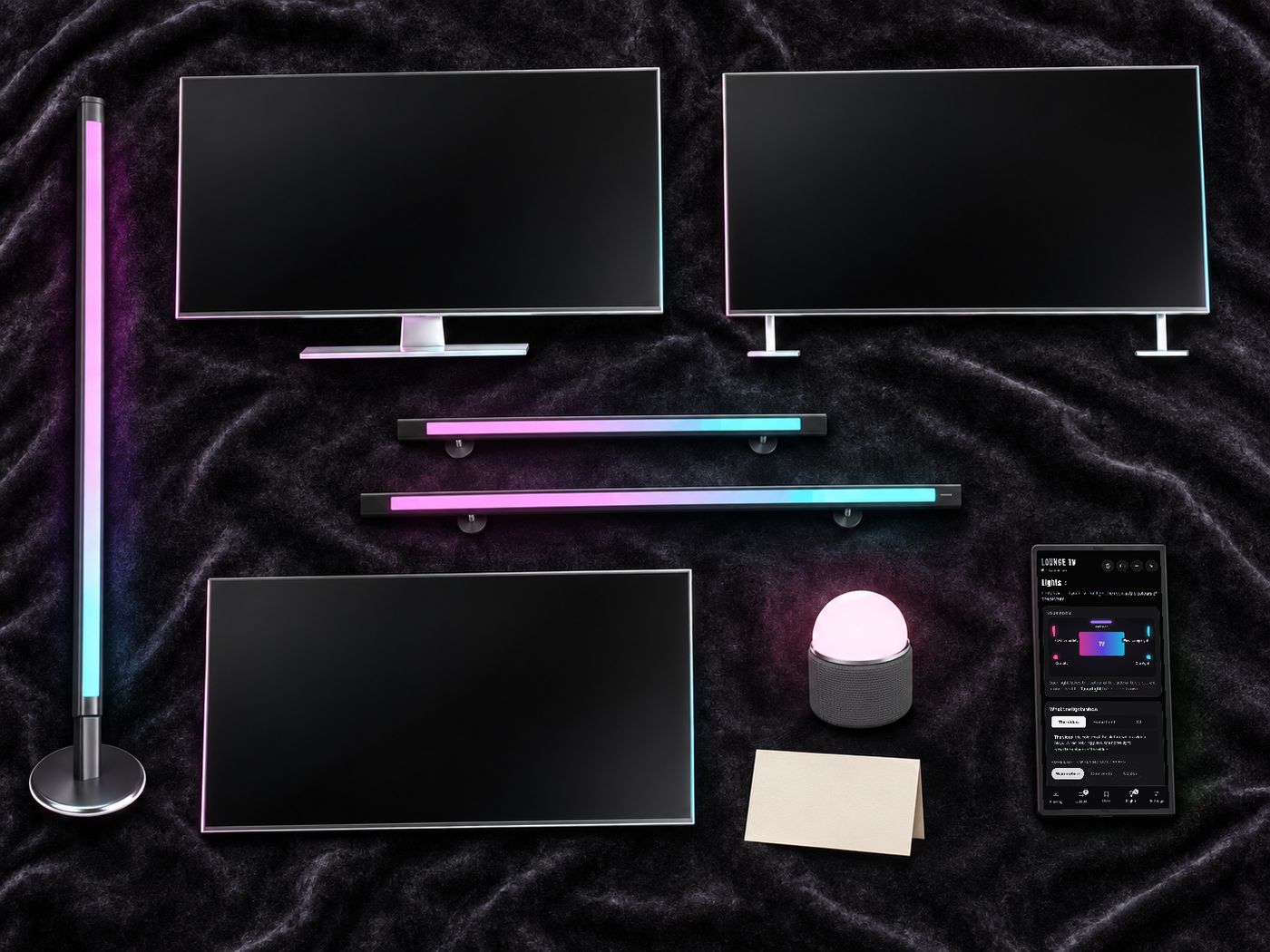
In the box: the TV as Stand, Feet and Wall, the Remote HUD, a Sync Orb Light, a Sync Neon Floor Lamp, Wall Bars of 120 and 160 cm, and the READ ME.
- Turn on mediaPreferences > Sound and Media > Media: Enabled. "Allow media to auto-play" helps too.
- Rez the TVStand, Feet or Wall: pick the one for your room.
- Touch the TVYour remote link comes in local chat. Or wear the Remote HUD: it finds your nearest TV by itself.
- Play a videoSearch YouTube or paste a video or photo link, then choose Play now. Everyone near the TV sees the same content.
- Rez your lights and speakersNear the TV, in the same region. They link to the TV by themselves.
One remote for everything
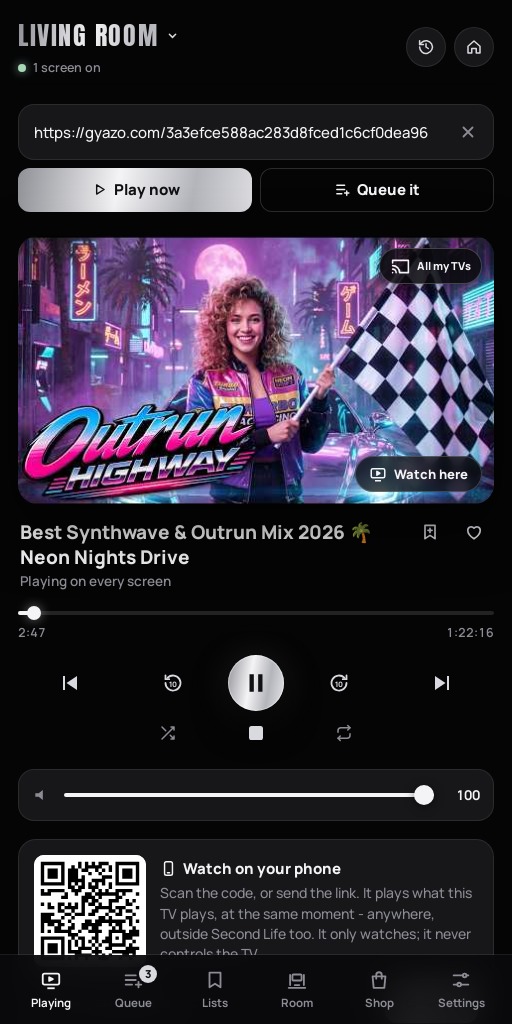
Wear the Remote HUD, or open your remote link on your phone or in a browser. The same remote, the same buttons. The HUD finds your nearest TV; the TV name at the top switches between your TVs.
Playing
- Search YouTube, paste a video or photo link, or import a whole playlist. Live streams play too.
- Paste with Ctrl+V (Mac: Cmd+V) after you click the search box. In Second Life, right-click does not paste: it opens the viewer's menu.
- After pasting a video or photo link, choose Play now to show it immediately and keep the existing queue, or Queue it to add it without interrupting the current item. Pasting alone starts nothing. A playlist link has its own Add the playlist and Replace the queue buttons.
- Local chat: near your TV, the owner can type /7 and a link (Ctrl+V works there too). A playlist or a YouTube mix plays whole; /7 q and a link adds it to the queue.
- The main row is From the start, 10 seconds back, Play/Pause in the centre, 10 seconds forward, and Next. Below are Shuffle, Stop and Repeat (the whole queue, one item, or off). Photos have no pause or timeline; restart is also disabled for live streams.
- The heart keeps a video in your Favourites. The clock at the top shows every video played on this TV.
- The cast icon All my TVs at the top right of the picture shares this channel with all your other TVs. Tap it again to restore their own channels. It appears for owners with multiple TVs, not guests or a TV already following another. To control a different TV instead, use the TV name at the top.
Video and photo links
Paste a public Gyazo photo/video link, a direct HTTPS JPG, PNG, WebP, GIF or AVIF link, or a supported video-file link. Choose Play now or Queue it. There are no file uploads: pictures load from their original host, so keep links public and available.
 YouTube
 Gyazo
Gyazo Dropbox.mp4.webm.jpg / .png
Queue and lists
- Queue: up to 500 items, including photos and videos. Move one to the top, remove one, or clear all. Search the queue finds items by words in their titles.
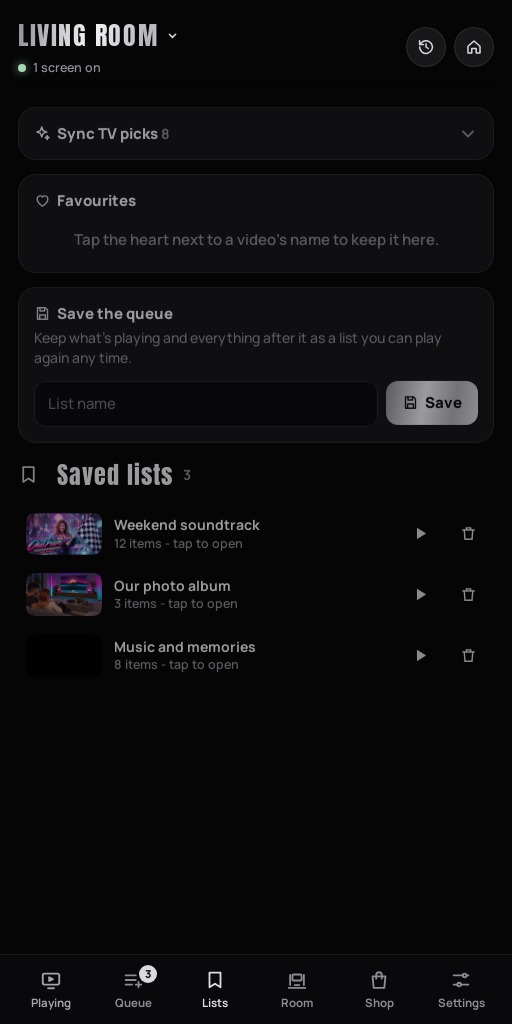
- Sync TV picks: ready lists for every Sync TV: Neon Nights, Chill, Party, Cosy, Nature, Sunset House, Jazz Lounge, Space Journey, and World and US Top 100 lists, new every day. The card starts closed; tap its title to open it.
- Your lists: Save the queue keeps the current item and everything after it. Open a saved list to add video or photo links directly. Photo-only and mixed lists work; a cover beside the name helps you recognise each list. In Favourites, Play all plays items in sequence.
Free TV, games and radio
Home turns your Sync TV into a home screen, like a smart TV's. Watch free TV and live channels, listen to the radio, play games together or open a website. Everyone near the TV sees it.
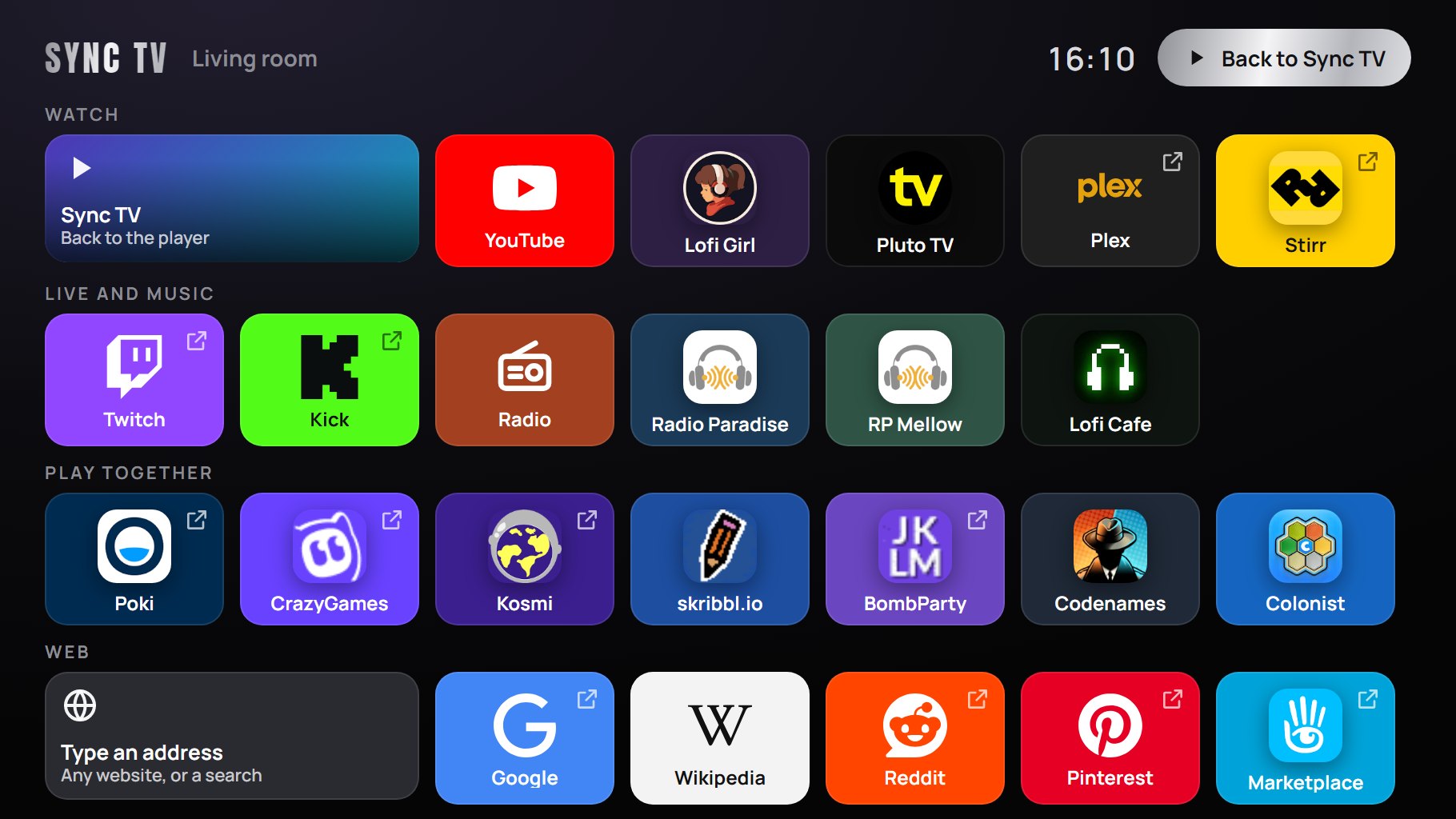
The home screen on the TV. A tile with an arrow in its corner opens the site on the whole screen.
- Tap Home on the remoteThe house button at the top. Or click the TV's screen: Home is in the bar at its top.
- Pick on the TV's screenClick a tile on the TV itself. The people who may change the TV can pick (Settings > Access). Everyone else watches.
- Come backTap Sync TV on the TV, or the lit Home button on the remote: from a game or a site to the home screen, from the home screen to Sync TV. The video waits, paused, and goes on from the same moment. Playing a video also brings the TV back.
On the home screen
- Watch: YouTube (back to the player, with the TV's search open), Lofi Girl (live, in sync for everyone), and free TV on Plex, Stirr and Pluto TV.
- Live and music: Twitch, Kick, Radio (pick a kind of music or search a station), Radio Paradise and Lofi Cafe.
- Play together: Poki, CrazyGames, Kosmi, skribbl.io, BombParty, Codenames and Colonist.
- Web: type an address or words to search, or open Google, Wikipedia, Reddit, Pinterest or the Second Life Marketplace.
Good to know
- Tiles without an arrow open on the home screen, under a bar with Home and Sync TV. Pluto TV is not in every country.
- A tile with an arrow fills the whole TV with its site, without buttons of ours: come back with the lit Home button on the remote. These sites need the latest TV script (v0.5.9 or newer).
- While the TV goes to a site or comes back, the remote shows a blurred "please wait" screen for a few seconds.
- While the TV is on Home, the lights show their Home light.
The wall follows the picture
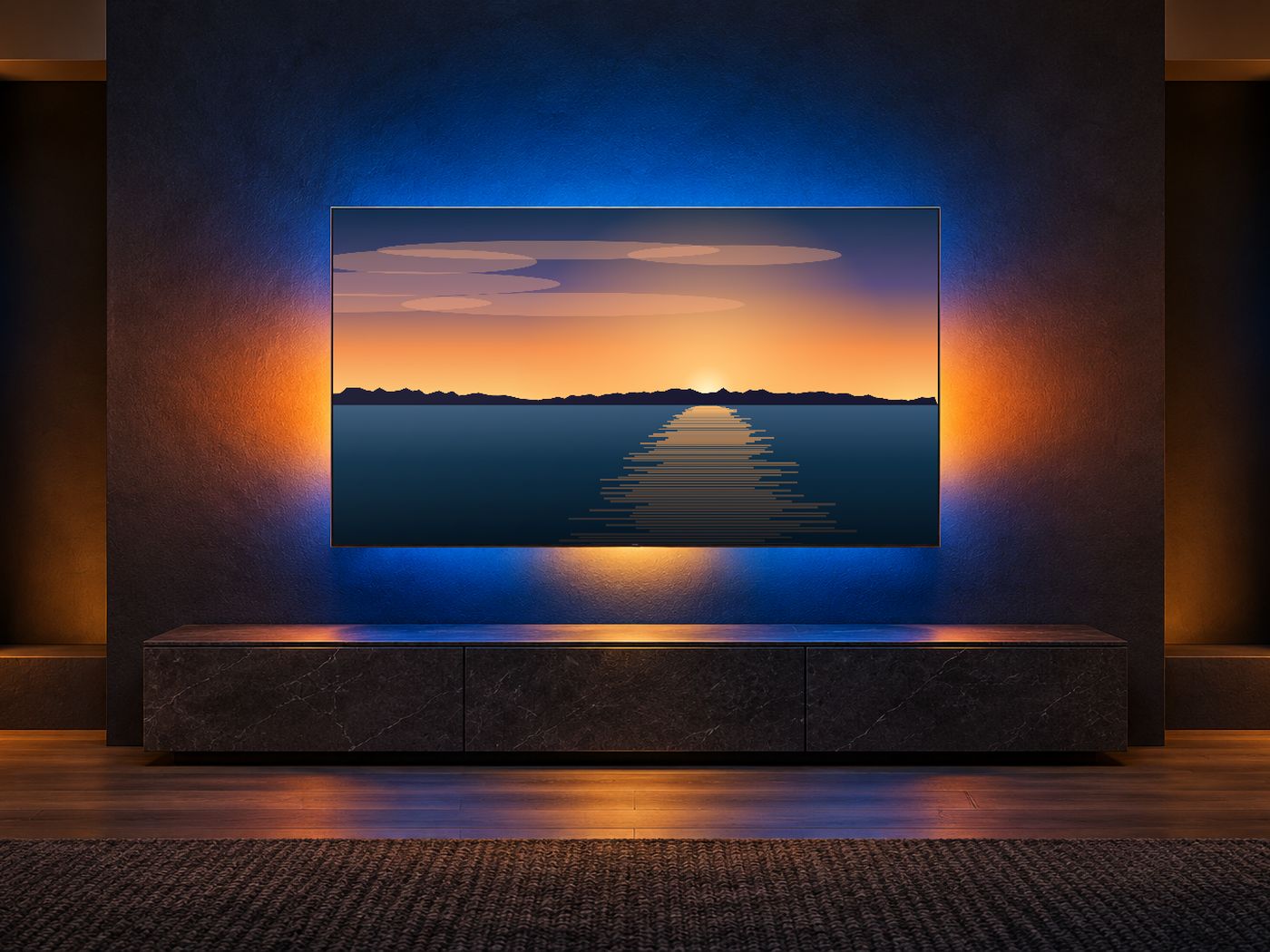
- Glow behind the TV (Room tab): on Video, 8 zones of the wall take the colours of the picture, live. Or pick one colour: White, Warm, Rose, Violet, Ice, Mint or Amber. Off turns it off.
- Strength sets how strong the glow is.
- The TV's room light adds Second Life's own light in the same colours. It shows best on a light wall.
The whole room plays along
Every light follows the video while it plays, and shows a home light when nothing is on. They link to your nearest Sync TV by themselves, also when you put them out before the TV.
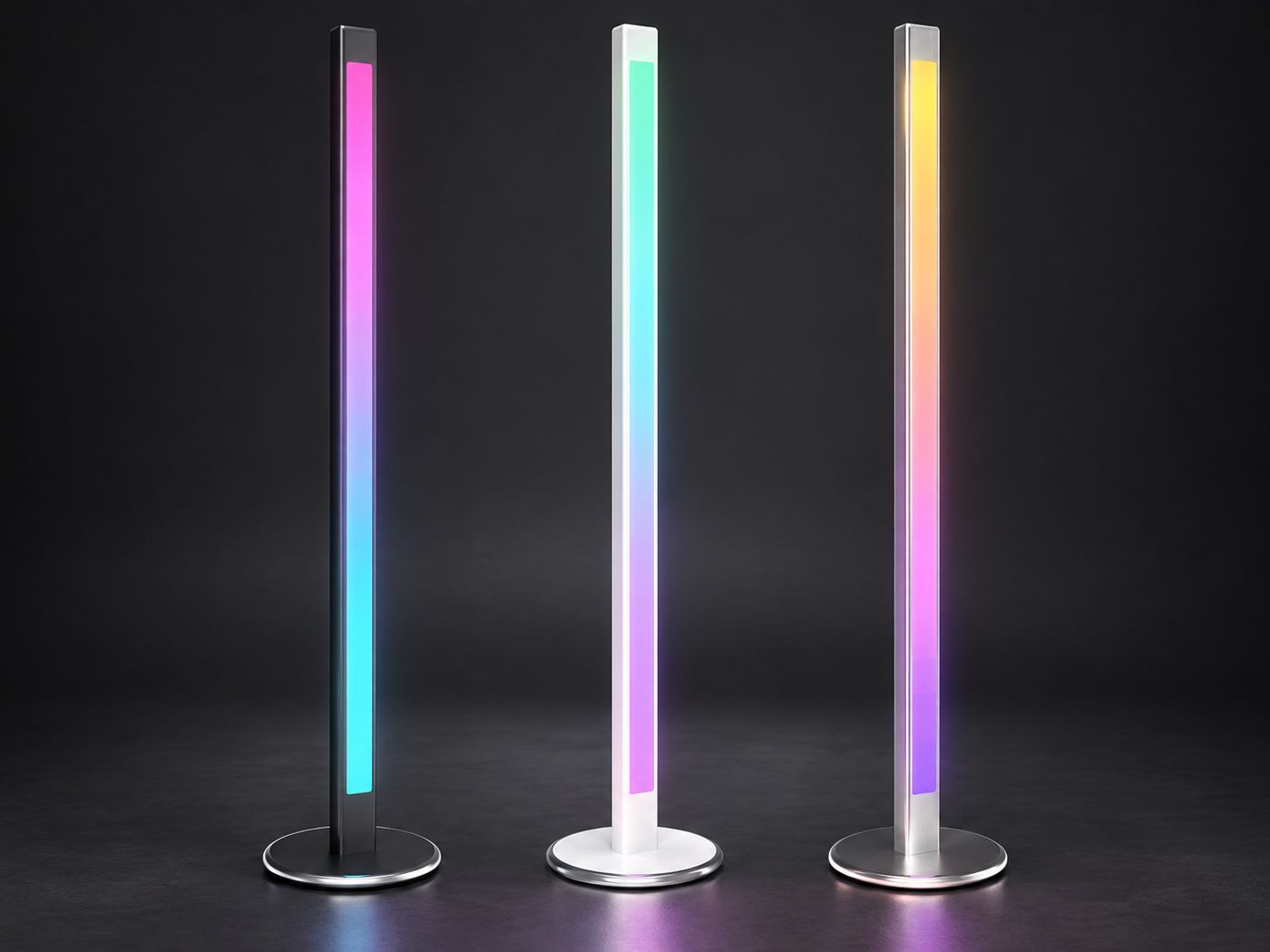
Sync Neon - Floor Lamp
The colours of its side of the picture run down the lamp, top to bottom. Noir, White or Aluminium.
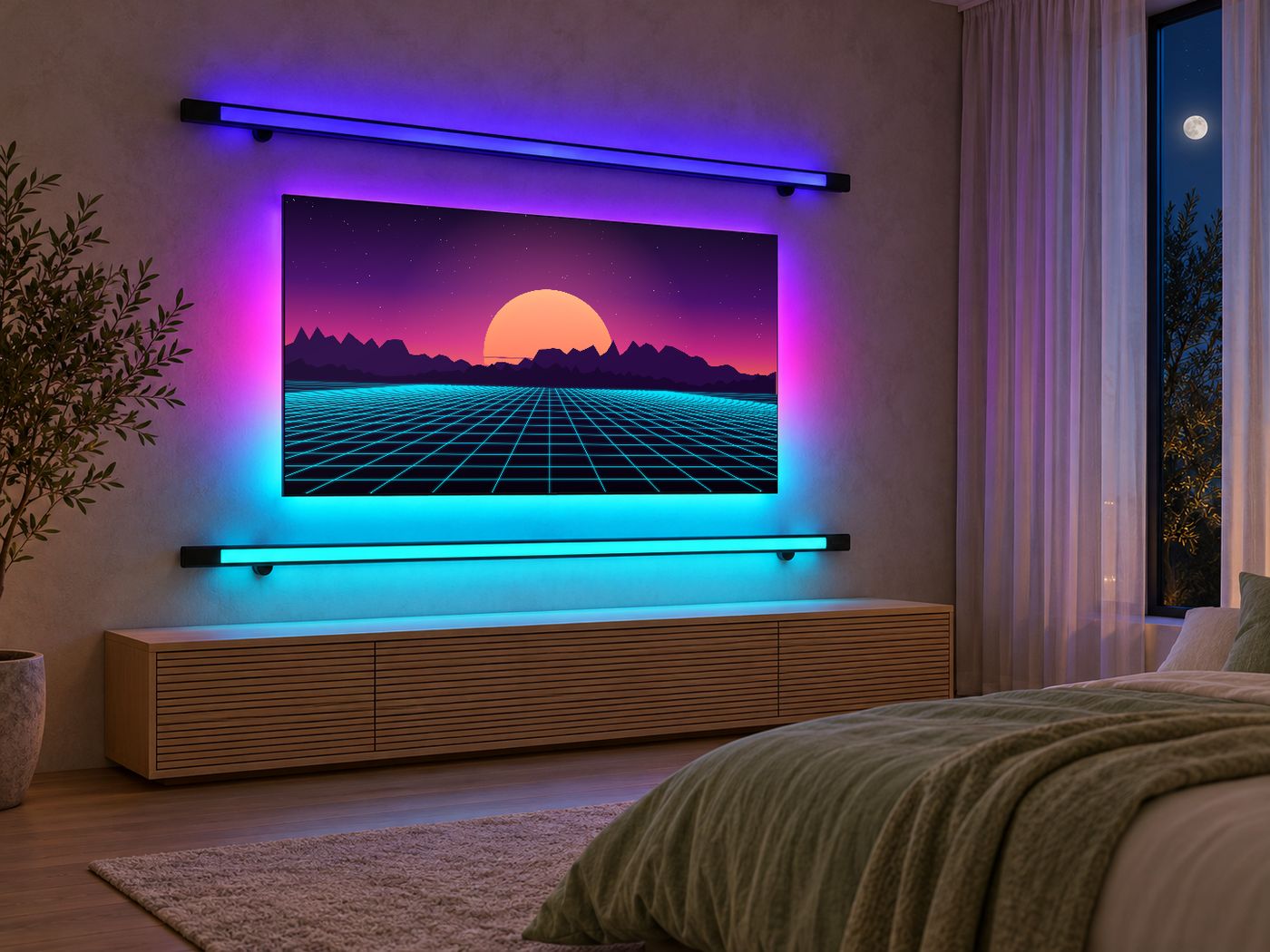
Sync Neon - Wall Bar
120 or 160 cm, above or below the TV: that edge of the picture runs along the bar, with a glow on the wall.
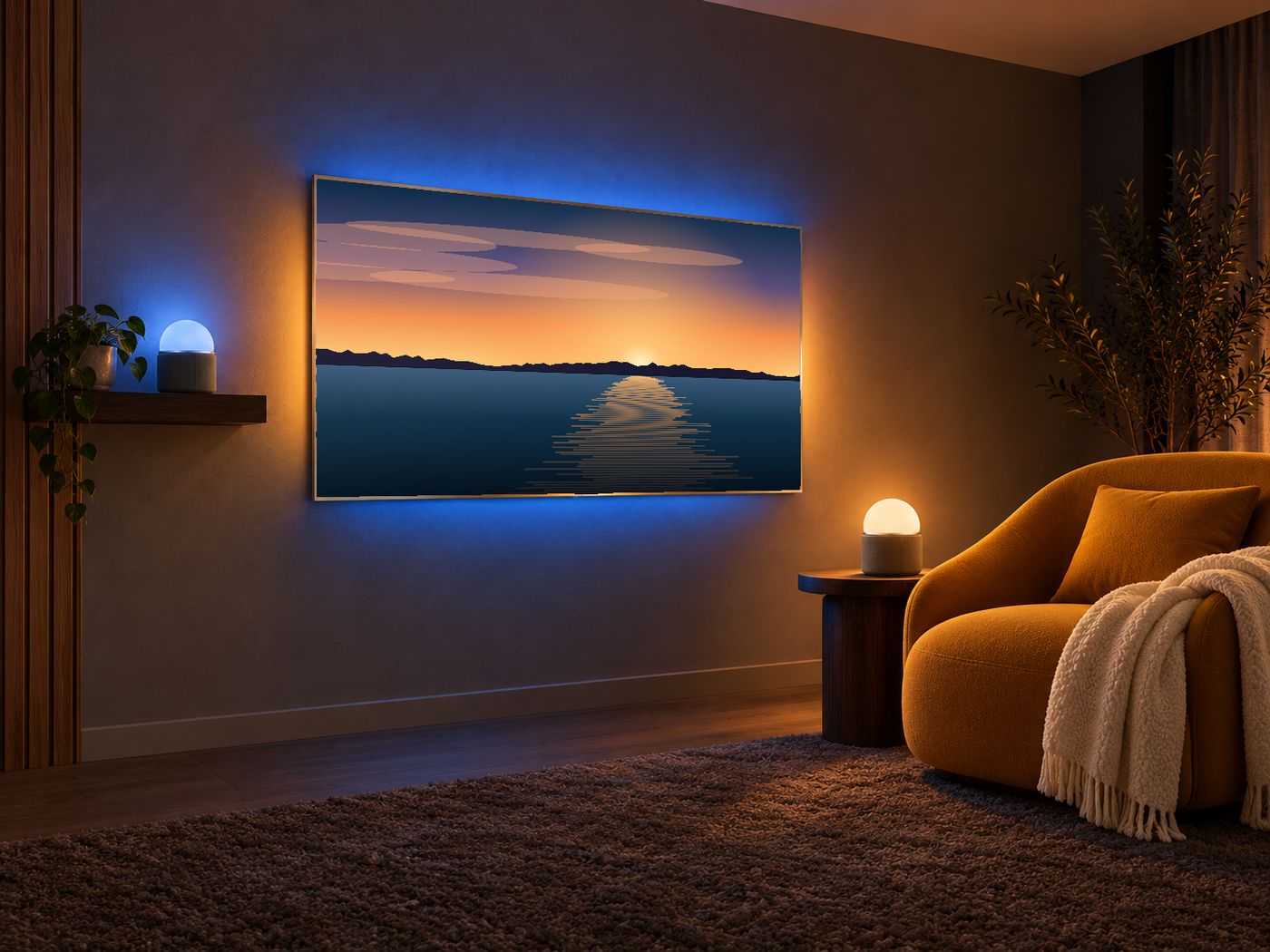
Sync Orb Light
A frosted dome on a fabric body. "Hide the dome" keeps only its light.
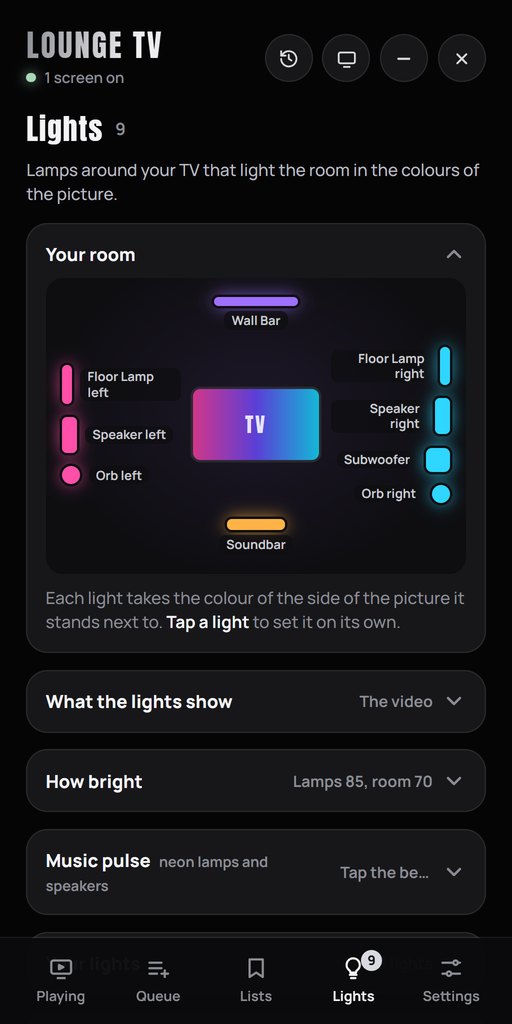
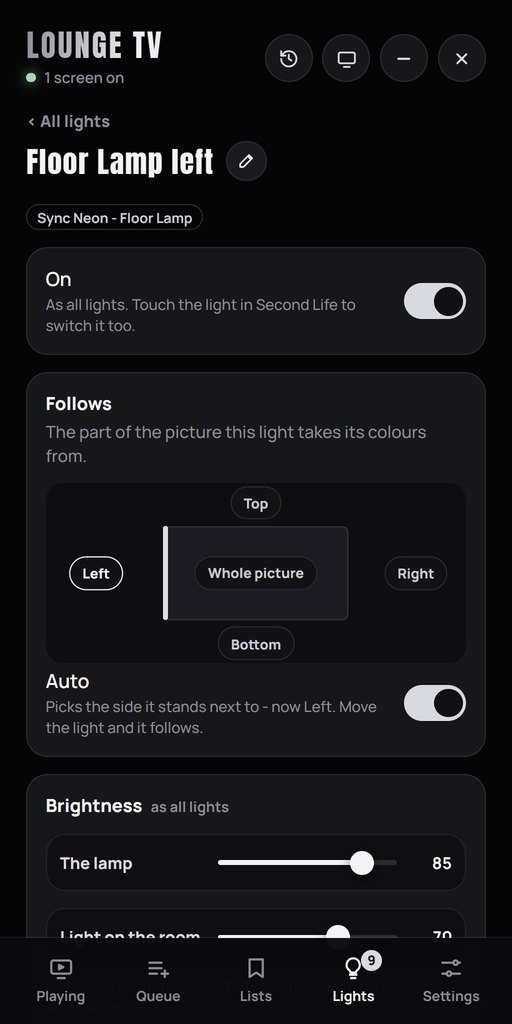
On the remote
- What they show: The video, Home light or Off - one switch for every device at once.
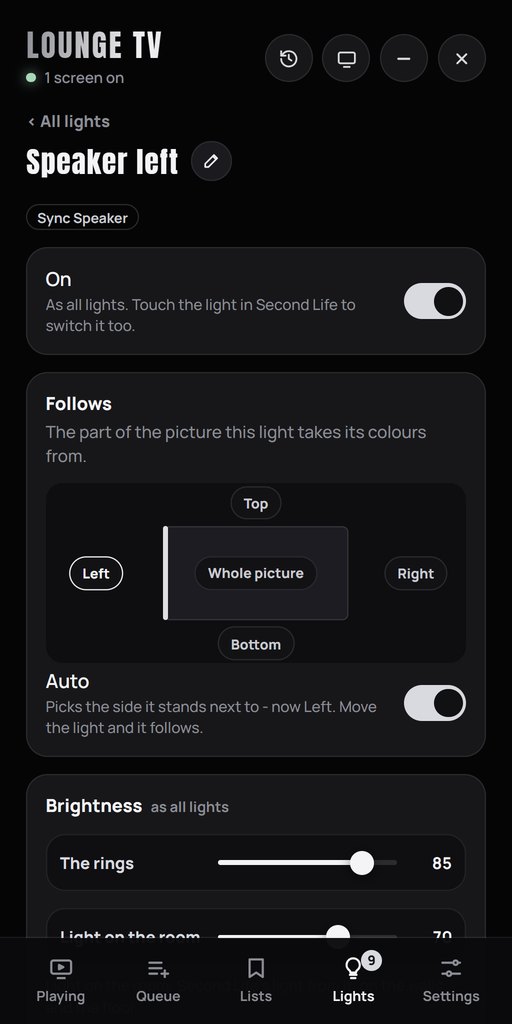
- Your room shows every device by its side of the TV. Tap one to set it on its own.
- Follows: Auto takes the side of the picture where the light stands, seen from the TV. Move the light and it follows. Or pick a side yourself.
- Brightness is the light itself; Light on the room is Second Life's light on the walls and the floor (with Reach and Softness).
- Home light for when nothing plays: Warm white, Cool white, any colour, Aurora, or Off.
- Look: Colour gradient and the Finish (Noir, White, Aluminium) on a neon lamp; Wall glow on a Wall Bar.
- The pencil next to its name renames it. Find them shows every device with its name; Find it shows one. Same as all gives a device the settings of all devices again.
Where to put them
- Floor lamps: one on each side of the TV, close to the wall.
- Wall Bar: above the TV (the top edge) or below it (the bottom edge). Let its wall plates touch the wall.
- Orbs: at TV height, 0.5 to 1 m from a wall. Light walls show the colours best.
Track BPM and adding from Queue
Owner: open a saved list and tap BPM beside a video, or use the BPM button on the playing track or a queued video. Enter 60–200 BPM (one decimal allowed) and Save. This tempo is remembered for that track across your TVs and lists, and used automatically when it plays. Use room tempo removes it. Tracks without a saved BPM keep each room’s manual tempo. Enable Pulse in Room separately; BPM controls tempo, not audio analysis or automatic beat detection. Tap the beat and +/- update the remembered value when that track has one. Photos have no BPM. Refresh the remote; no script replacement is needed.
Queue now has Filter queue and Add items. Filter still searches the existing queue. Add items offers the same YouTube search, video/photo links, Play now, Queue it and playlist actions as Playing. Switching modes keeps your text; adding does not leave an old filter hiding new items.
Set the beat in light
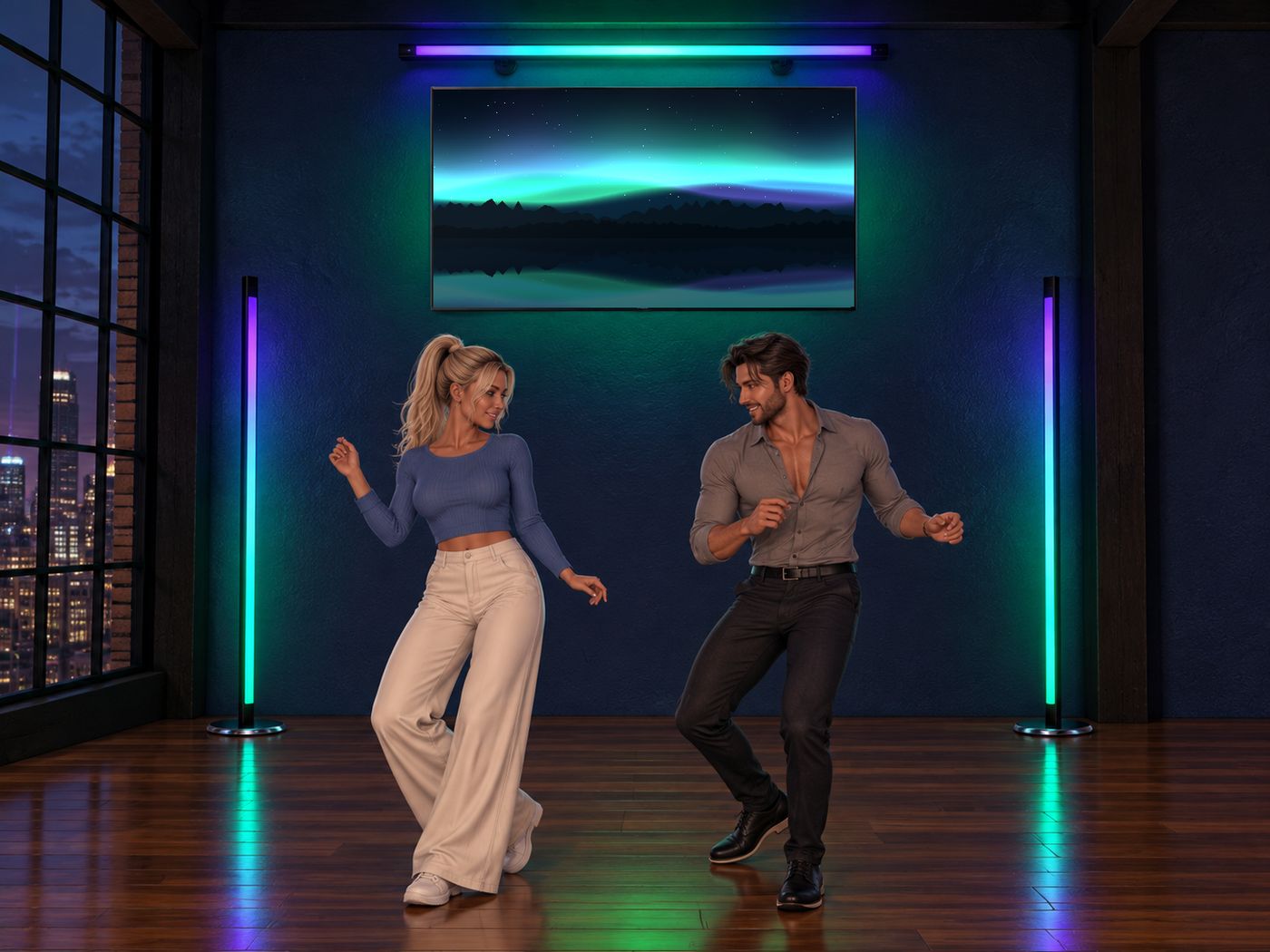
- Open Music pulseOn the Room tab.
- Tap the beatTap the big Tap button on the beat 4 times while the music plays. The lamps flash and the speakers kick on every beat.
- Fine-tuneWith - and +. The dot next to the tempo blinks on the beat the lights use. Tap again when the song changes.
Your room moves with the picture
A tower, a subwoofer and two soundbars. Their LED rings take the colours of the video, live, and their cones kick on the beat. An add-on for Sync TV, sold separately: get them on the Marketplace.
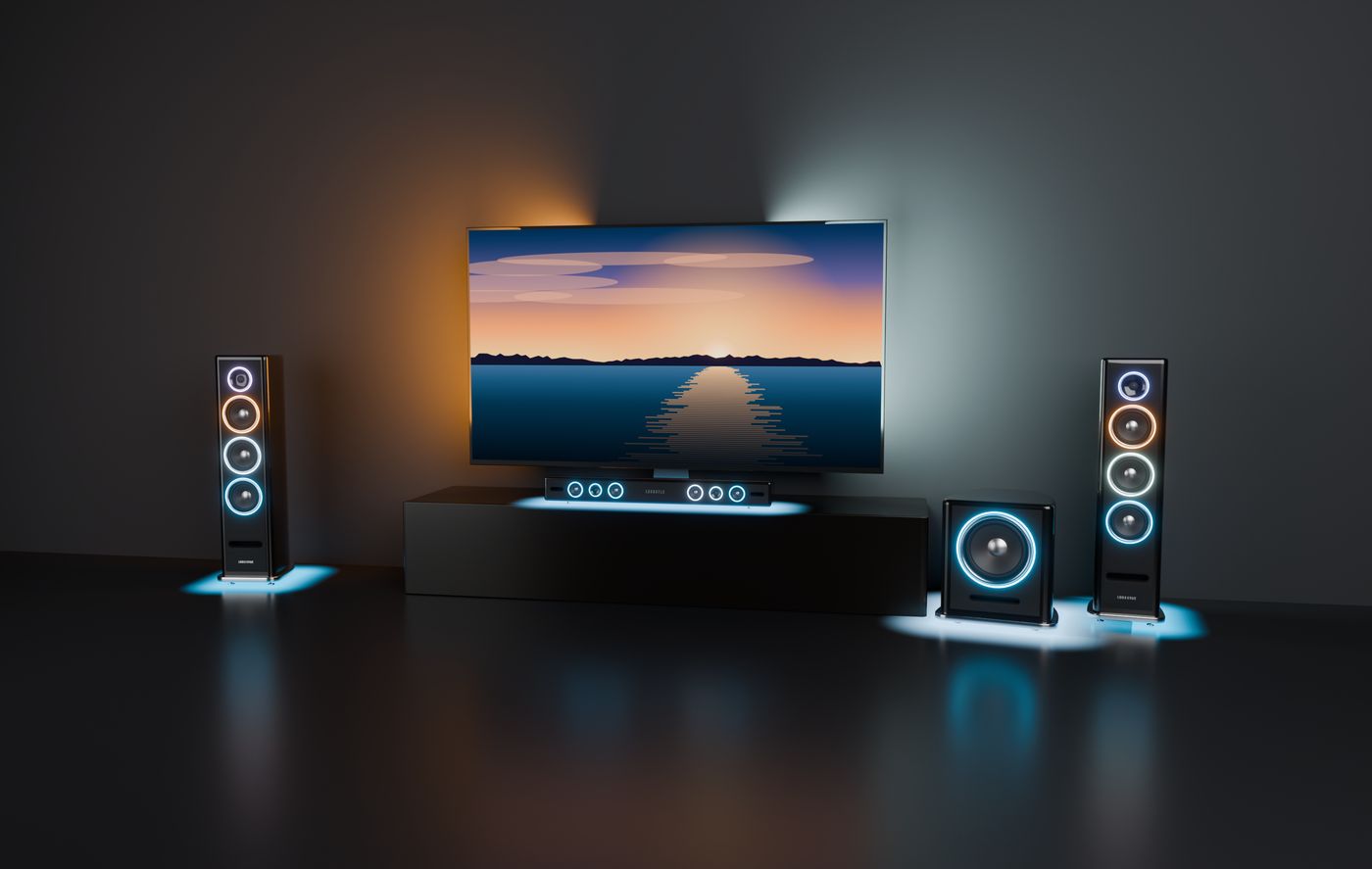
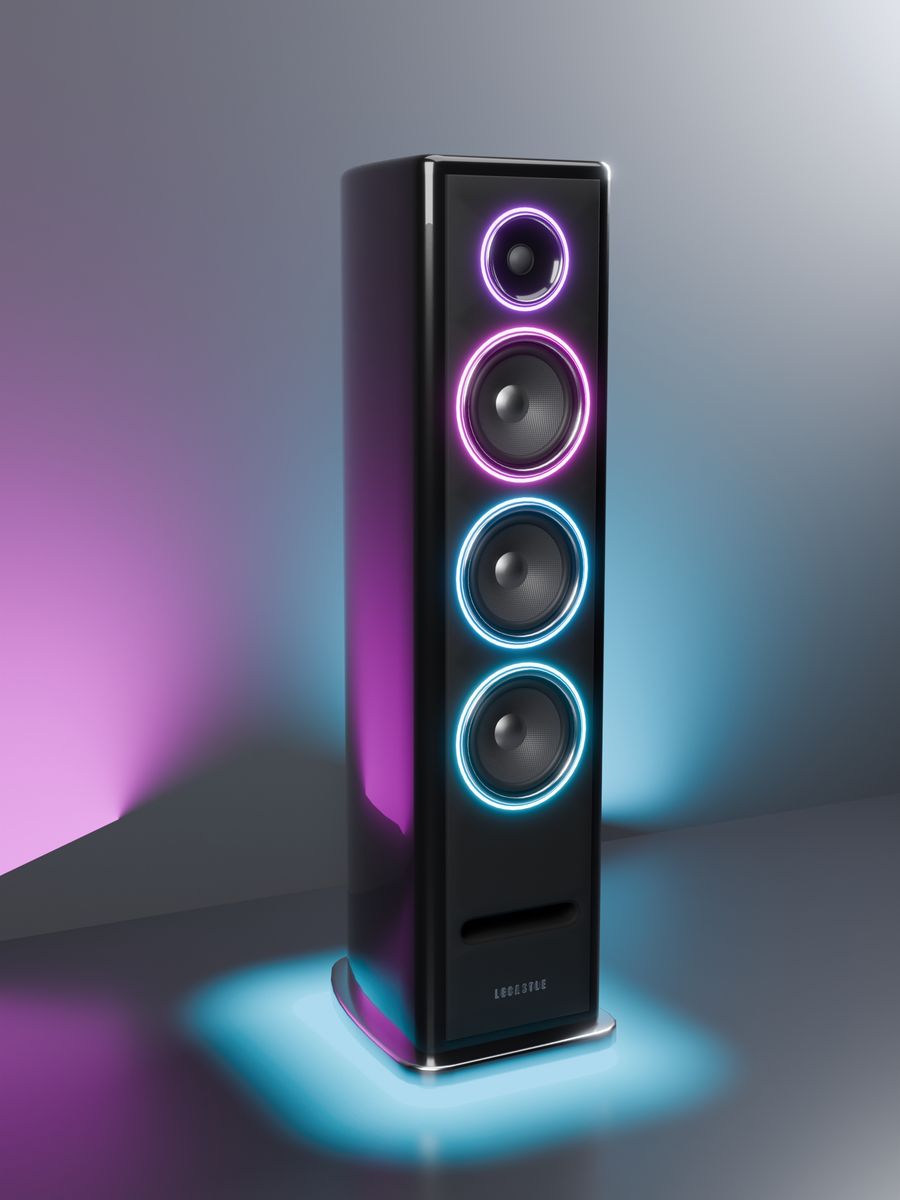
Sync Speaker
A 1.07 m tower. Its 4 rings take its side of the picture, top to bottom. A new scene sweeps down, the beat runs up. Floor glow.
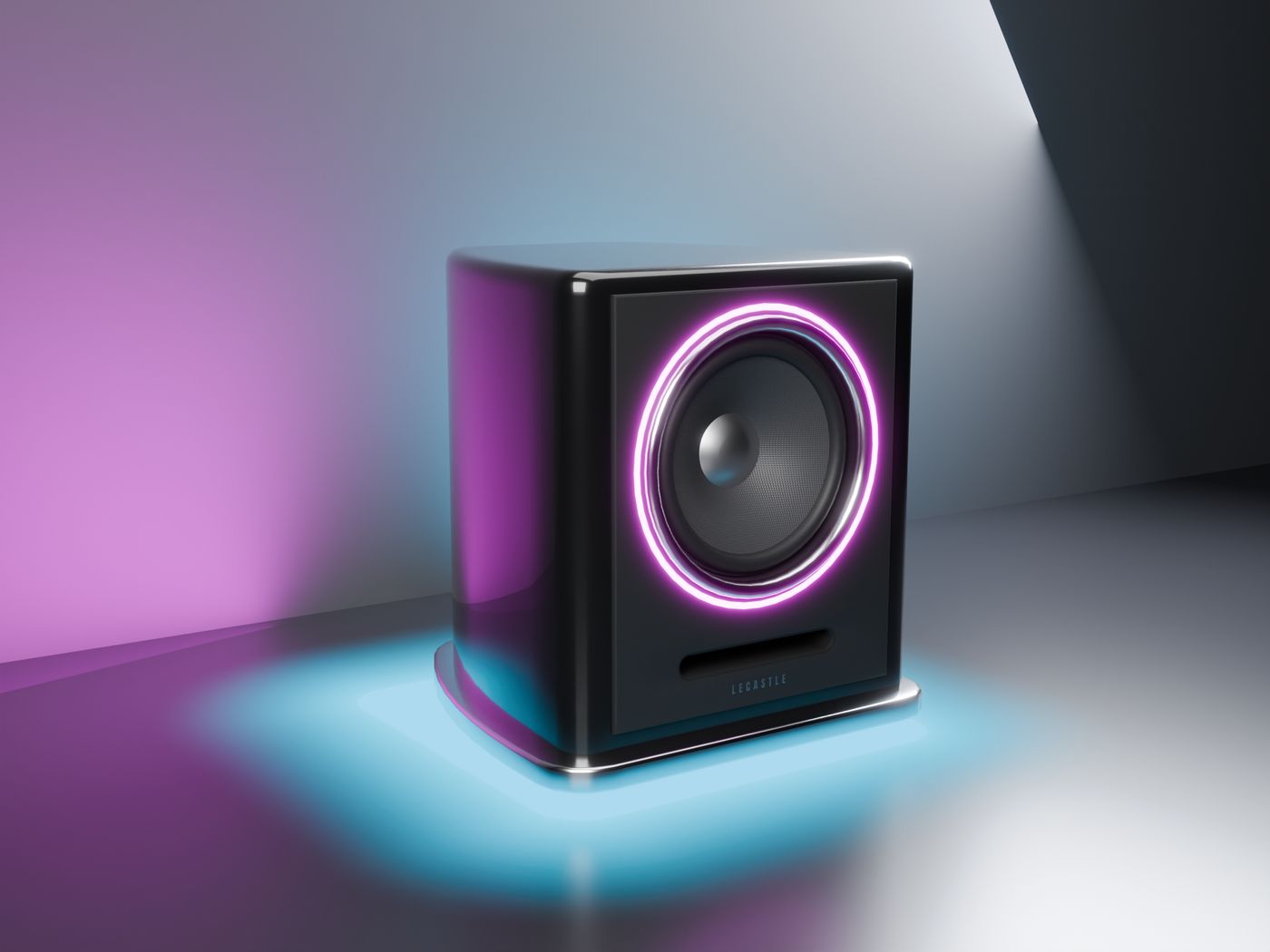
Sync Subwoofer
A 43 cm cube, an 11-inch woofer. One thick ring in the colour of the bottom of its side. Its cone kicks 8 mm.
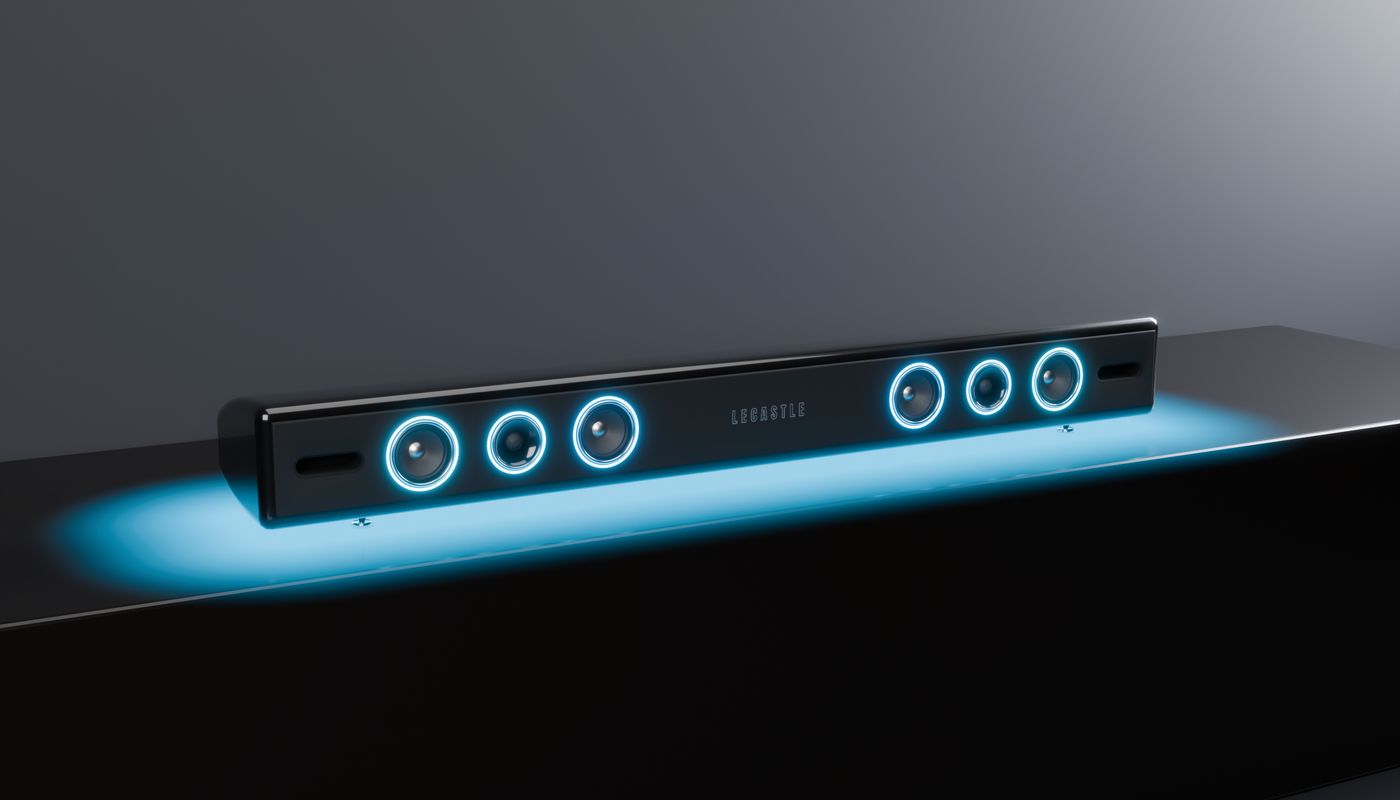
Sync Soundbar
1 m on four spikes. 6 rings along the edge of the picture it sits by, from the middle out. A glow on the table.
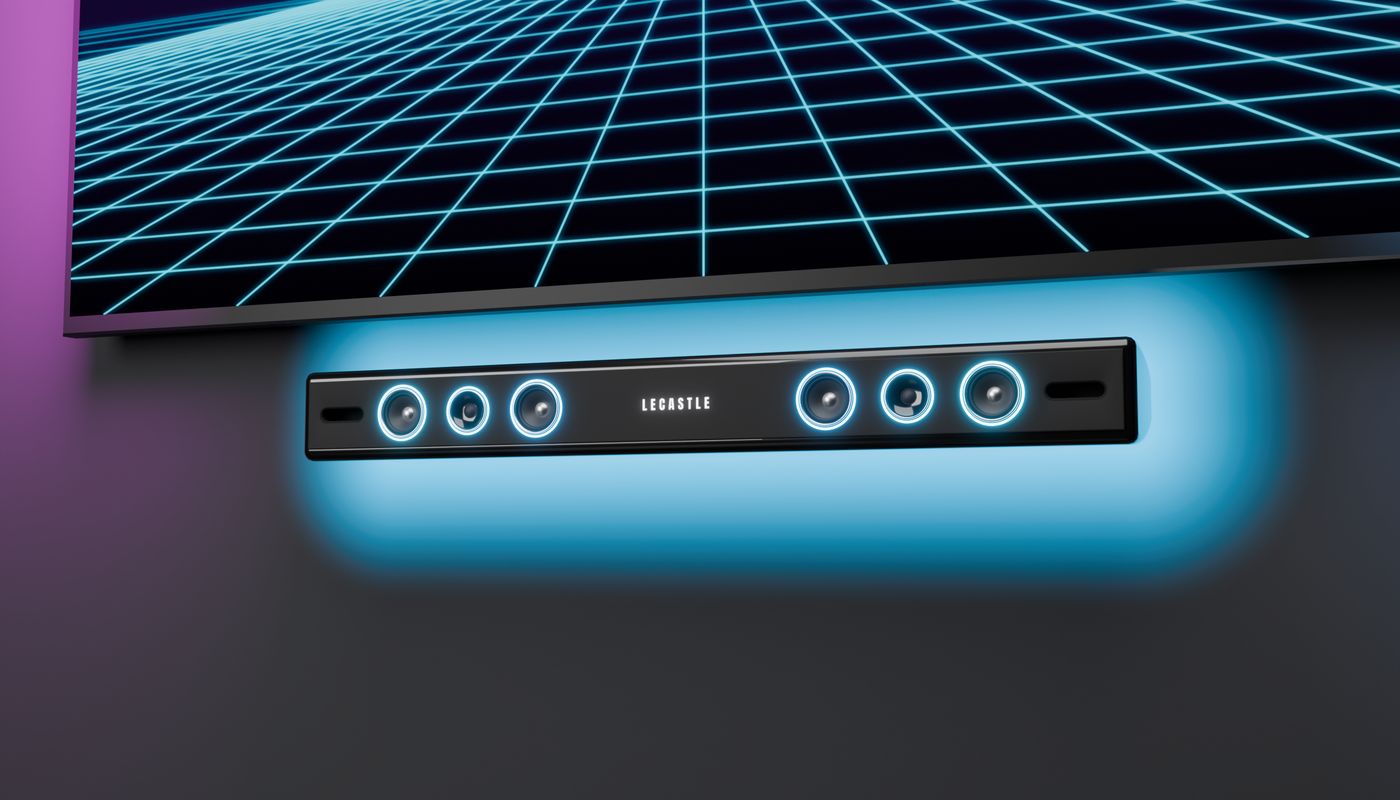
Sync Soundbar - Wall
The same on wall plates, 3 cm off the wall, under or above the TV. A glow on the wall.
Set them up
- Rez the speakers near your Sync TVIn the same region, with the same owner. They need the TV.
- They link by themselvesAnd show on the remote's Room tab, next to your lamps and orbs.
- Turn on Music pulseRoom tab > Music pulse > Tap the beat: the rings flash and the cones kick.
Where to put them
- Towers: one on each side of the TV.
- Subwoofer: on the floor next to the TV.
- Soundbar: on the console under the TV (the bottom edge) or on a shelf above it (the top edge).
- Wall Soundbar: on the wall under or above the TV, its plates touching the wall.
A box for the console
A set-top style box with the SYNC mark, and its aluminium remote. It plays nothing itself: the light strip round its base and the small light on its front take the colours of the picture, and a touch gives you your remote's link. An add-on for Sync TV, sold separately: get it on the Marketplace.
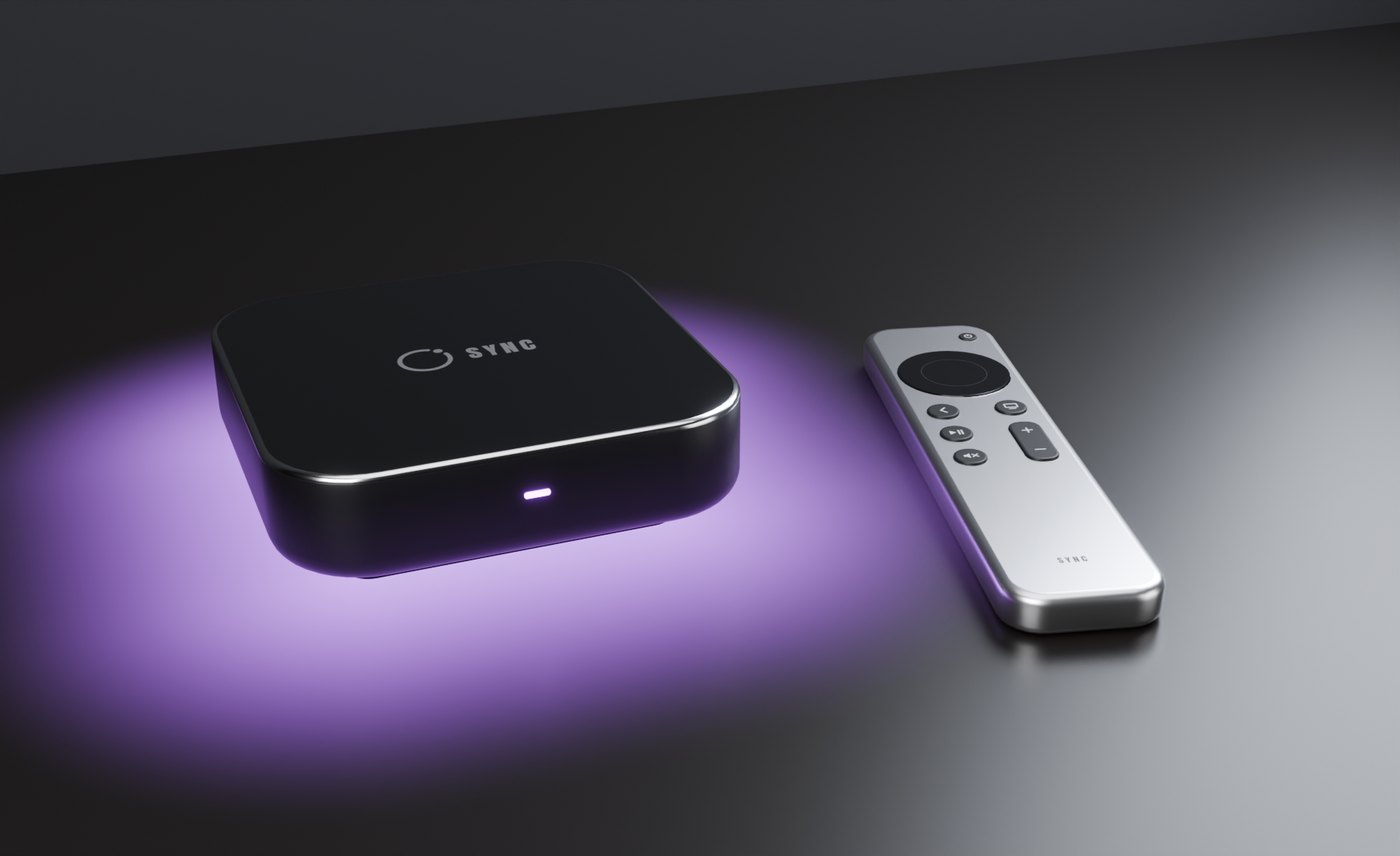
- Rez it near your Sync TVOn the console under the TV, in the same region, with the same owner.
- It links by itselfAnd shows on the remote's Room tab as Sync Box, under the TV.
- Touch it for your remoteYour Sync TV remote's link comes in local chat, only to you. Touch the Sync Remote for the same link.
- The light takes the bottom of its side of the picture (under the TV, the picture's bottom edge), with a soft glow on the table. It flashes with Music pulse.
- Finish: the TV's 10 finishes, from Noir to Midnight, in its Look box on the remote.
- Guests who touch it are told to touch the TV.
A cinema in your room
A motorised projection screen, a projector that lights its beam in the colours of the film, and the room lights. The Sync Screen is a full Sync TV: it plays everything itself, and the remote works the same.
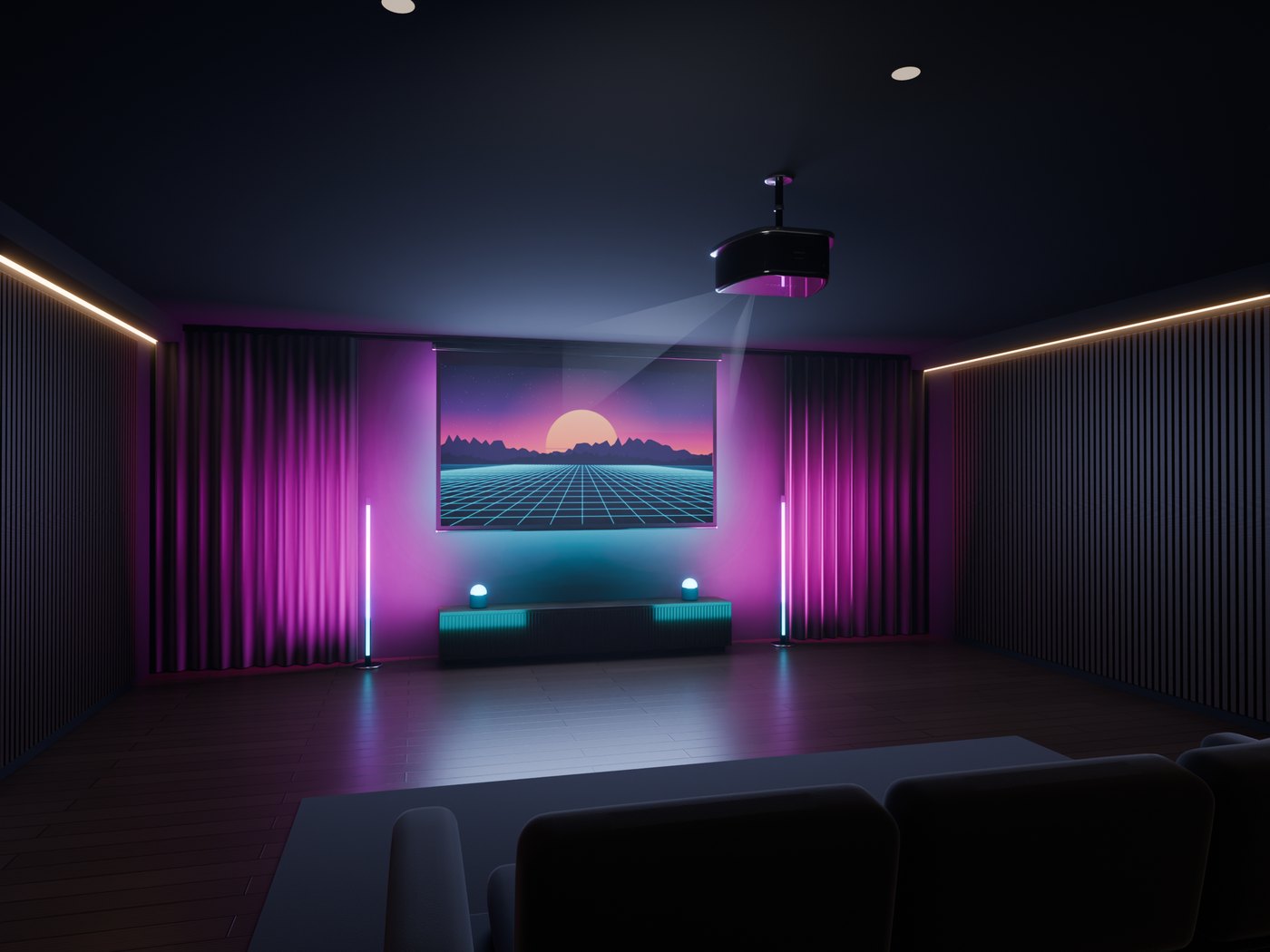
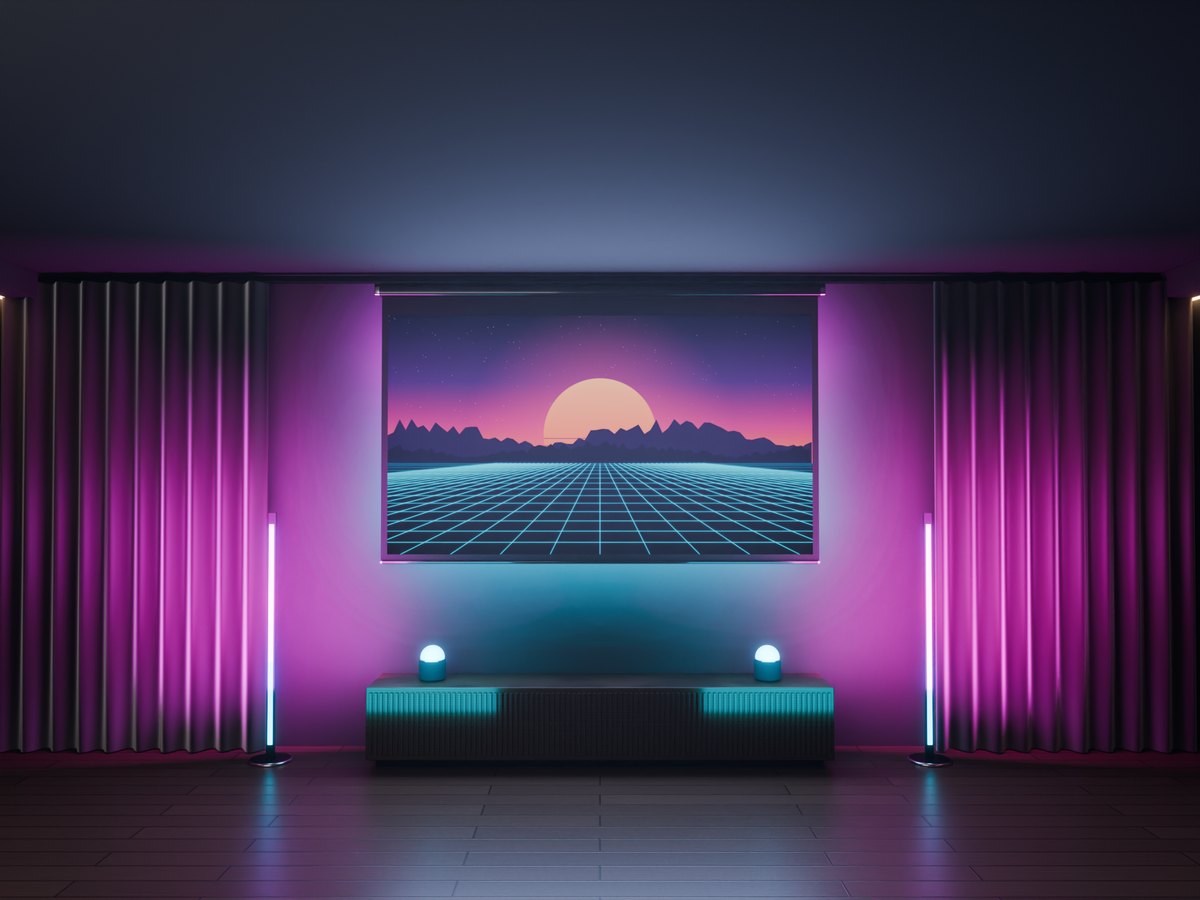
Sync Screen
120 inches in a wall cassette. It rolls down when a video starts and up when nothing has played for 20 seconds.
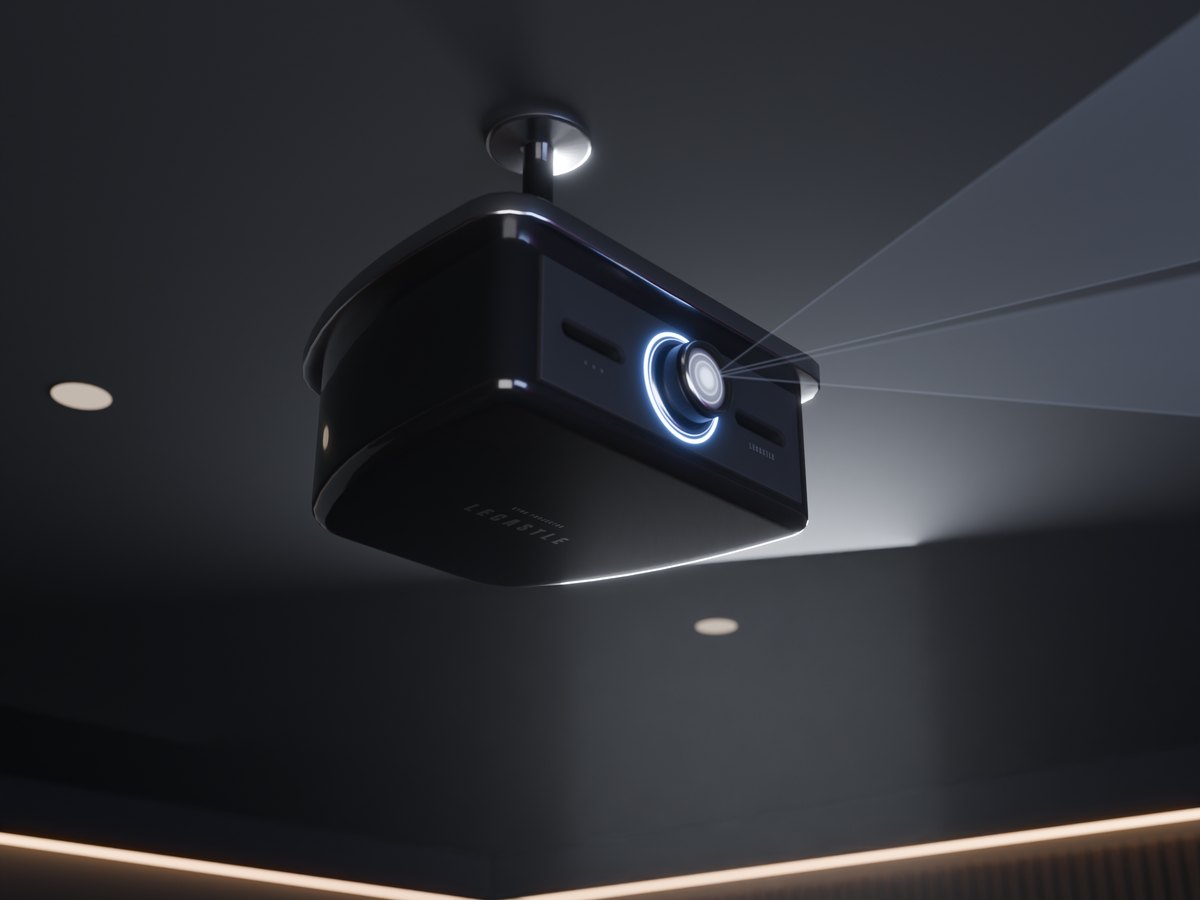
Sync Projector - Ceiling
On a pole, its round plate on the ceiling. The LED ring and the lens take the picture's colours.
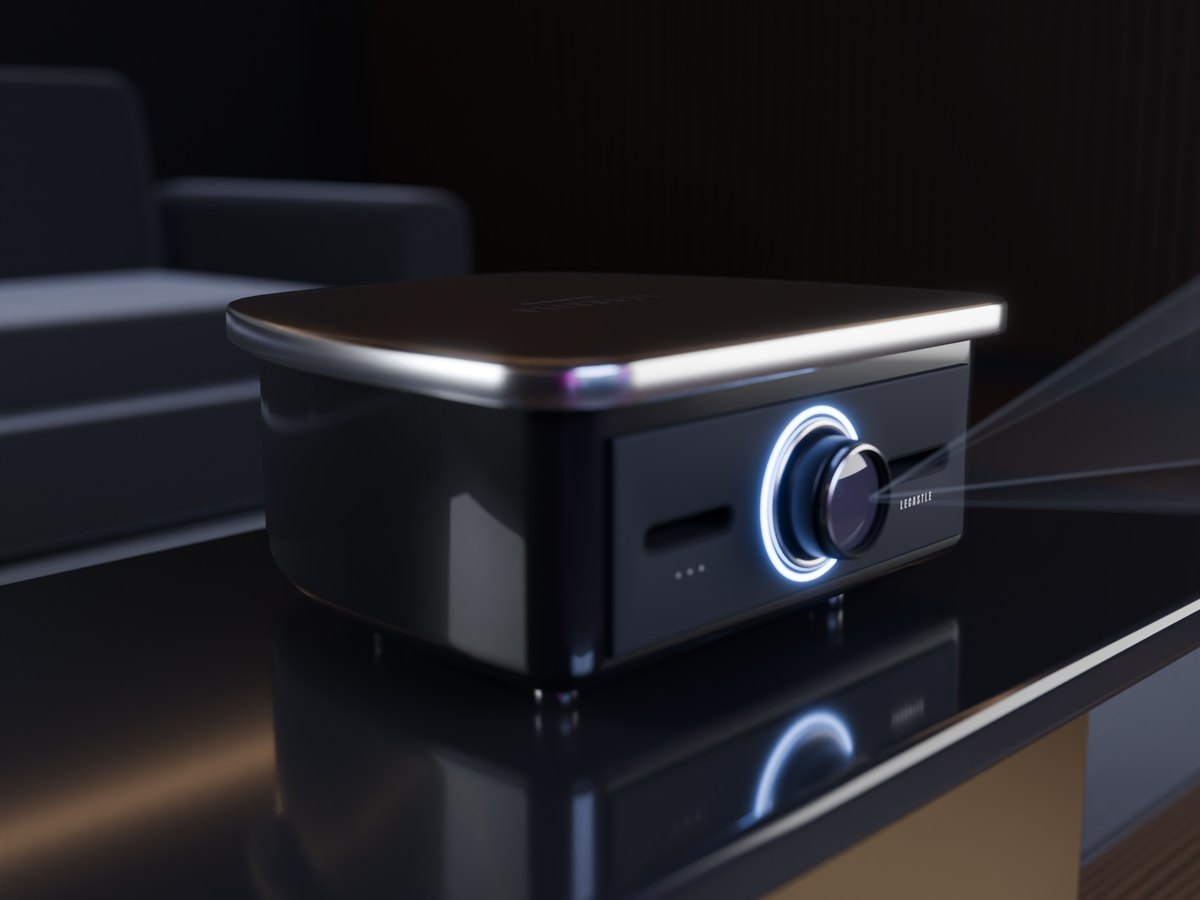
Sync Projector - Desk
The same projector on four feet, for a table or a shelf. Both projectors are in the box.
Set it up
- Put the screen on a wallHigh up, under the ceiling, its flat back against the wall.
- Rez a projector in front of itTurn its lens toward the screen. It links to the screen by itself.
- Touch the screen and playThe screen rolls down, the beam lights up and the film starts.
On the remote
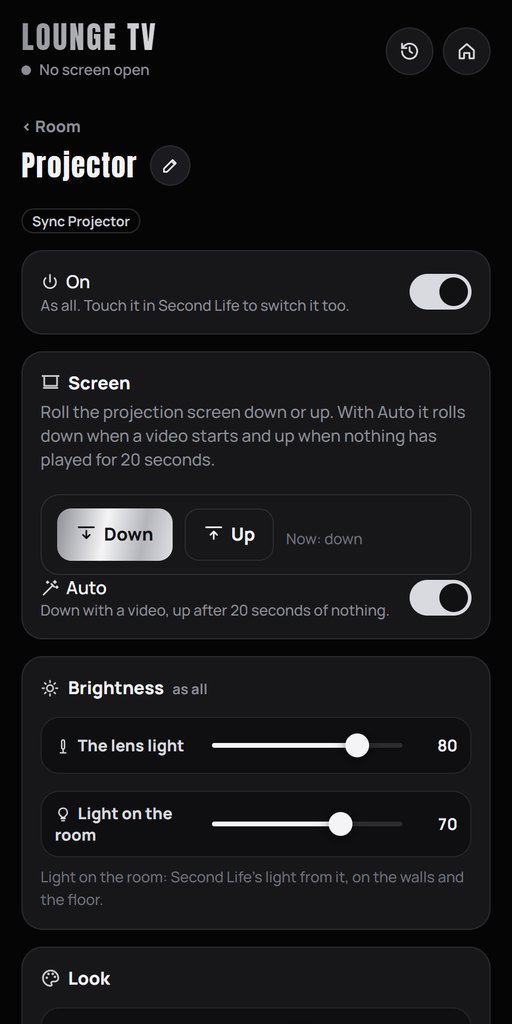
- Screen: Room tab, tap the projector: Down, Up and Auto. With no projector, it is in Settings > Look.
- Beam: the beam shows while the screen is down and a video plays. Its Look box sets how strong it is.
- Linked TV: with more than one Sync TV, move the projector to the right screen.
A club in your room
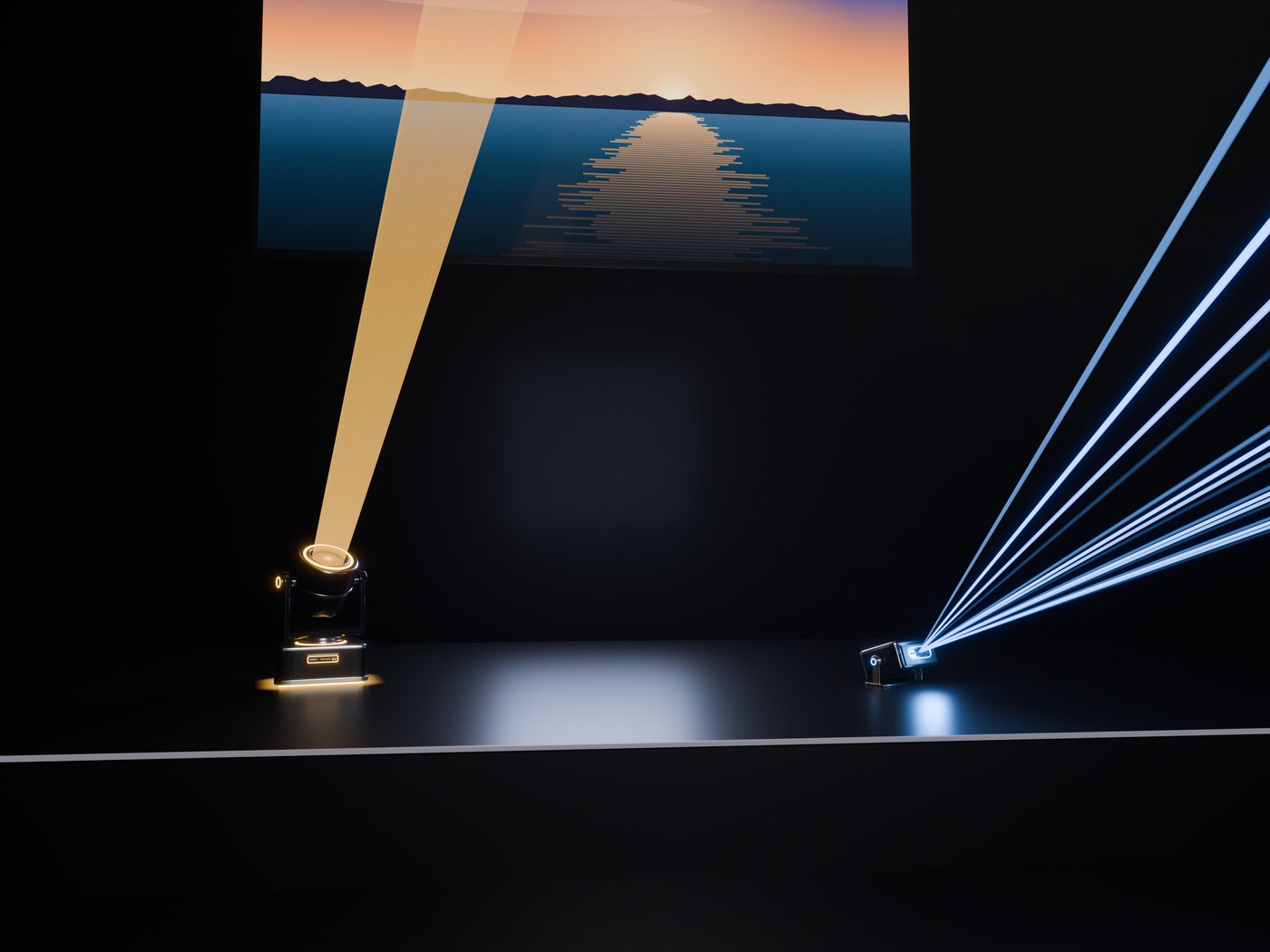
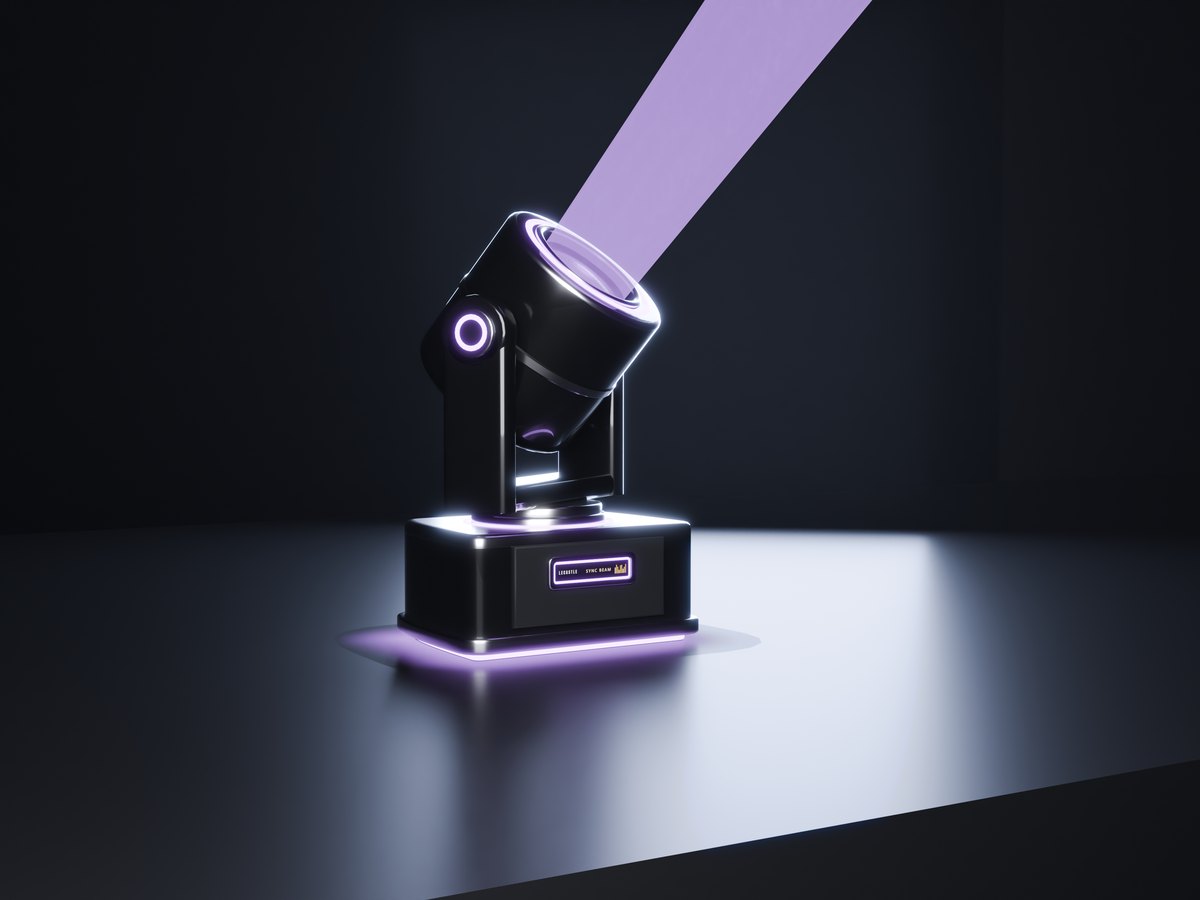
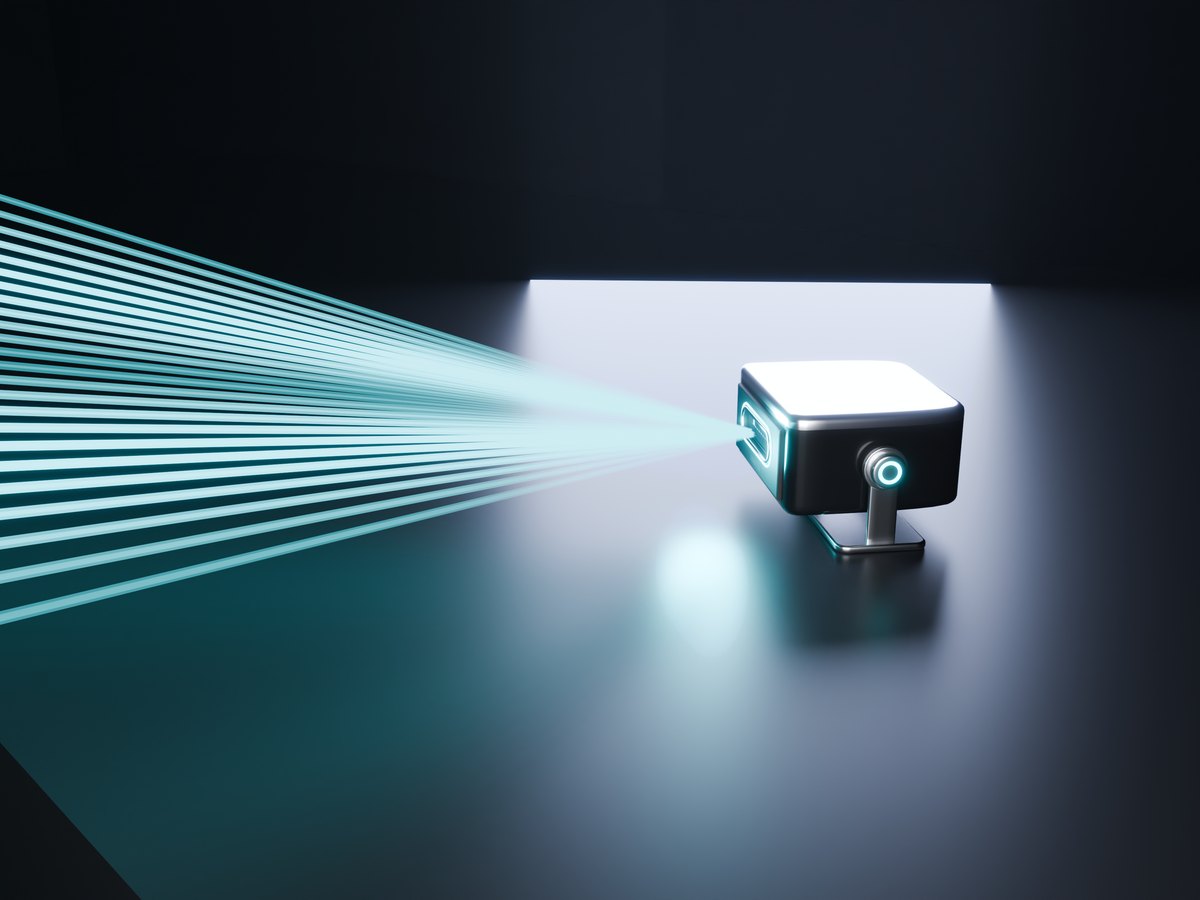
A moving head and a laser for your Sync TV's light show. Their beams take the colours of the picture, live, and they move and flash on the beat. An add-on for Sync TV, sold separately: get it on the Marketplace.
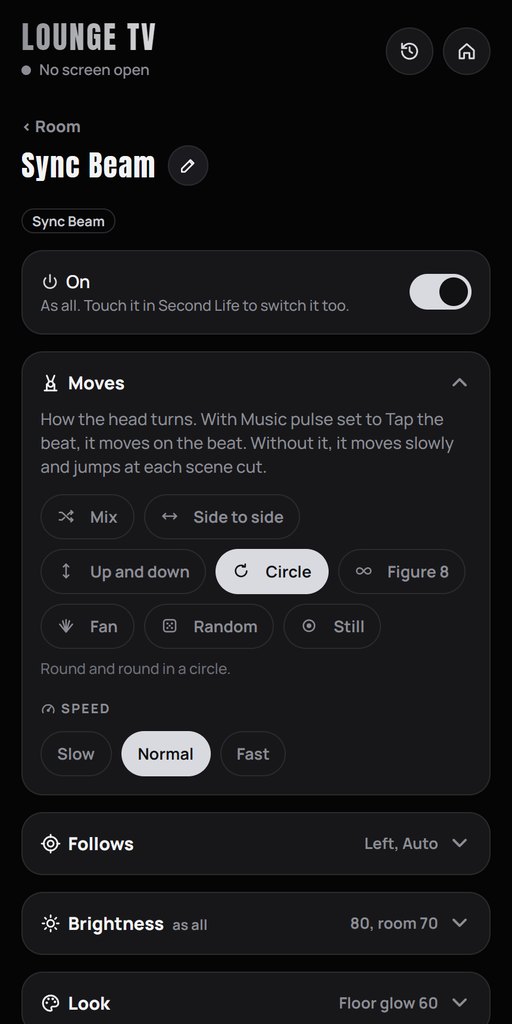
Sync Beam
A 50 cm moving head. Its head turns and tilts, and a spot of light falls where its beam lands. 8 smooth moves.
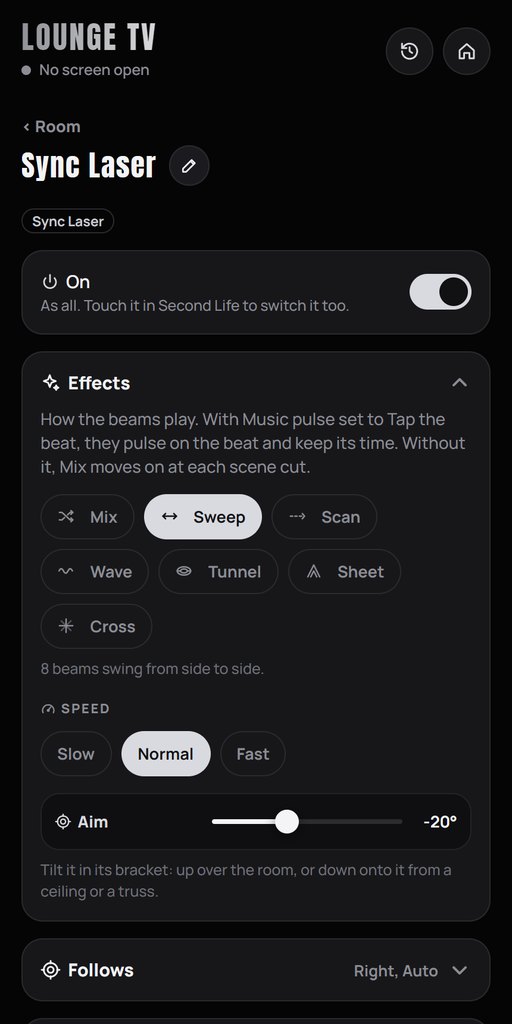
Sync Laser
24 real beams in a flat fan, a standing fan and a cone, sharp at any distance. It tilts in its bracket.
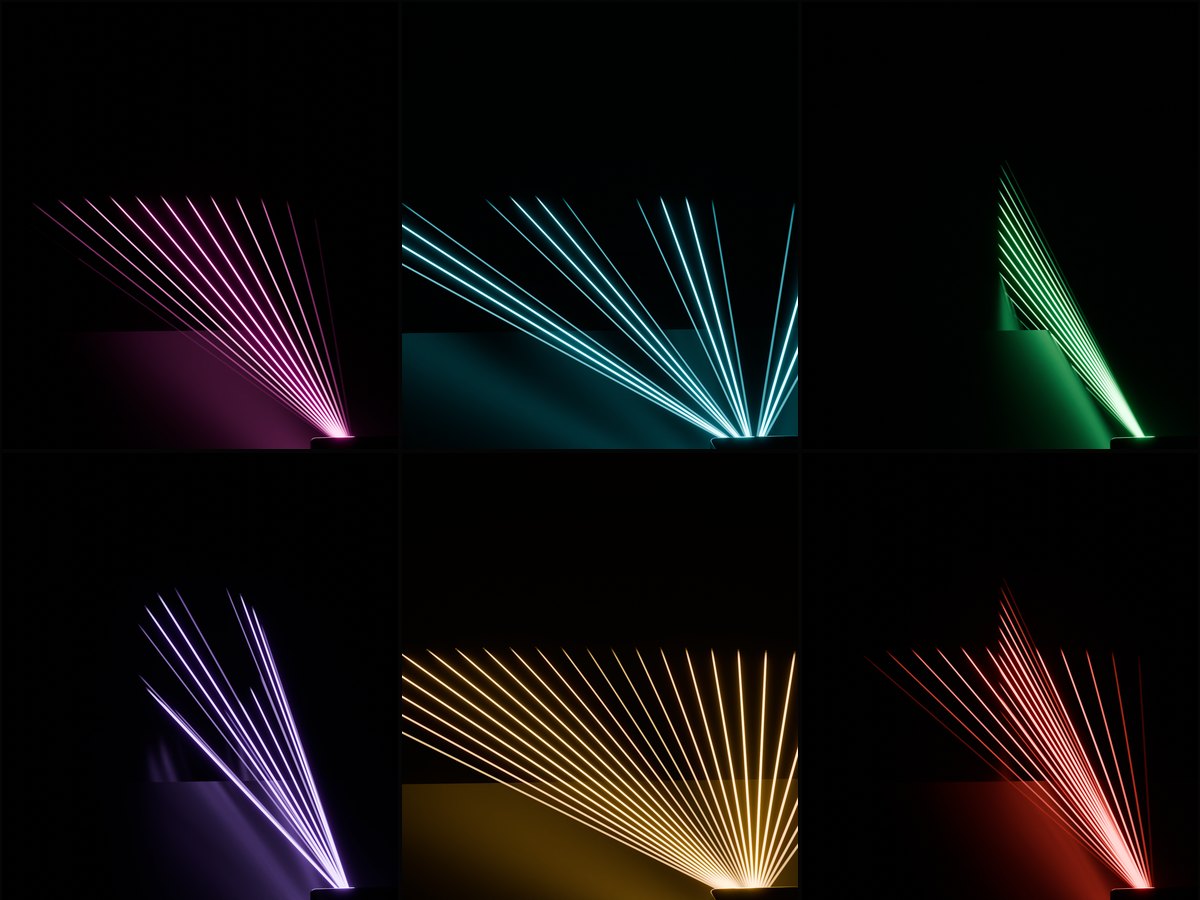
Six effects
Sweep, Scan, Wave, Tunnel, Sheet and Cross, or Mix: a new one every few figures.
Set them up
- Rez them near your Sync TVIn the same region, with the same owner. On a stage, a table or the floor, or upside down from a truss.
- They link by themselvesThey blink white and show on the remote's Room tab as Beam and Laser.
- Pick their movesRoom tab, tap a light. Touch a light in Second Life to switch it on or off.
On the remote
- Moves: Mix, Side to side, Up and down, Circle, Figure 8, Fan, Random and Still, at Slow, Normal or Fast.
- Effects: Mix, Sweep, Scan, Wave, Tunnel, Sheet and Cross.
- Aim: tilt the laser from 60 degrees down to 45 up. Hung upside down, it turns over by itself: down still points at the room.
- On the beat: Room tab > Music pulse > Tap the beat. The moving head keeps the time and the laser pulses on every beat.
Light on every wall
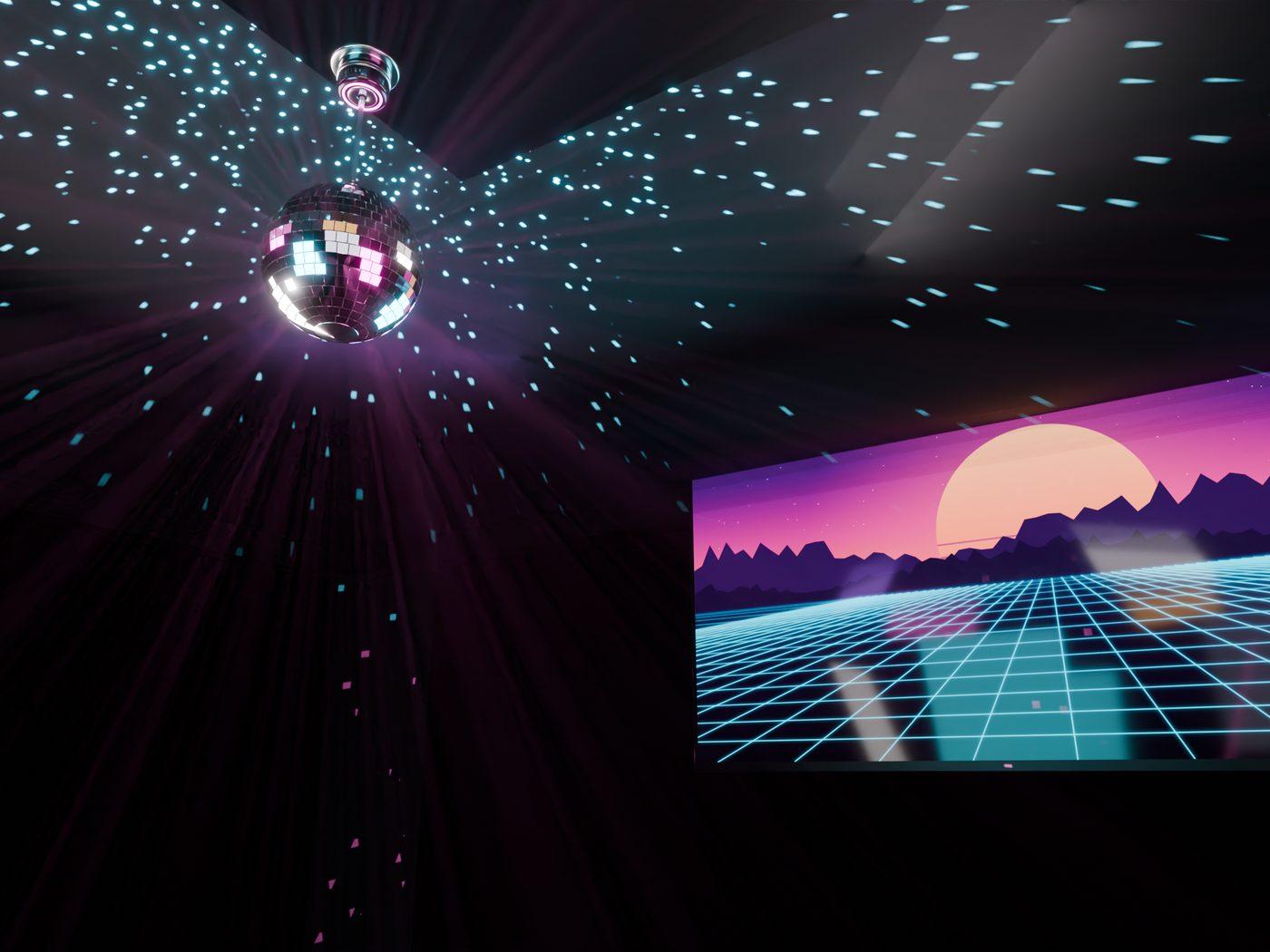
A real mirror ball for your Sync TV's light show. As it turns, its light dots sweep the walls, the floor and the ceiling in the colours of the picture, and flash on the beat. An add-on for Sync TV, sold separately: get it on the Marketplace.
A real mirror ball
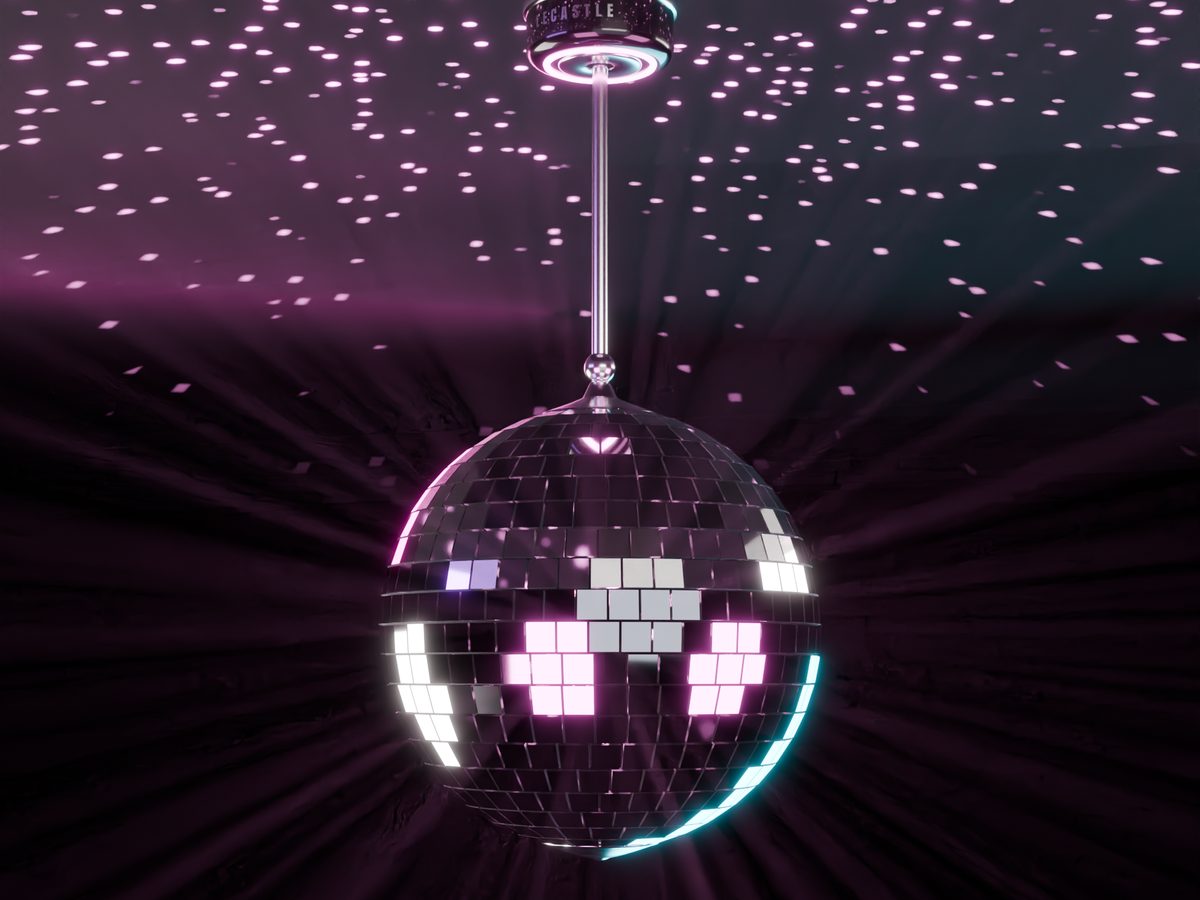
30 cm and about 1,100 mirror tiles, on a motor that hangs from the ceiling. The ball turns; the motor stays still.
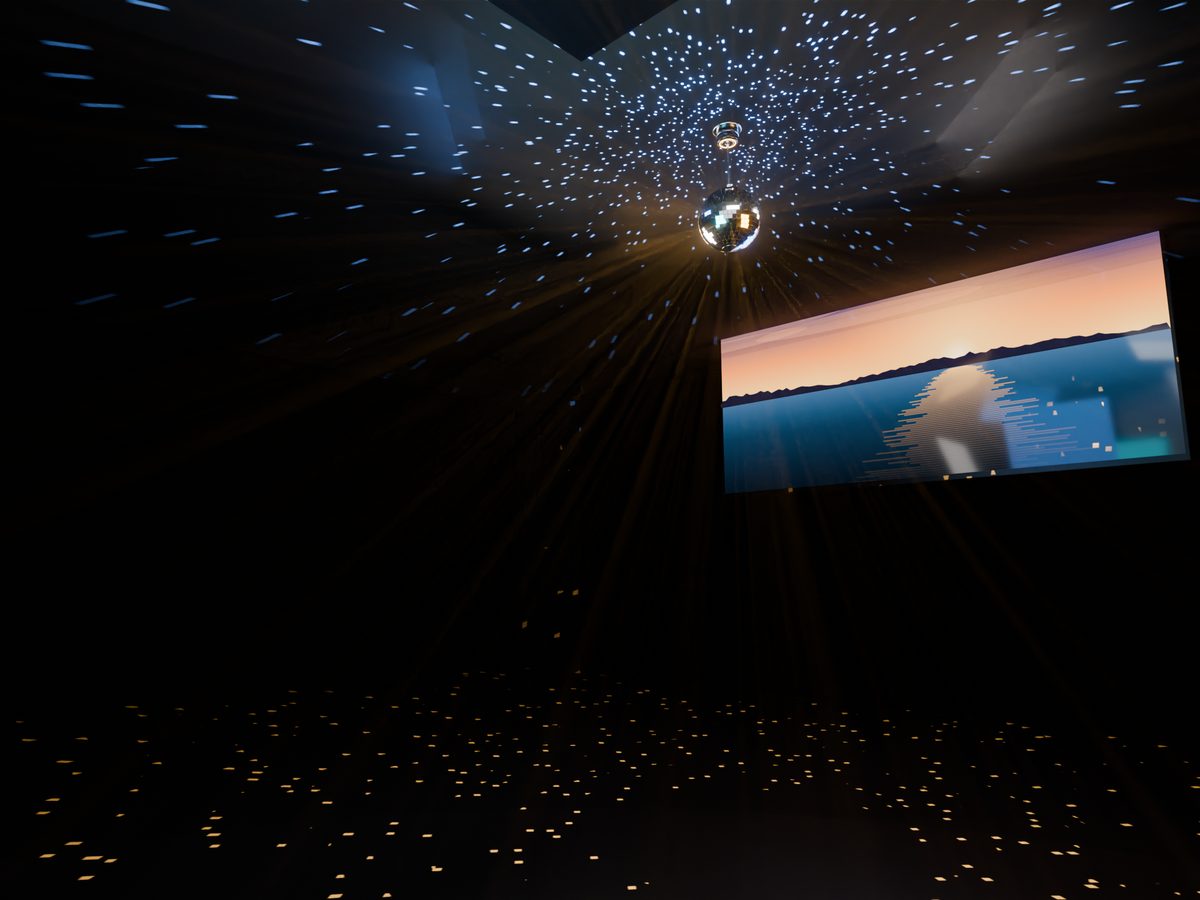
One colour or two
One colour from the part of the picture it follows, or two: the dots under the ball take the left of the picture, the dots over it the right.
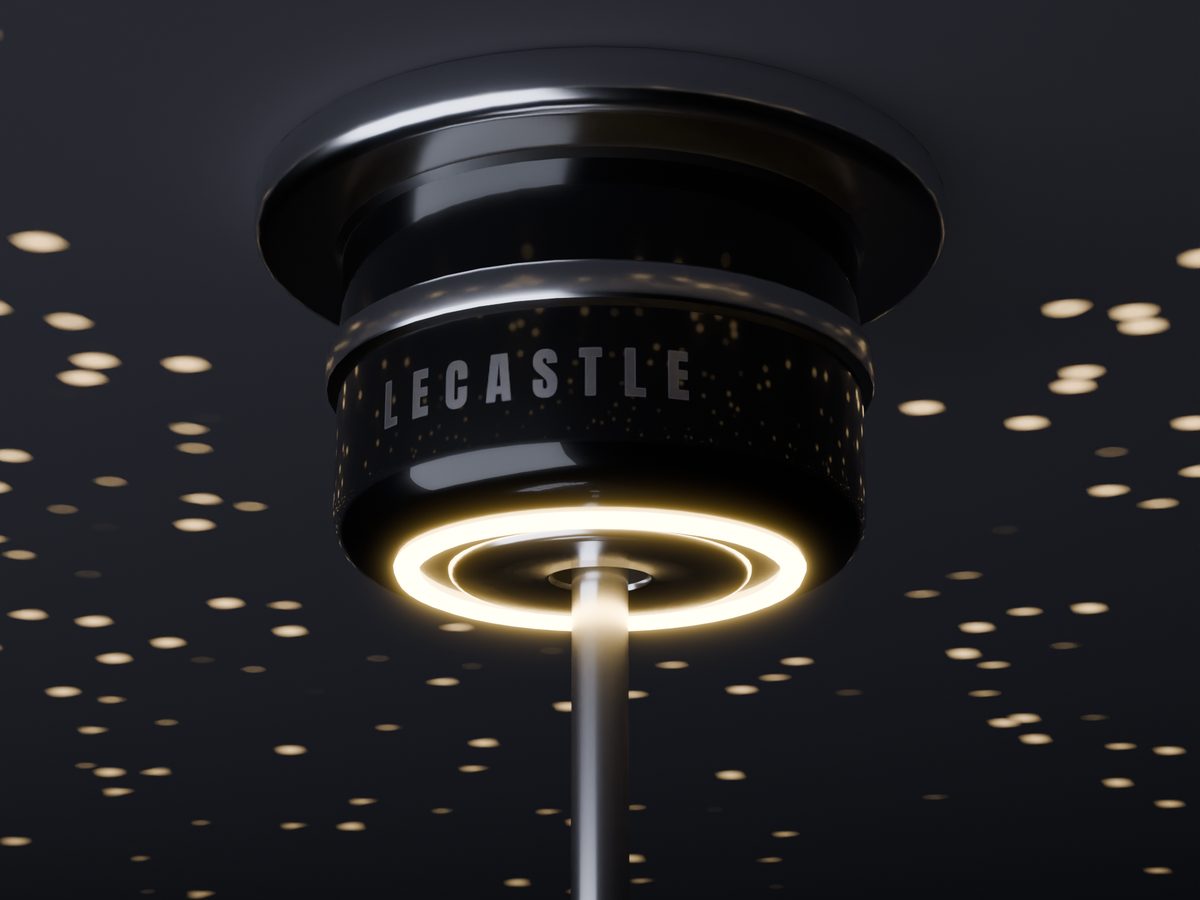
The gold ring
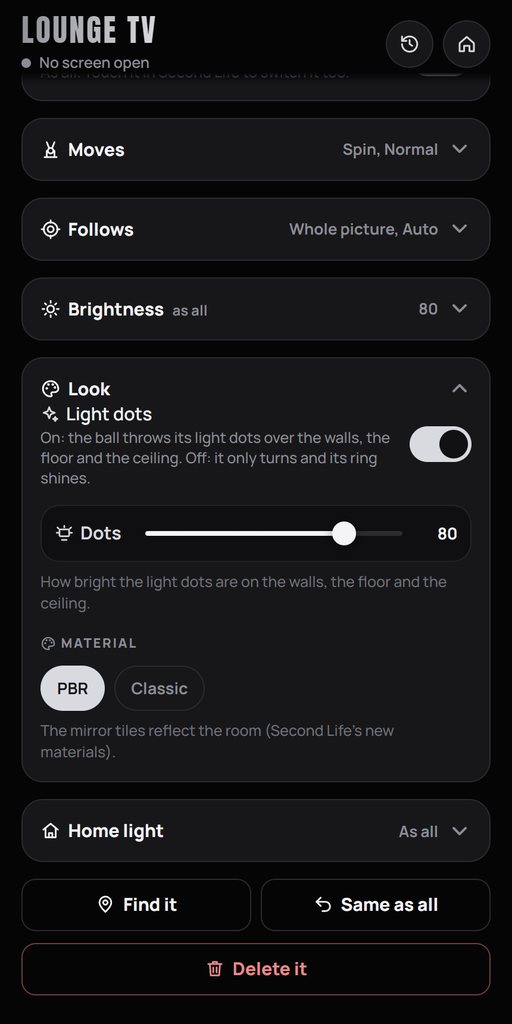
The light ring under the motor takes the picture's colour too. The tiles: PBR, which reflects your room, or Classic.
Set it up
- Hang it near your Sync TVIn the same region, with the same owner. The top of its motor touches the ceiling.
- It links by itselfIts ring blinks white, and it shows on the remote's Room tab as Mirror Ball.
- Play a videoThe dots take the colours of the picture. Touch the ball in Second Life to switch it on or off.
On the remote
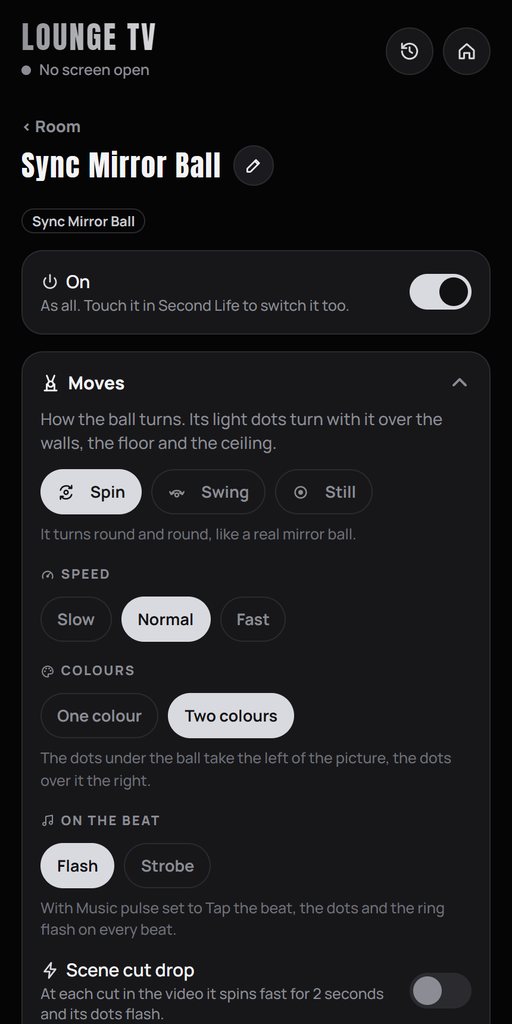
- Moves: Spin, Swing and Still, at Slow, Normal or Fast. Swing turns back the other way every 16 beats.
- Colours: One colour or Two colours.
- On the beat: Flash, or Strobe: the dots are dark between the beats. Scene cut drop spins it fast for 2 seconds at a cut in the video.
- Look: light dots on or off, how bright the dots are, and the material: PBR or Classic.
Coffee, step by step
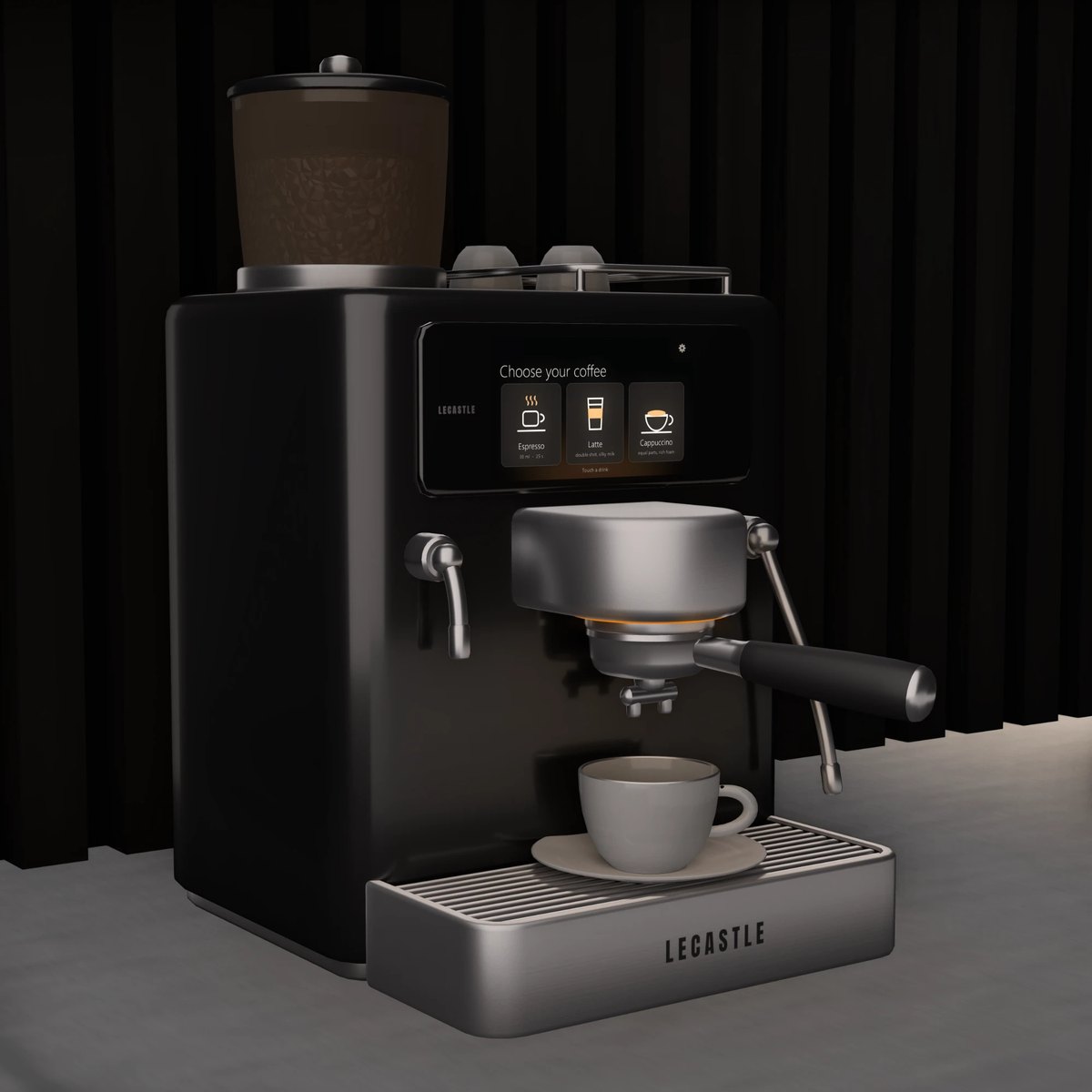
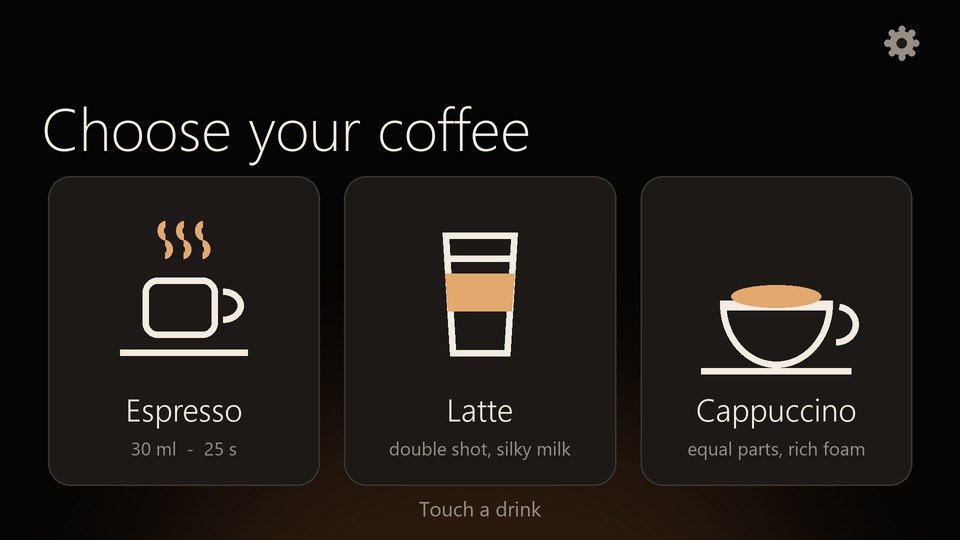
A touch-screen espresso machine. Touch Espresso, Latte or Cappuccino on its screen and watch it being made: the grinder, two coffee streams, the steam wand and the milk, each with its own sound. It works on its own; near your Sync TV its light ring takes the colours of the picture. Sold separately: get it on the Marketplace, or for 10% less on our website.
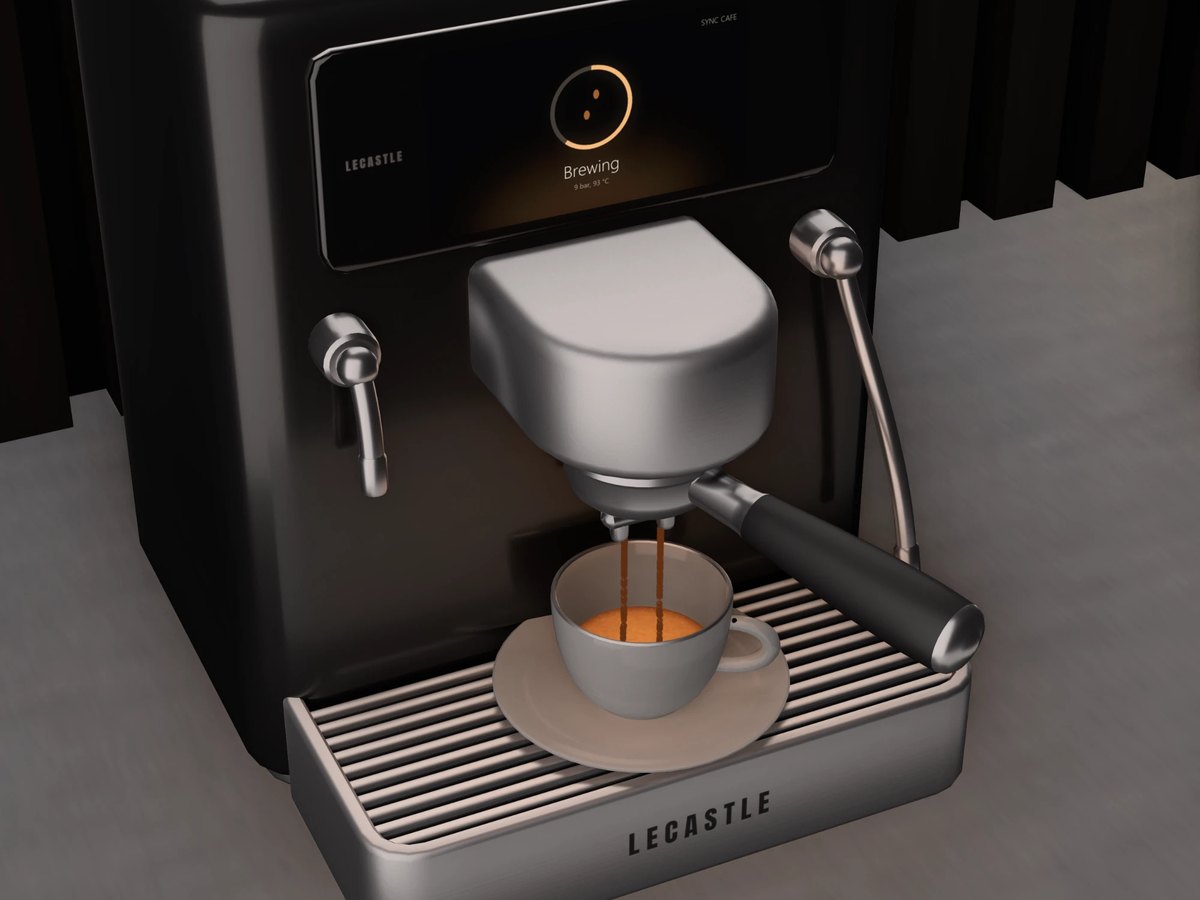
Real coffee streams
Espresso: the grinder, then two streams fill the cup, with a golden crema on top. Latte and Cappuccino: the steam wand foams the milk, then the milk is poured in.
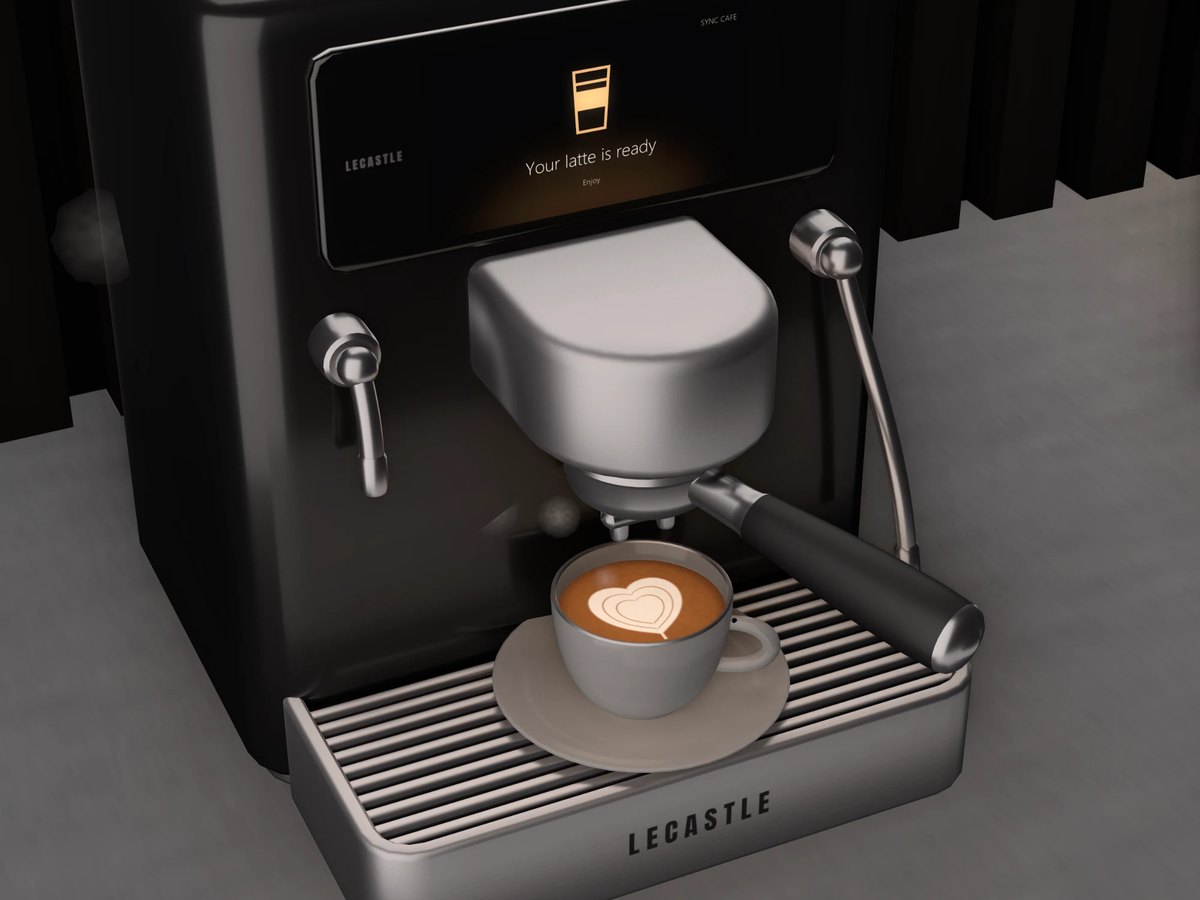
Ready
The cup stays full and steaming for a minute, then it is empty for the next coffee. Touch the ready screen to go back to the menu at once.
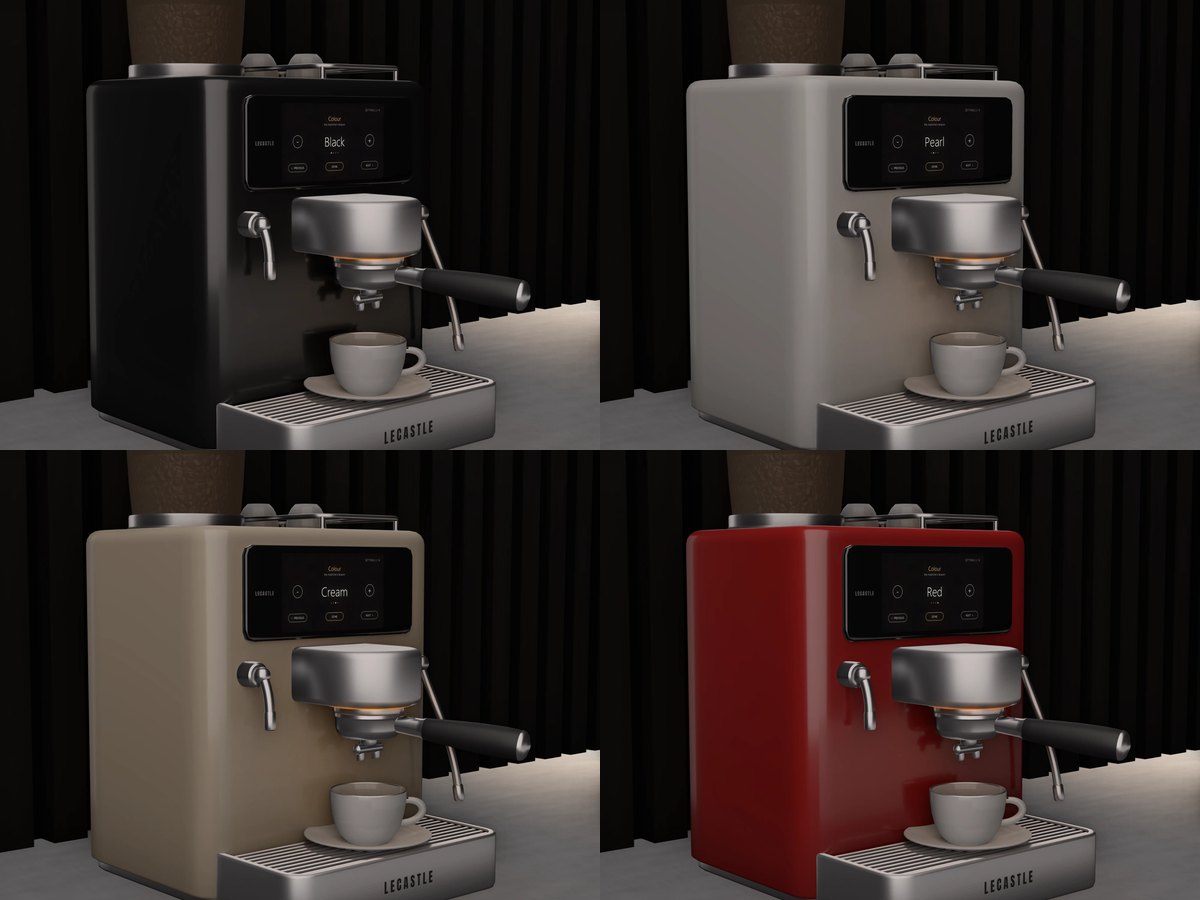
Four colours
Black, Pearl, Cream and Red lacquer with platinum, each one baked. Change it in the settings on the screen.
Set it up
- Rez it on a counterOr a kitchen top or a bar. The screen shows at once: there is no media to allow.
- Touch a drinkEspresso, Latte or Cappuccino. Every step shows on the screen. After 5 minutes untouched the screen dims; a touch wakes it.
- Near your Sync TVIn the same region, with the same owner, it links by itself. With Glow on Sync, its light ring takes the colours of the picture.
The settings, on the screen
- The gear at the top right of the screen opens them (the owner only). - and + change a value; PREVIOUS and NEXT go through them; DONE closes them.
- Access: who may make a coffee: Only me, Group or Everyone.
- Glow: Sync, Warm, Cool, Pink, Aqua or Off. Colour: Black, Pearl, Cream or Red. Sound: On or Off.
A smart display for your desk
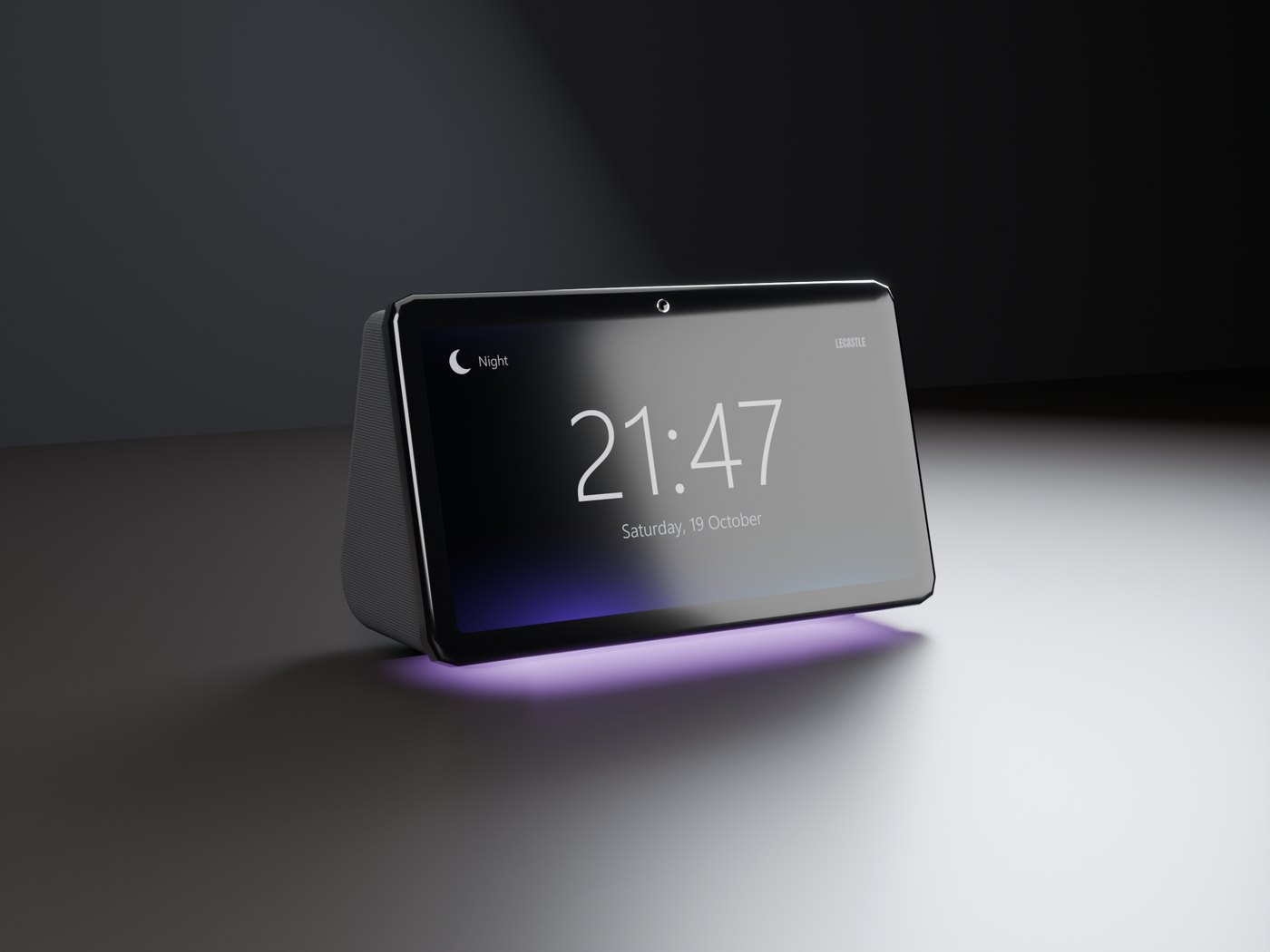
A clock with the date, a photo frame for your own pictures, a visualizer and an ambient light, in a knit fabric body with a glass screen. Touch the screen for the next page. It works on its own; near your Sync TV its light and its colours follow the picture. Sold separately: get it on the Marketplace, or for 10% less on our website.
Your photos
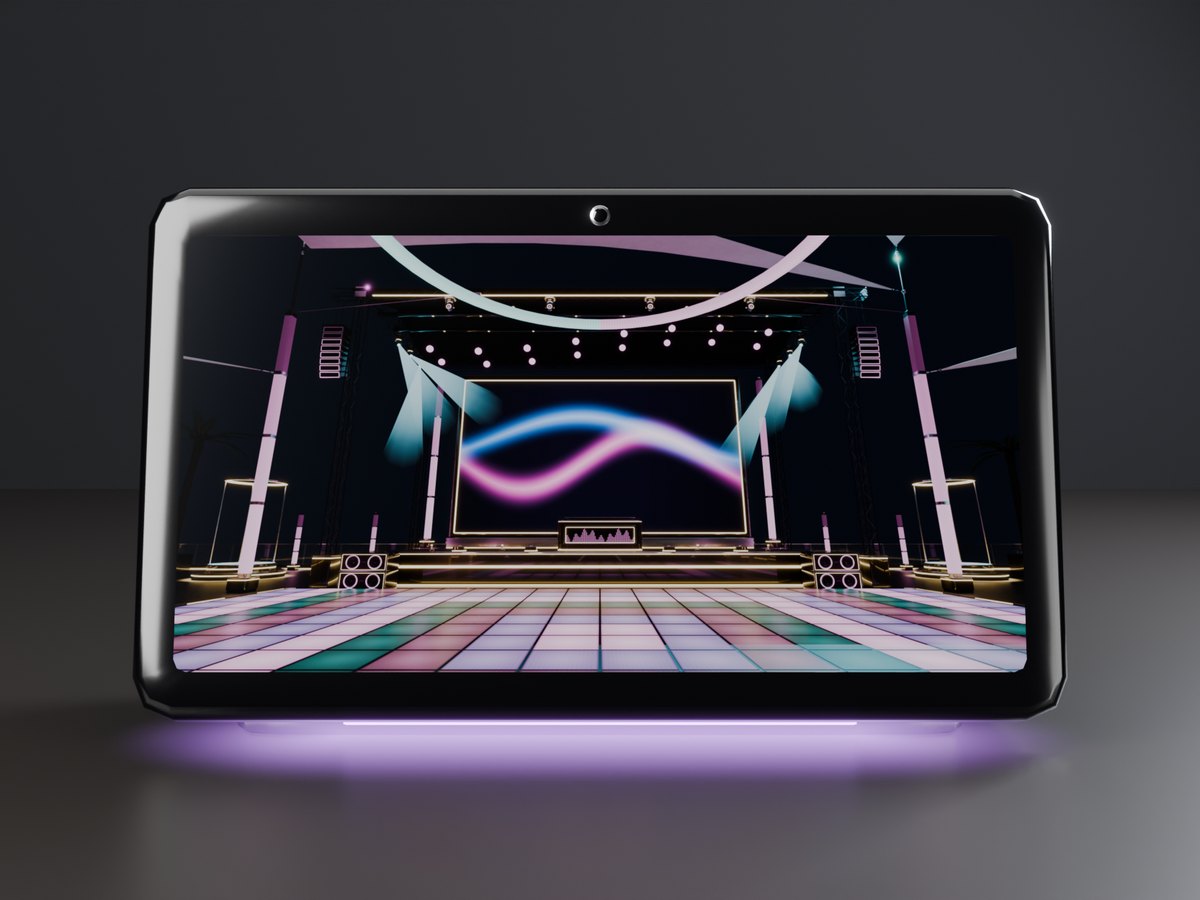
Drop your own textures into the clock's Content tab: the Photos page shows them one after another, every 5 to 60 seconds.
Visualizer and Ambient
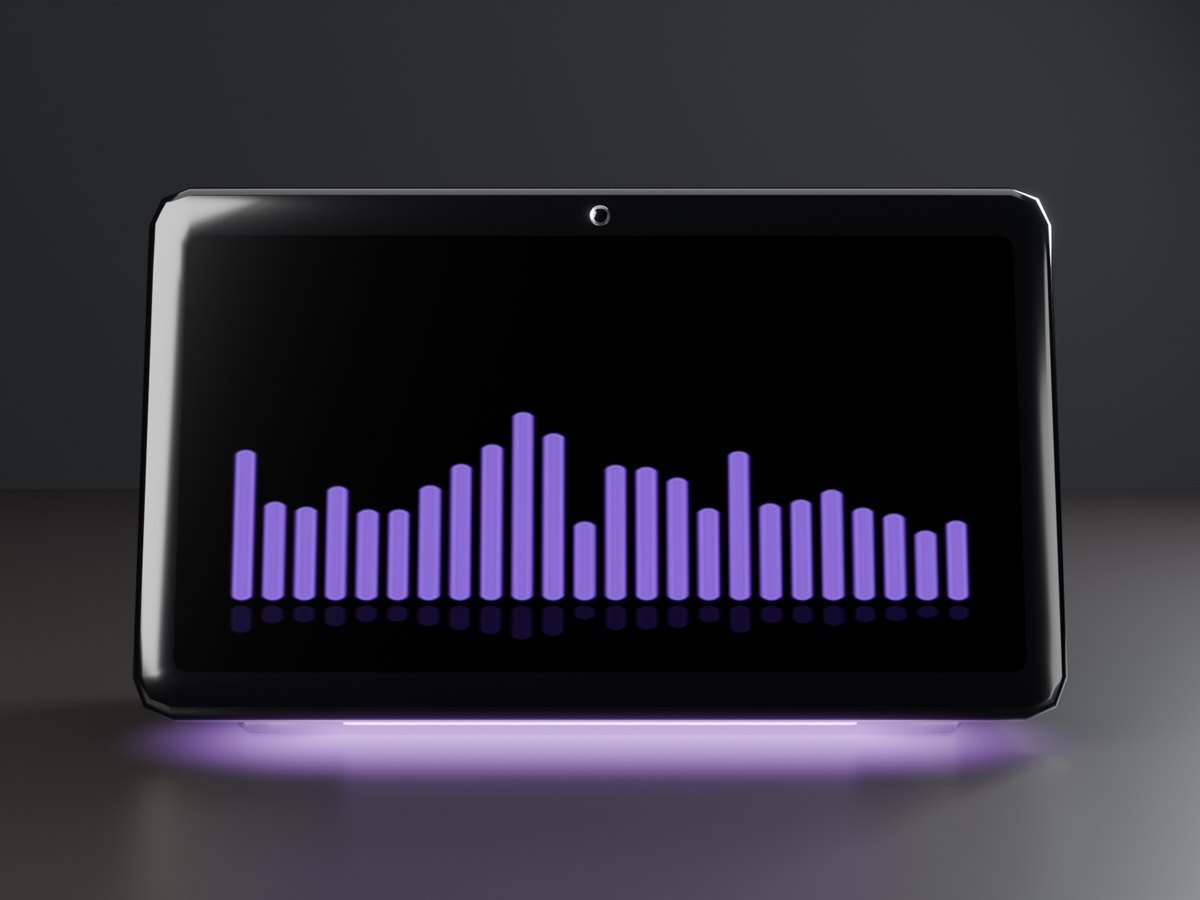
Moving bars, or a slow flow of colour. Near your Sync TV they take the colours of the picture.
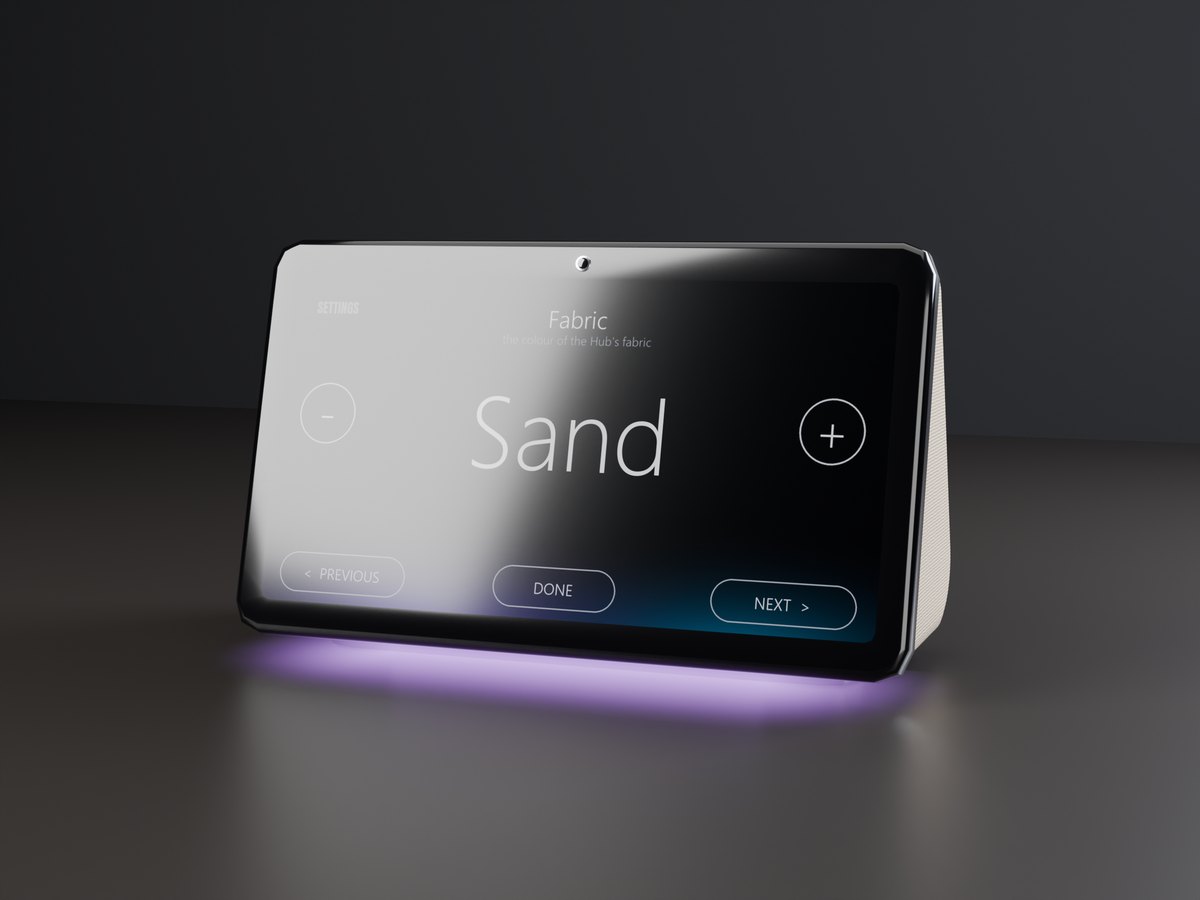
Six fabrics
Onyx, Mist, Sand, Sage, Navy and Rose, each one baked. Change it in the settings on the screen.
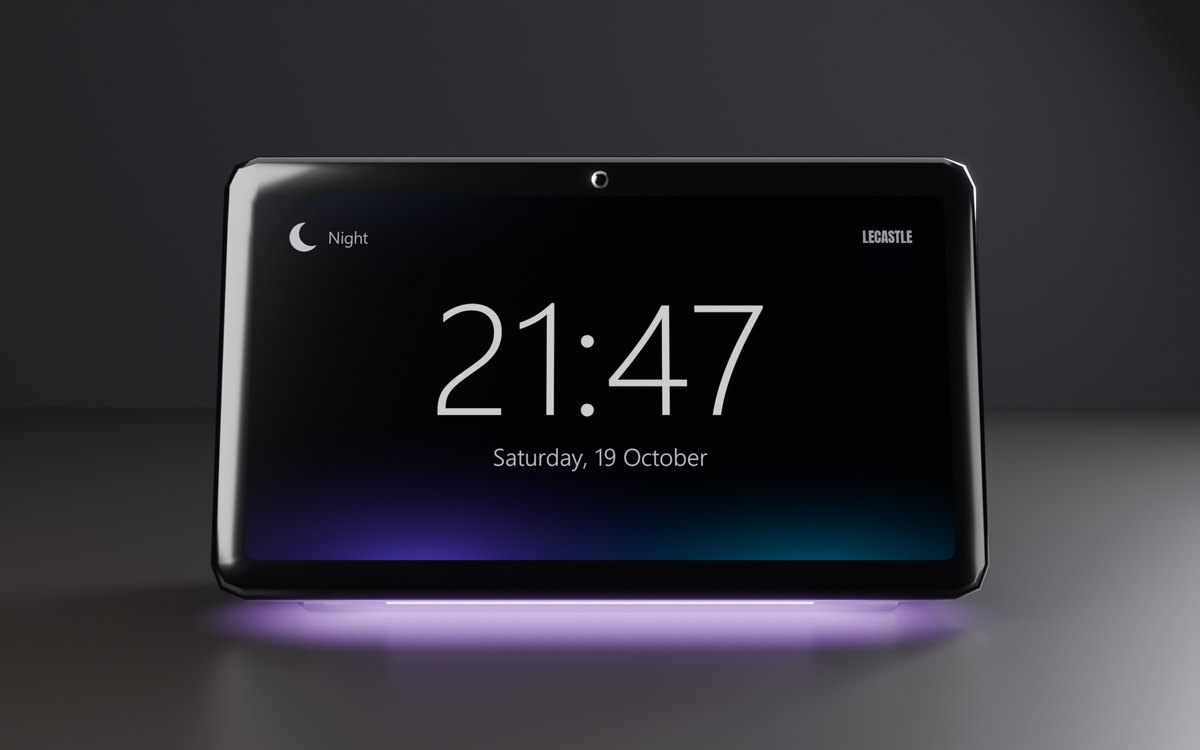
Set it up
- Rez it on a deskOr a nightstand or a shelf. The clock shows at once: there is no media to allow.
- Touch the screenFor the next page: Clock, Photos, Visualizer, Ambient.
- The two buttons on the topYours only. The inner one turns the display on or off; the outer one opens the settings on the screen.
The settings, on the screen
- Clock: 24 or 12 hours. Time zone: SLT, or UTC -12 to +14. Day and night follow the region's sun.
- Brightness: 5 steps. Glow: Sync, Warm, Cool, Pink, Aqua or Off.
- Fabric, the speed of Photos, and Access: who may change the pages (Only me, Group or Everyone).
Your own rooftop club
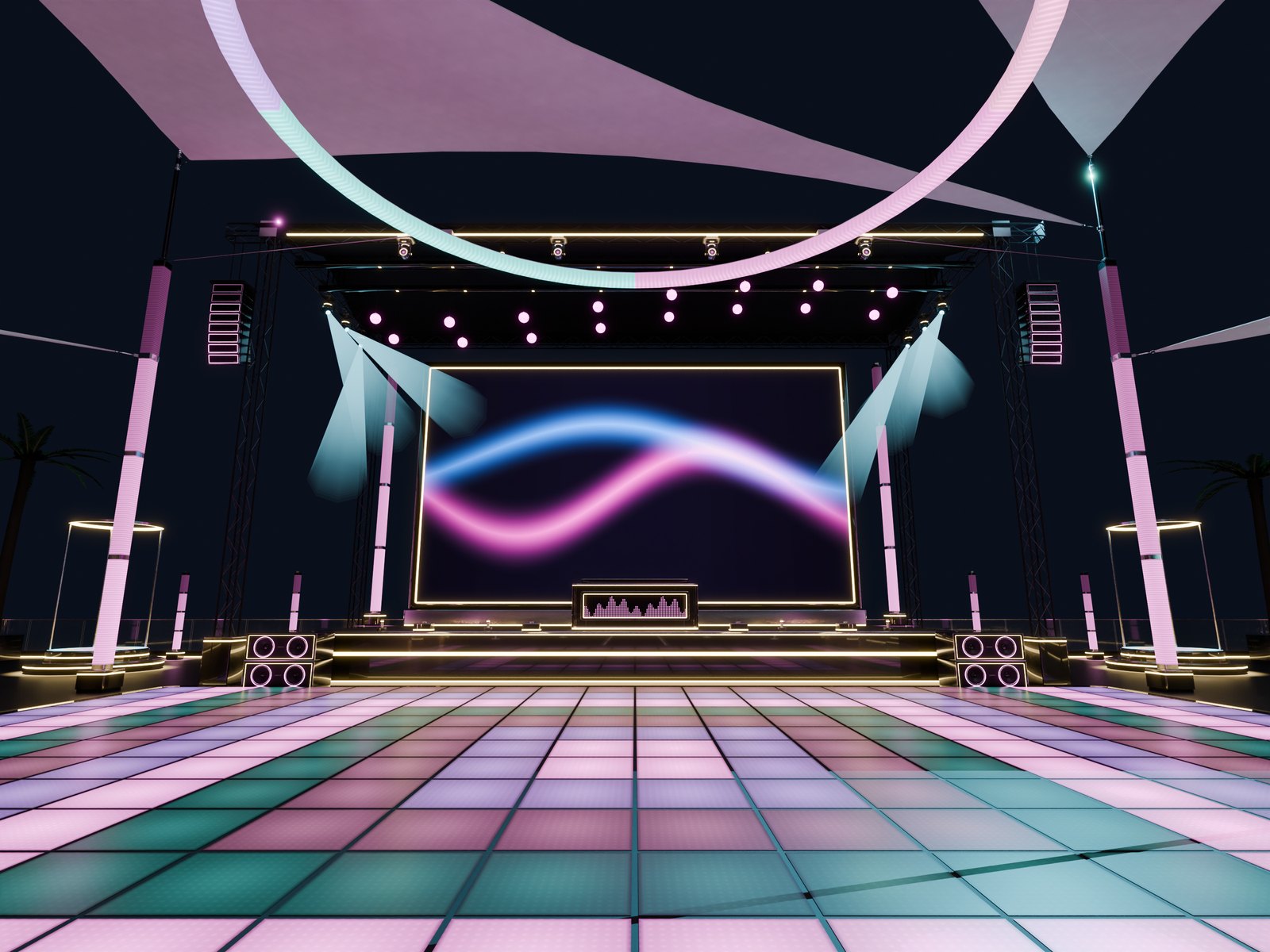
A complete 48 x 48 m open-air club, built from one box in a minute: a stage with a giant LED wall, a DJ booth, an LED dance floor, a truss roof with moving heads, a bar, a VIP, a lounge and an entrance arch with your club's name. The LED wall is a built-in Sync TV, and every light in the club follows the video's colours or your theme, on one beat. Sold separately: get it on the Marketplace.
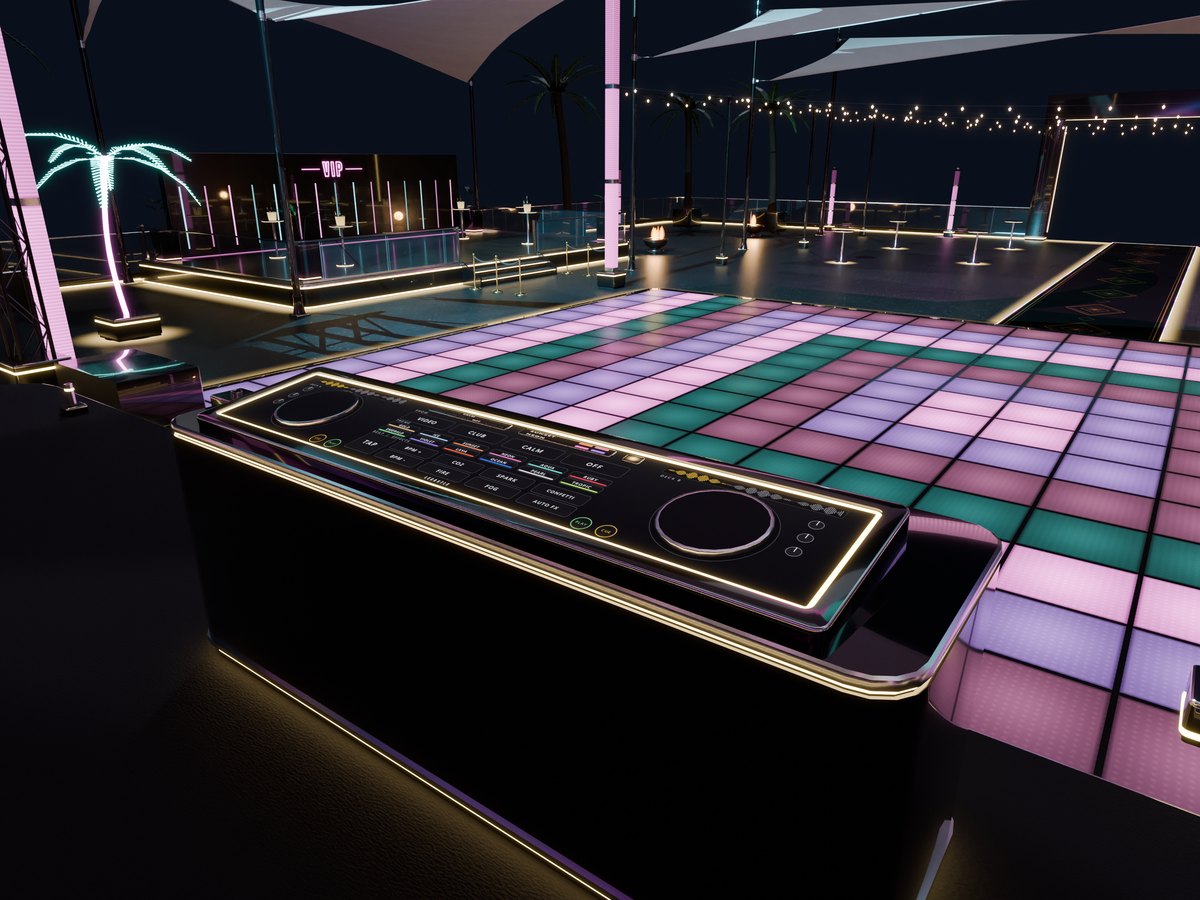
The DJ booth
Touch the glass: the show (Video, Club, Calm or Off), 12 themes, the beat, and the effects: CO2, fire, sparks, fog and confetti.
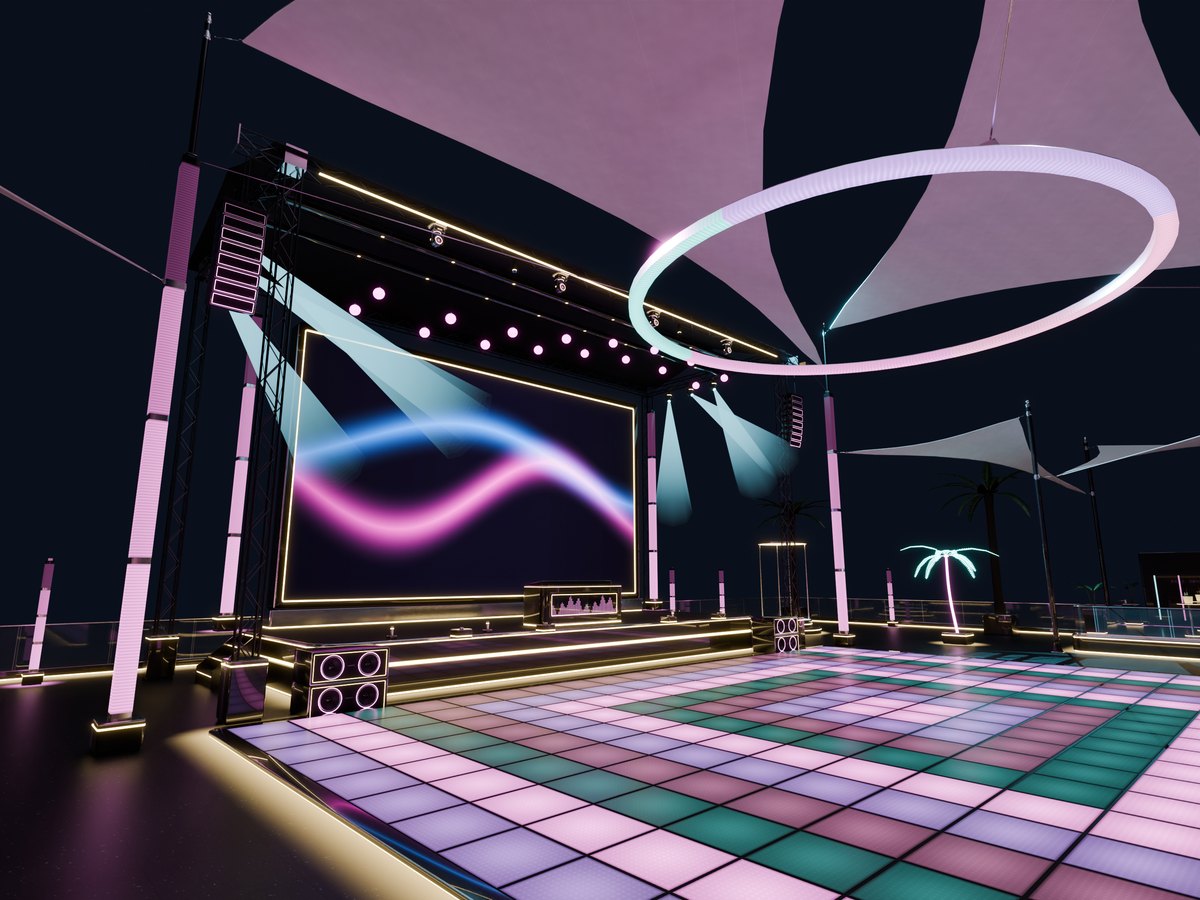
One light show
The dance floor's 280 tiles, the masts, the ring, 6 moving heads, 16 kinetic balls, the columns and the speakers all keep one beat.
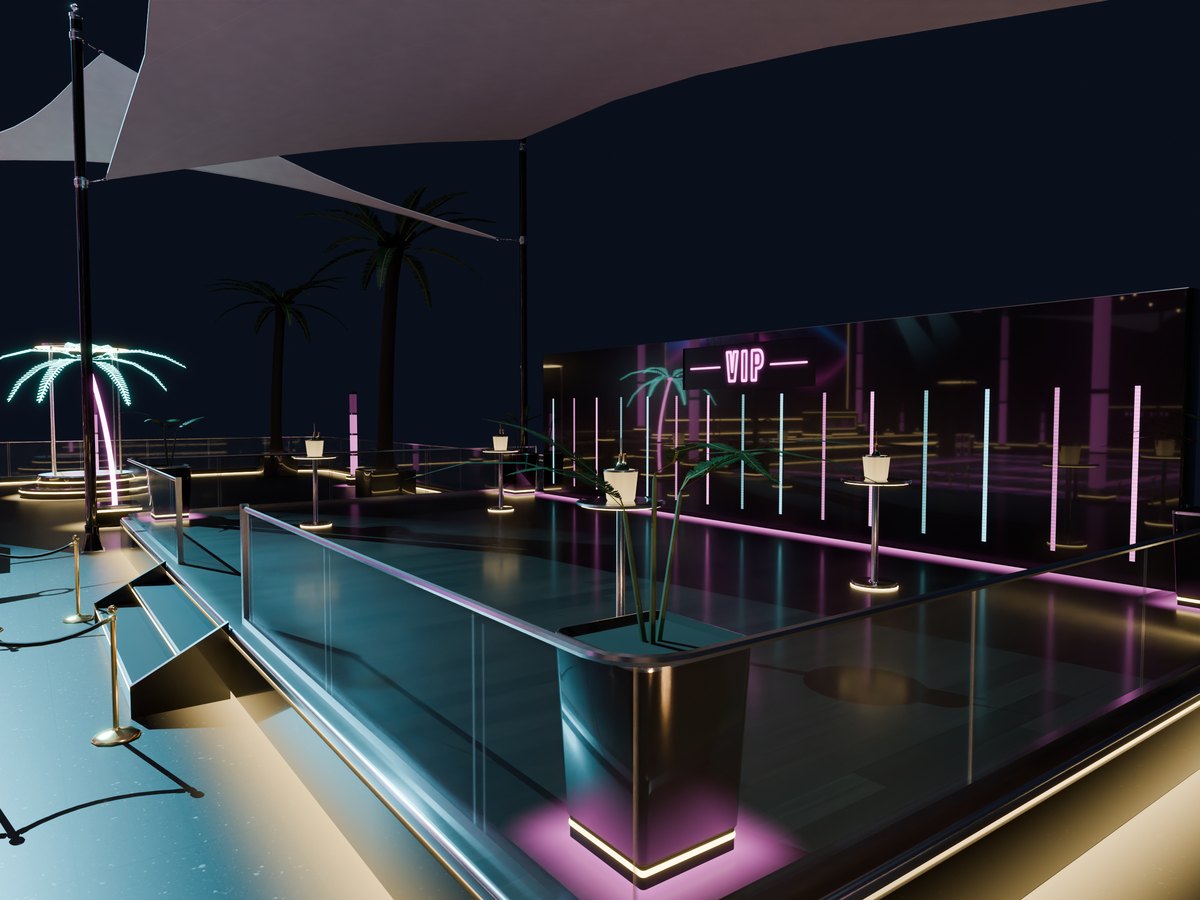
Bar, VIP and lounge
A bar with lit bottle shelves, a VIP with champagne sparklers, a lounge with fire bowls, shade sails and warm festoon lights.
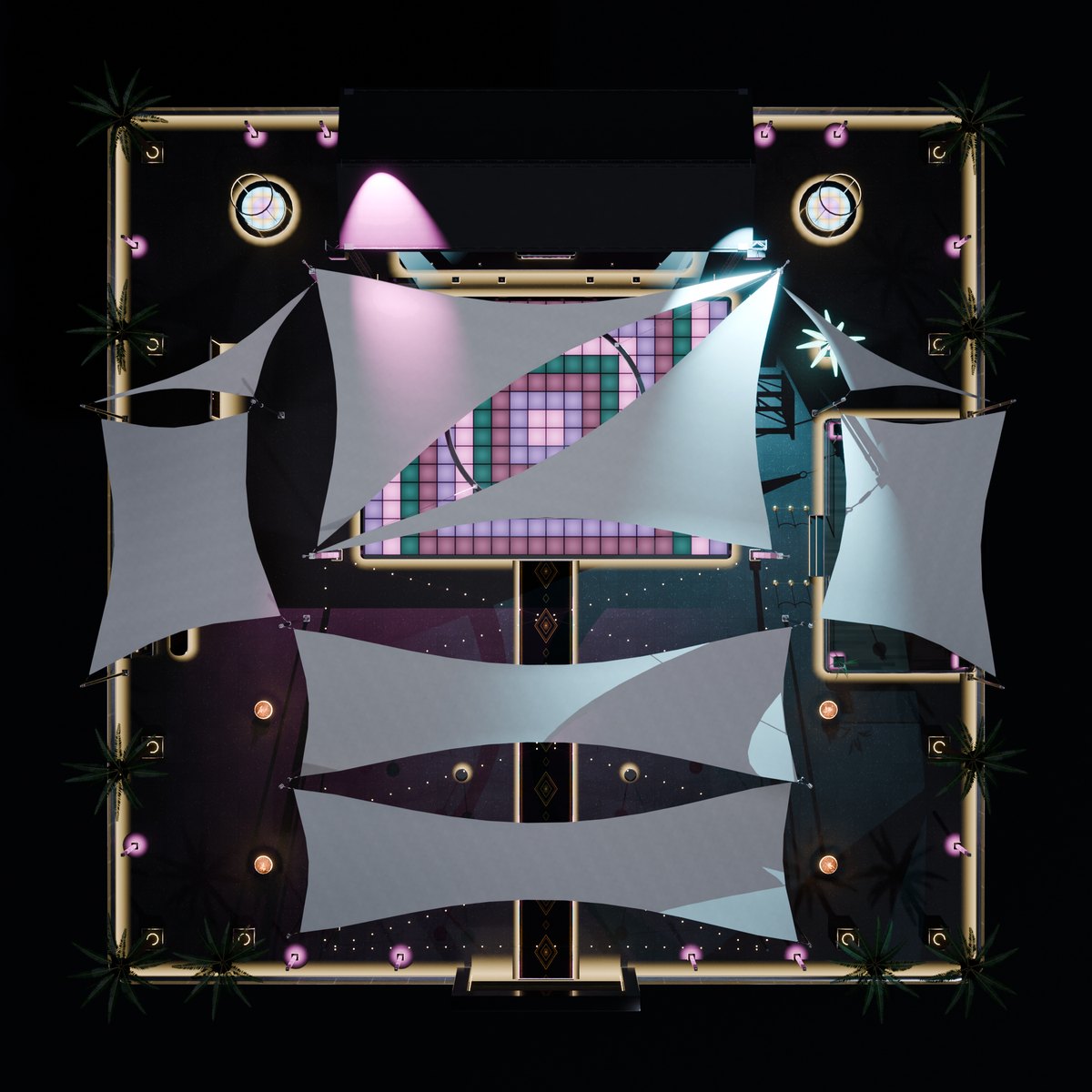
Build it
- Rez the Builder boxWhere the middle of your club's floor should be: on the ground, or in the sky at the height you want. You need a 48 x 48 m space and about 640 LI.
- Turn itThe stage is built on the side the arrow on its top points to. The entrance arch is on the other side.
- Touch it, pick BuildThe parts fly to their places in about a minute. The box says "Build: done" at the end.
The Builder box menu
- Move: you moved or turned the box, and the whole club follows it. Save: keeps a part you moved by hand where it is.
- Pack: deletes every part the box built. Finish: the parts' builder scripts remove themselves; the club stays and you take the box back.
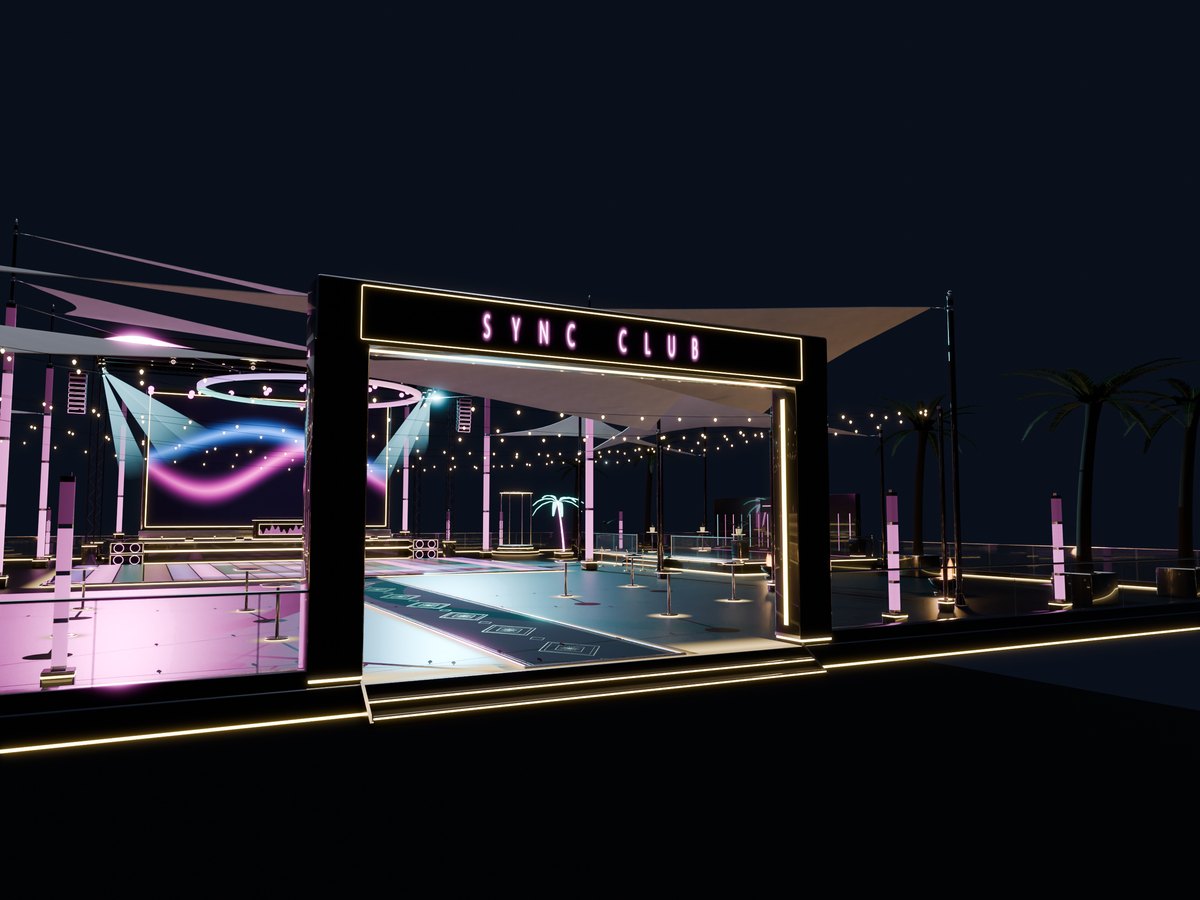
The LED wall
- It is a Sync TV: touch it as the owner for the remote's link, or wear the Remote HUD or the Tablet HUD (both in the box). Search YouTube or paste a link: everyone in the club sees the same moment.
- Video mode: every light in the club takes the colours of the wall's picture, live.
- Sync Party lights and Sync Speakers link to the wall like to any Sync TV.
The DJ booth
- Show: Video, Club (the theme's two colours on the beat), Calm (a slow flow) or Off. Themes: Gold, Ice, Sunset, Neon, Aqua, Ruby, Emerald, Violet, Lava, Ocean, Pearl, Tropic.
- TAP along with the music, three times or more: the whole club keeps that beat. BPM - and + fine-tune it.
- AUTO FX: the effects go off by themselves on the music's phrases. You set the pace and how much of each one.
- DJs: touch the booth (not the glass) as the owner to add up to 11 DJs. Access: Only DJs, DJs + group, or Everyone.
A gaming room that plays your TV
Seven pieces: a liquid cooled PC, a 34-inch curved monitor, a gaming chair, a desk, a keyboard, a mouse and a headset on its stand. On SYNC every light takes the colours of your Sync TV's video, each light its own part of the picture. Black and Pink are both in the box.
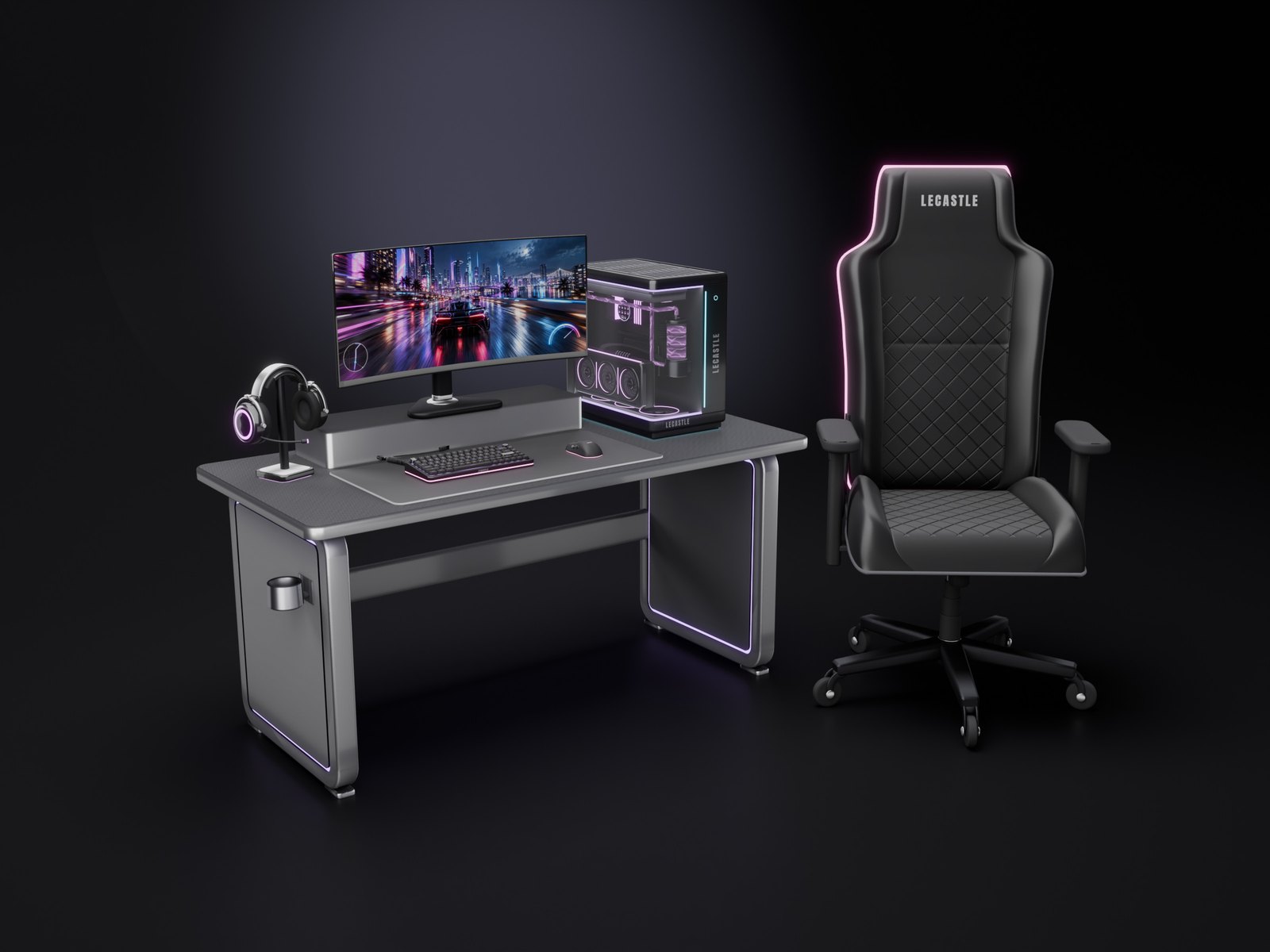
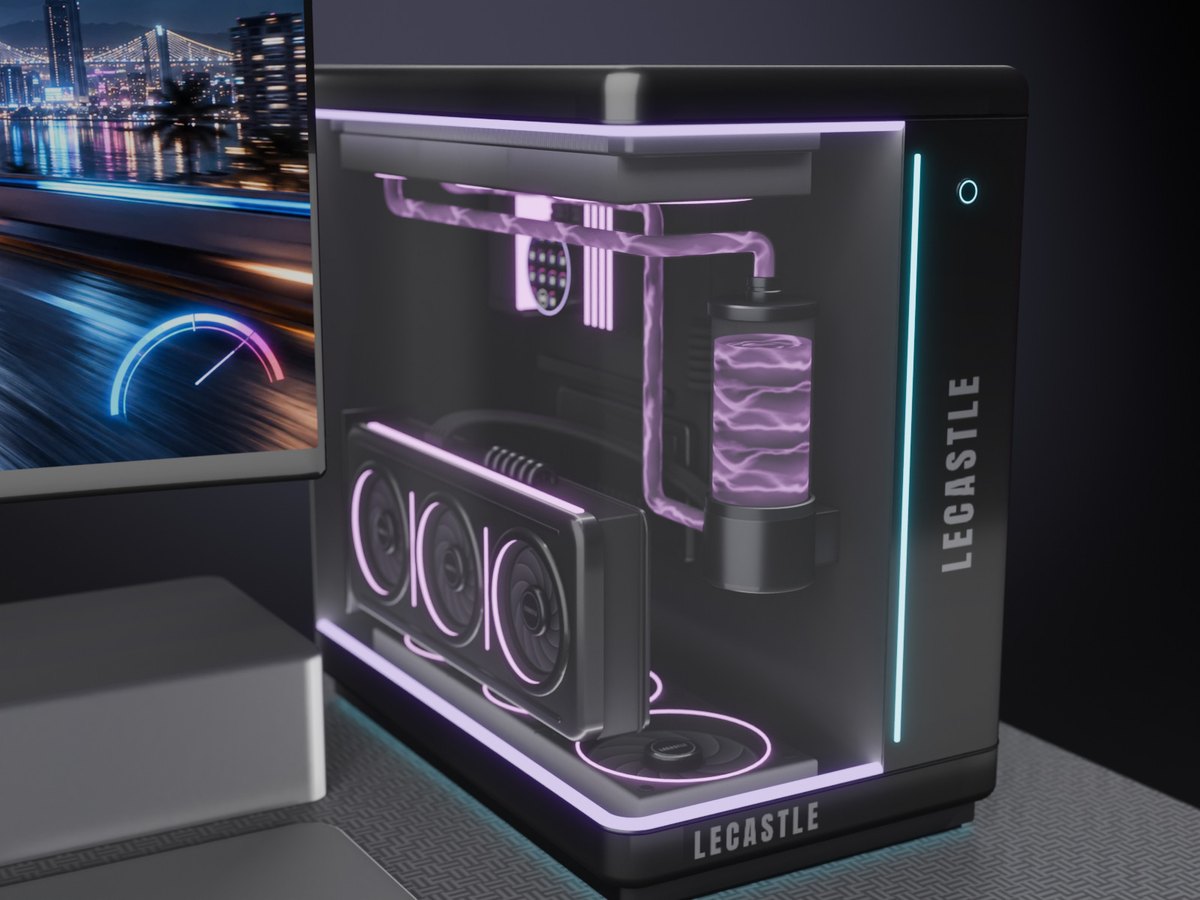
The PC
A glass corner case, three lit fans and a liquid loop. Touch it: Fans (Silent, Normal or Turbo) and Screen (the small screen on the CPU block). Two power buttons on the case.
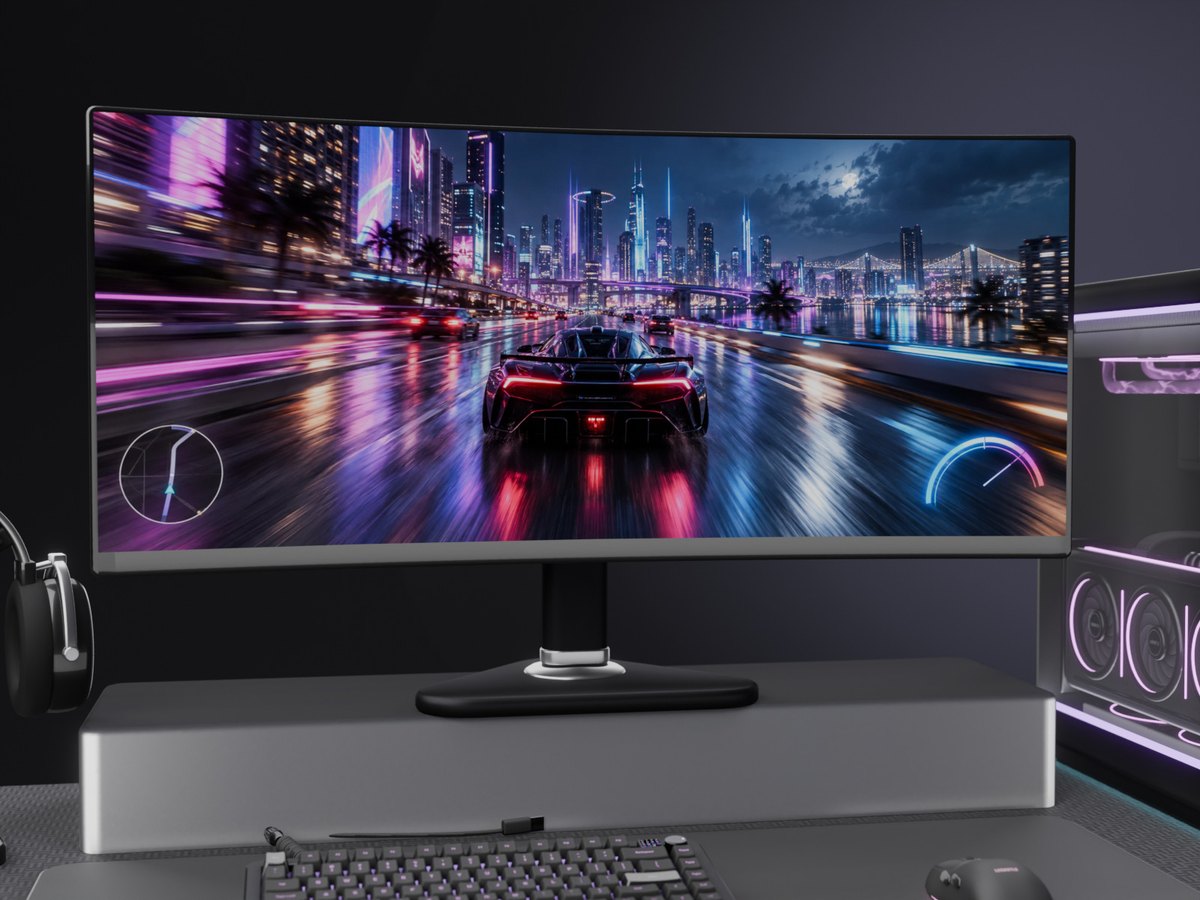
The monitor
Touch the screen for the next picture: Racing, Fantasy, Sci-Fi, Space, Cyber City, Aurora or Rose. Or pick Screen > Browser in its menu: any website on the monitor.
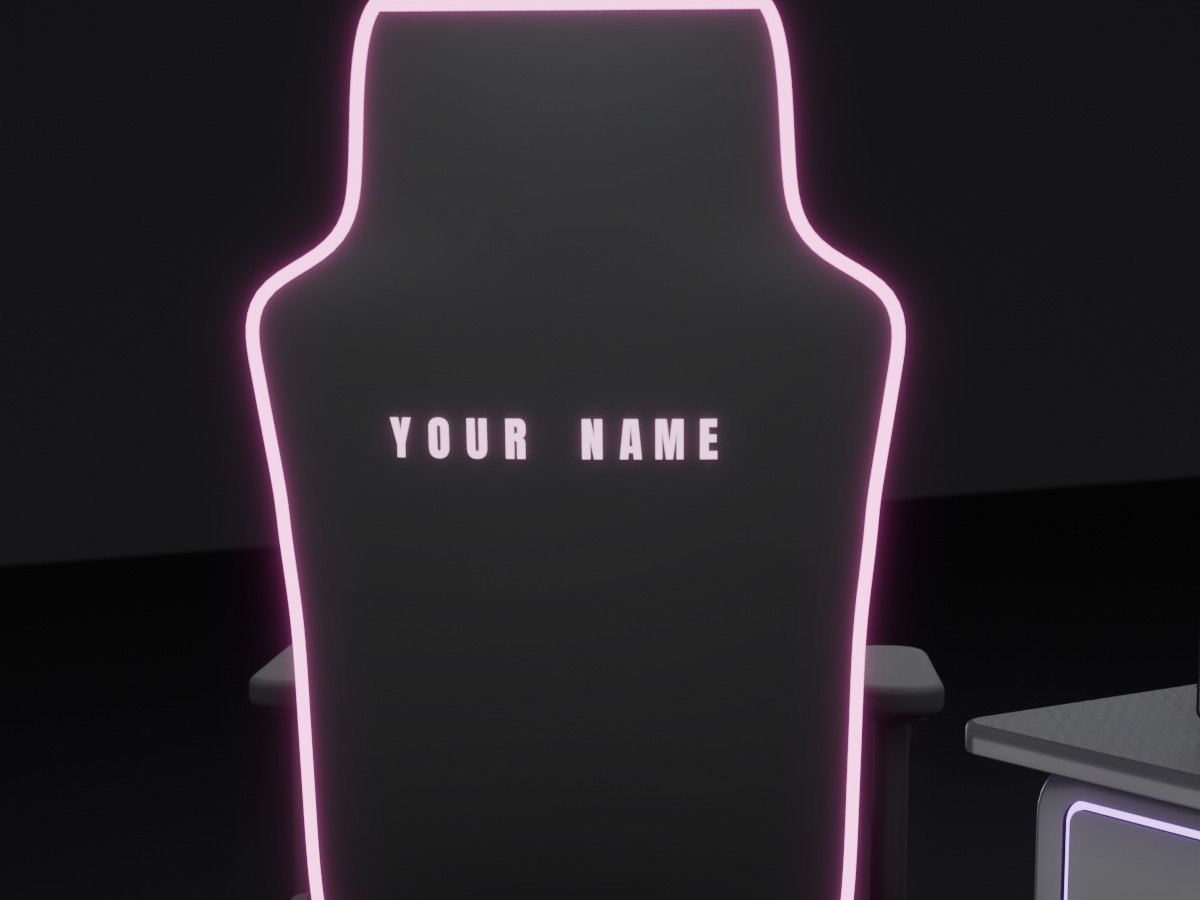
The chair
Its own sit pose stops your AO's ground sits. Sit adjust moves you 1 cm a touch. Your text lights up on its back.
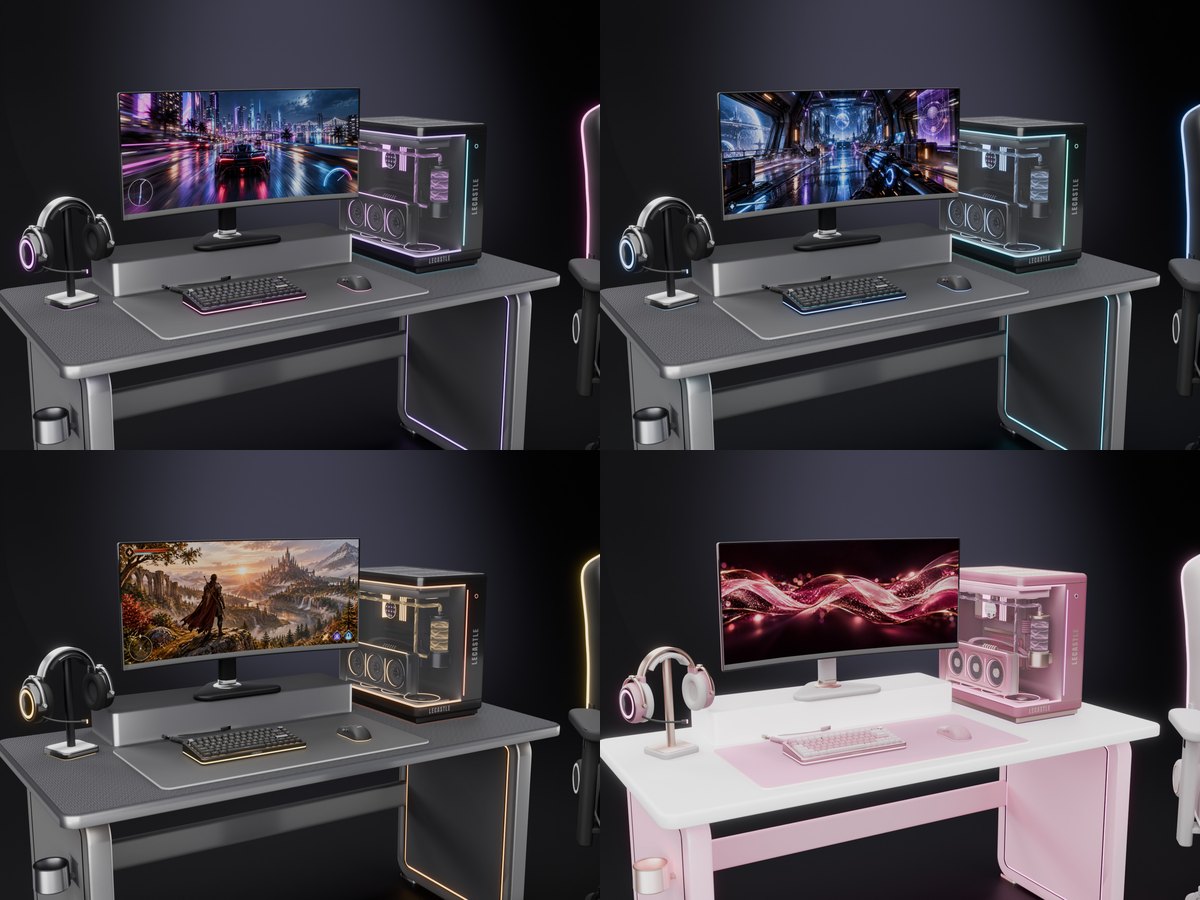
Set it up
- Rez the deskThen the PC, the monitor (on the shelf), the keyboard, the mouse and the headset on it, and the chair in front of it.
- Your Sync TV in the regionEvery piece links to it by itself in a few seconds.
- Touch a piecePower, Light, Colour (Black or Pink) and Access (Only me, Group or Everyone).
The lights
- SYNC: the colours of the TV's video. The pieces also do what the TV's lights do on the remote: the video, the home light or off.
- One TV each: a piece stays with the TV it linked to. To move it to another TV, take it and rez it next to that TV.
- No TV: a slow violet, pink and cyan drift, or pick Rainbow, Violet, Pink, Cyan or White.
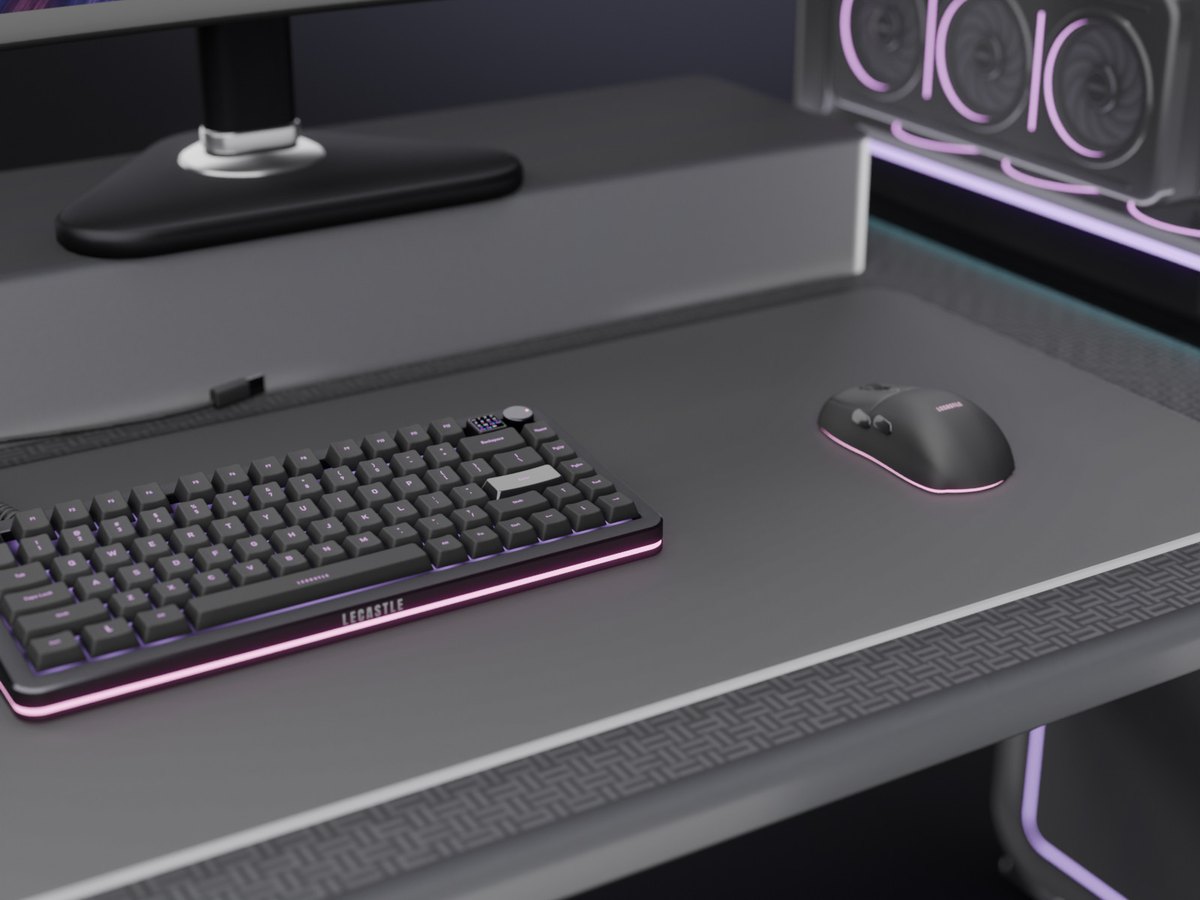
Keyboard, mouse and headset
- Keyboard: while you type in chat its keys flash and its screen counts your WPM. Touch the knob for the next light.
- Mouse: in mouselook its lights play faster (Game mode). Touch the wheel or the DPI button for the next light.
- Headset: light rings on the cups, a lit mic tip and a light strip under the stand.
A record player that moves like a real one
Touch START: the tonearm goes down on the record and the platter turns. It is decor: it plays no music, only a soft vinyl crackle if you like. Its light pipe and the ring round the platter take the colours of your Sync TV. Black and Pink are both in the box.
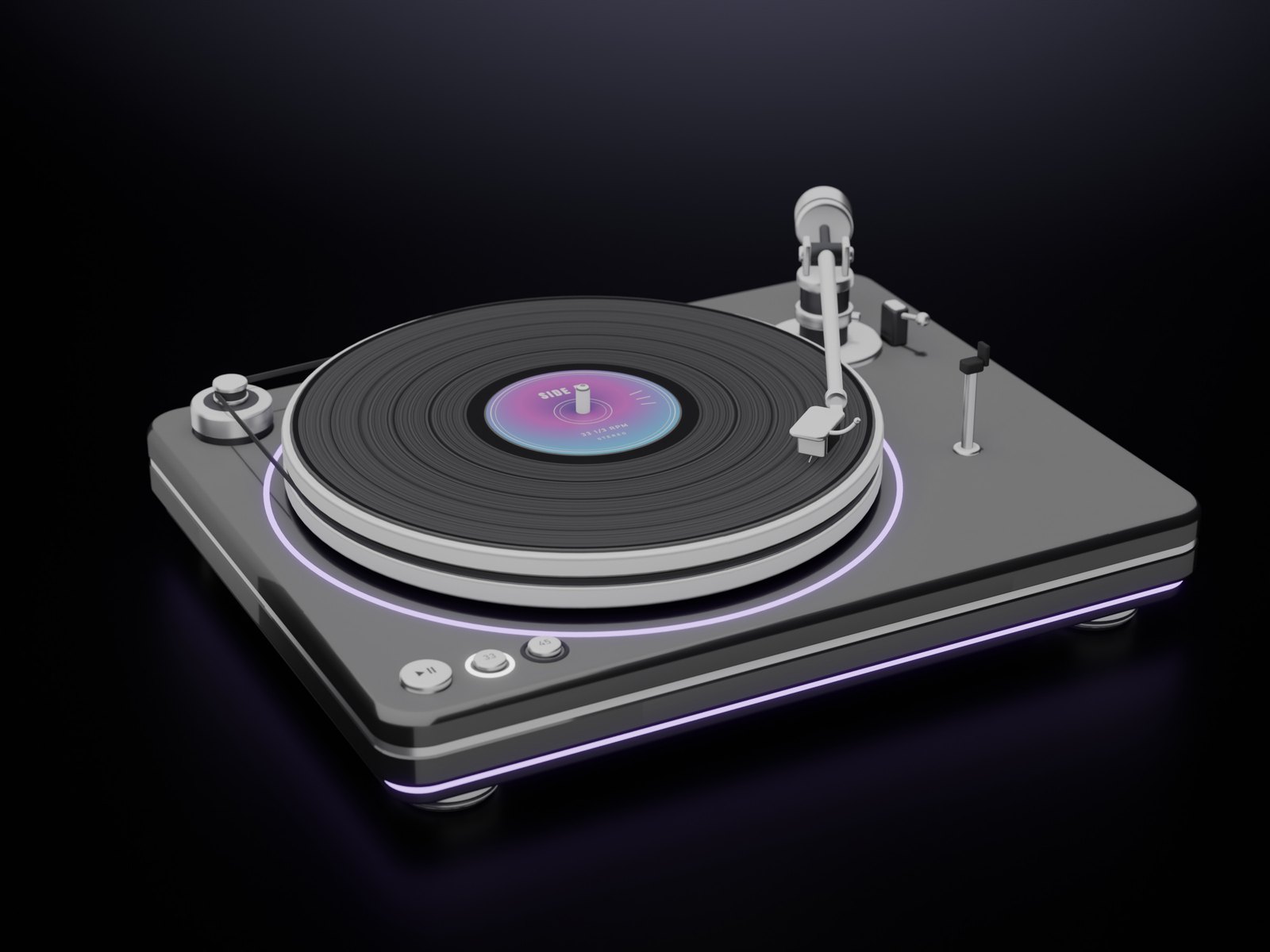
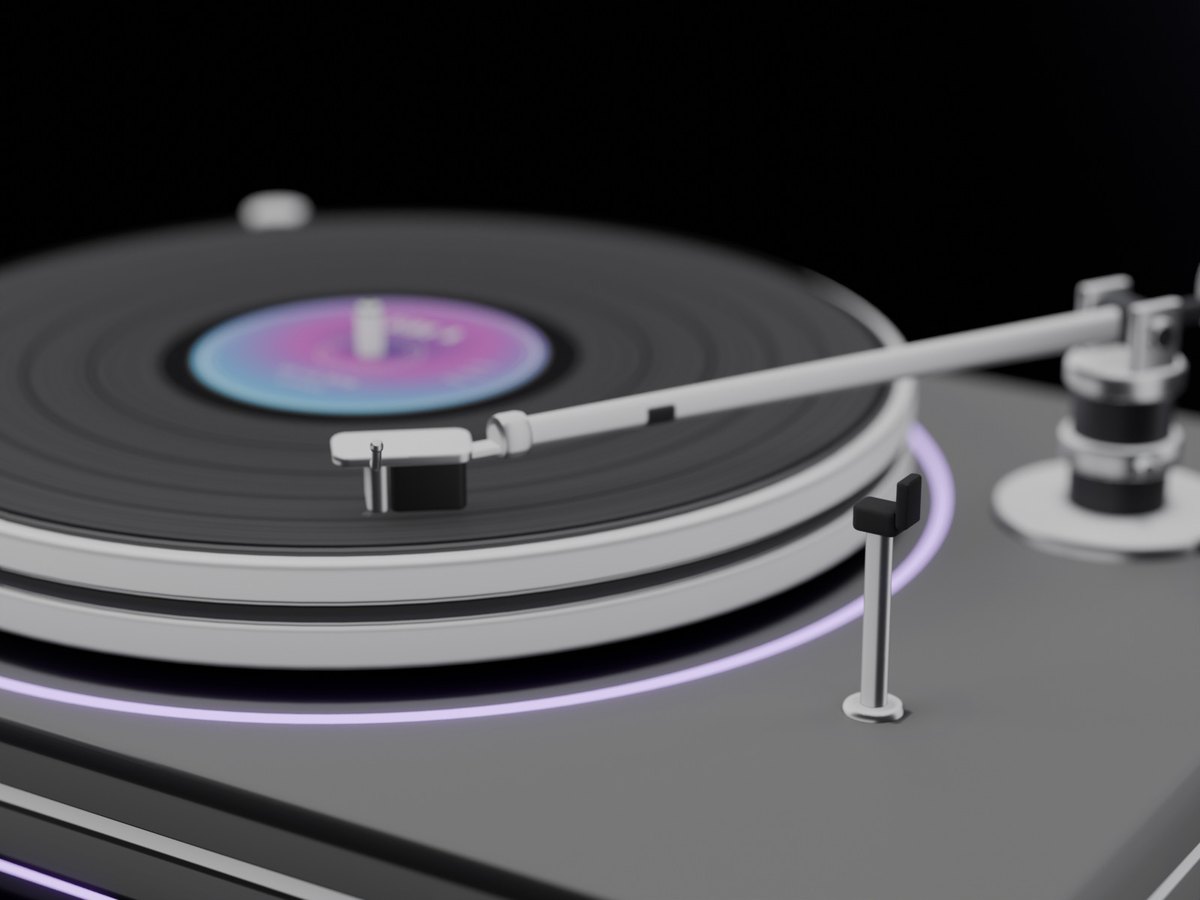
START
The tonearm lifts, swings over the record and goes down. The arm moves in slowly, then goes back and starts again. Touch START again: the arm goes home.
33 or 45
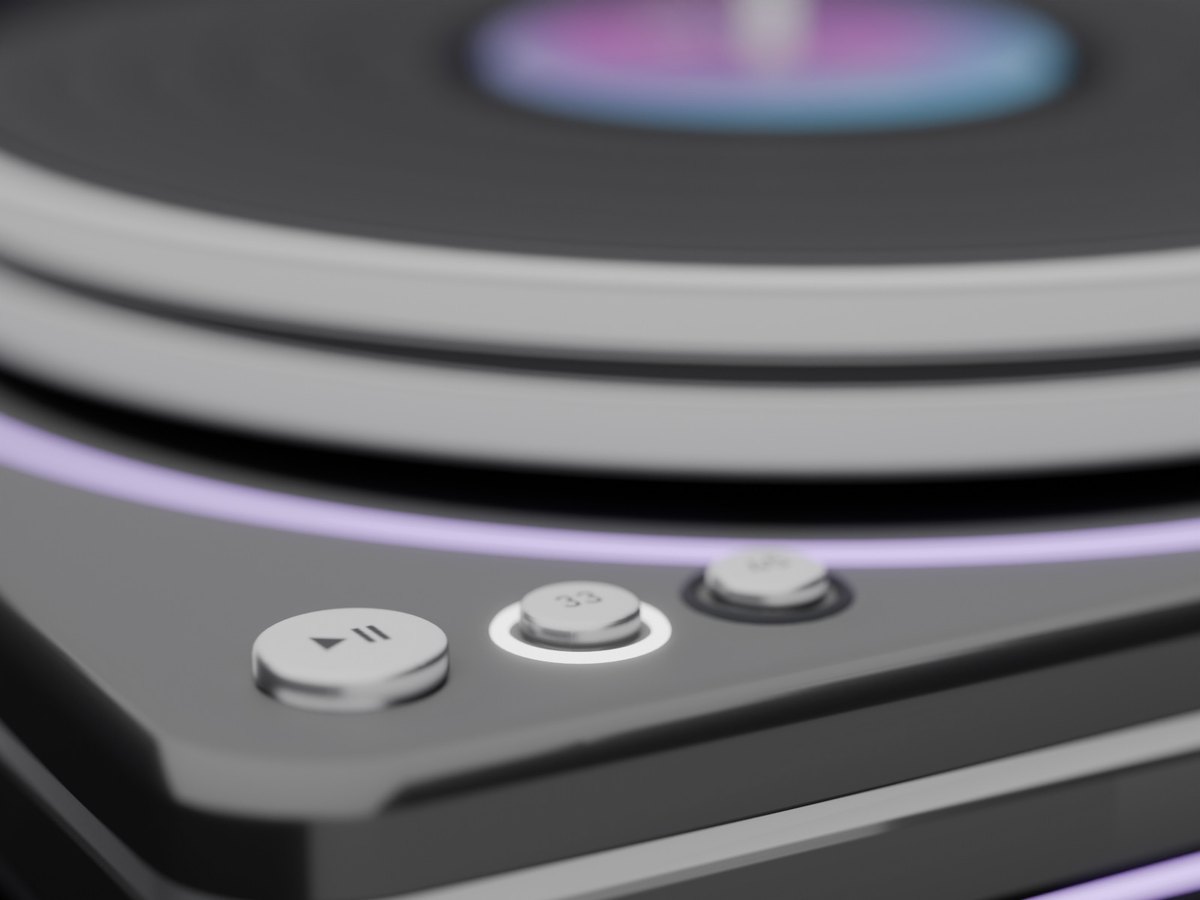
Touch 33 or 45: the platter changes speed and the button you chose lights up.
Black or Pink
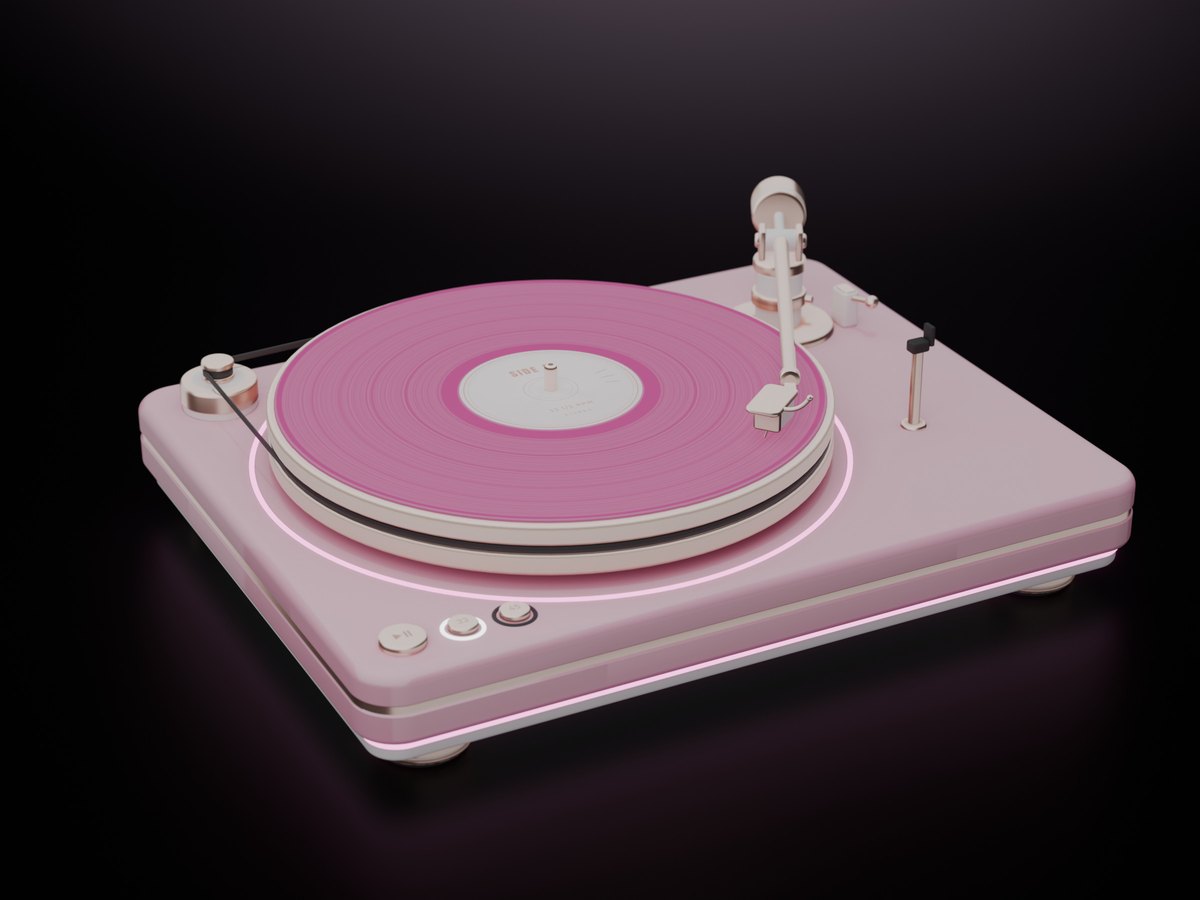
The owner picks Colour in the menu. Each colour has its own textures.
The menu
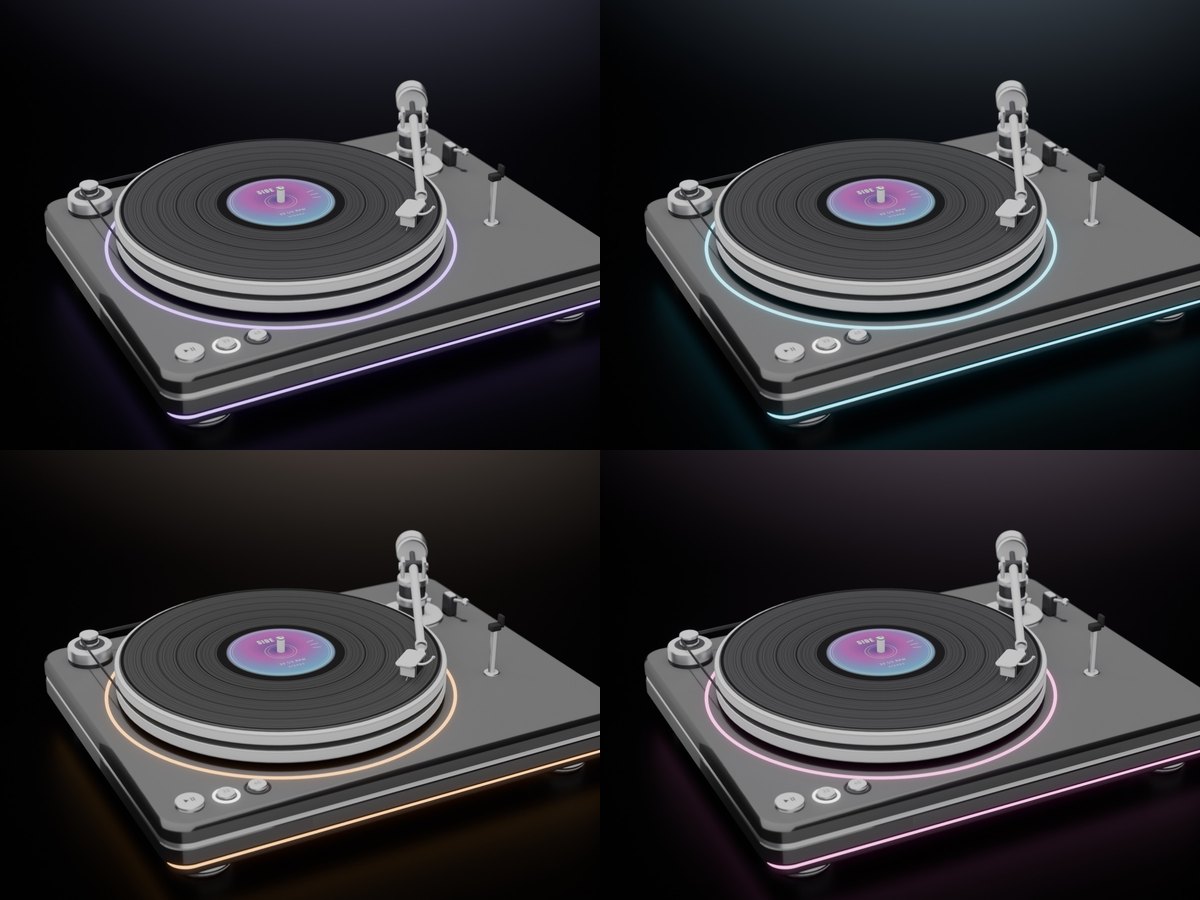
- Touch the turntable anywhere but the buttons: Play / Stop, Speed, Light and Sound.
- The owner also has Power, Colour and Access (Only me, Group or Everyone).
- Sound: a soft vinyl crackle while the needle is on the record. It is off at first.
The light
- SYNC: near your Sync TV it takes the colours of the video, and does what the TV's lights do on the remote.
- No TV: a slow violet, pink and cyan drift, or pick Rainbow, Violet, Pink, Cyan or White.
A real light for your desk
An architect LED lamp: two arms on platinum joints, two coil springs and a slim head. It gives Second Life's own light - on your desk, your keyboard and you - and its thin light lines take the colours of your Sync TV. Black and Pink are both in the box.
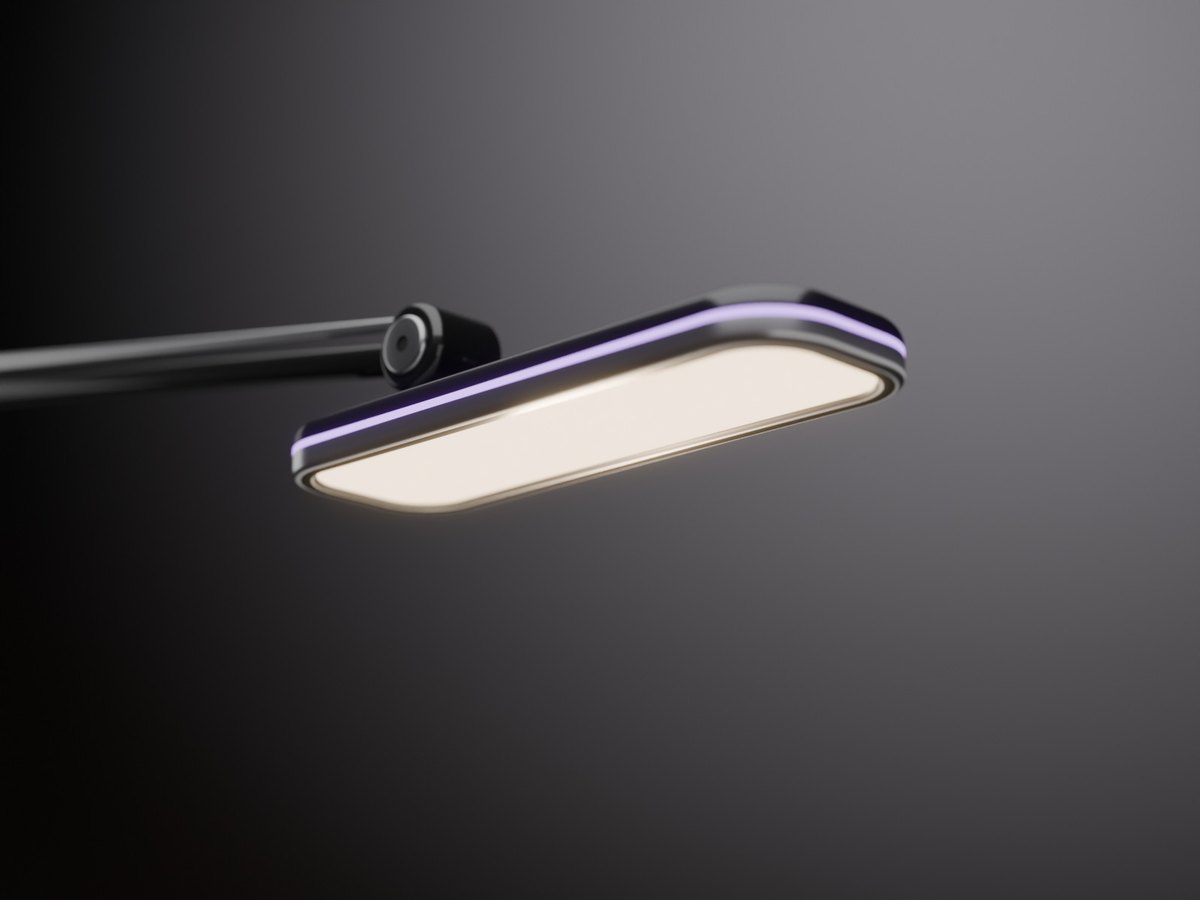
A real light
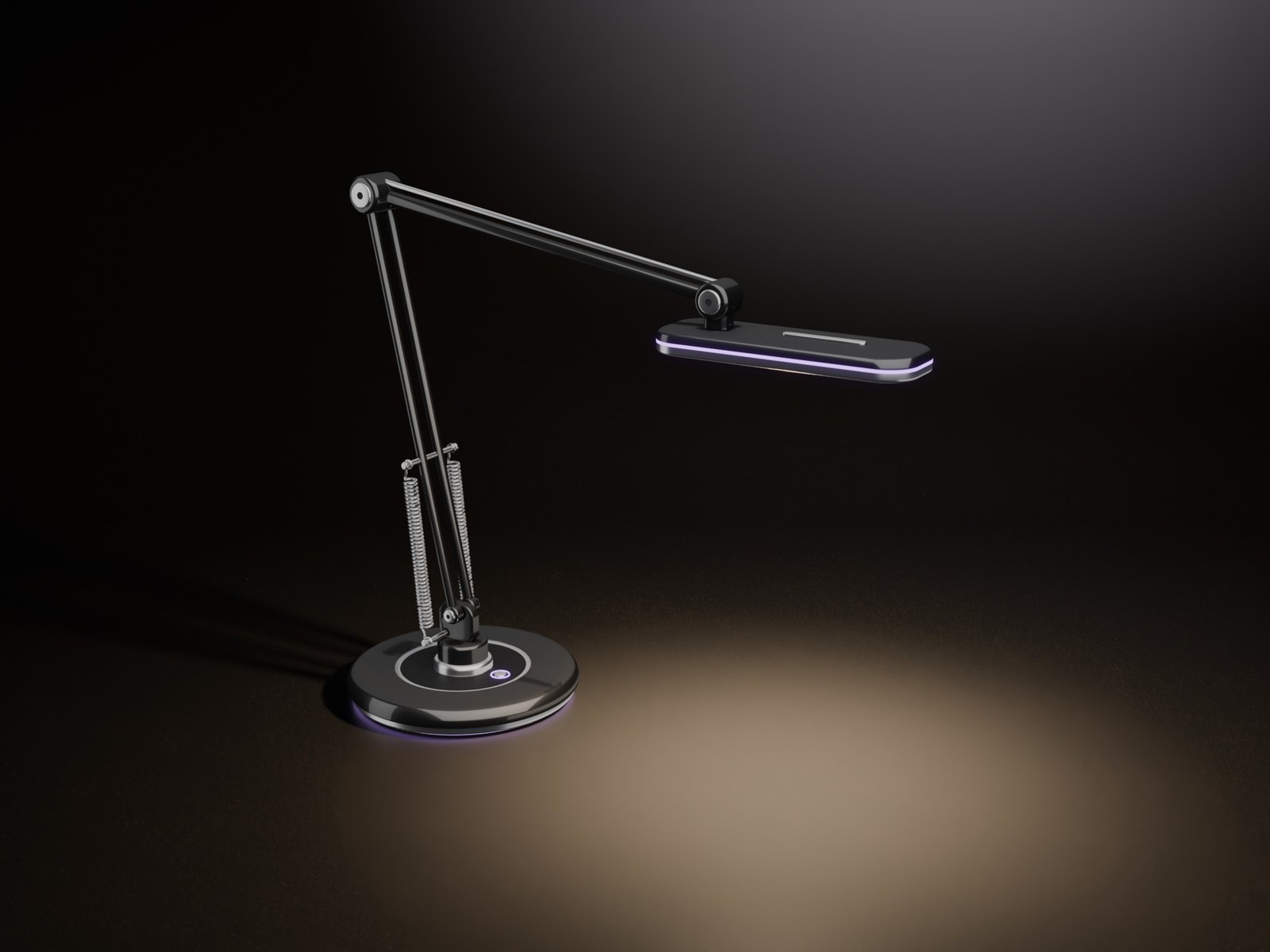
The light comes from the head, with a soft pool on the desk under it. Turn the lamp any way: the head still lights the desk.
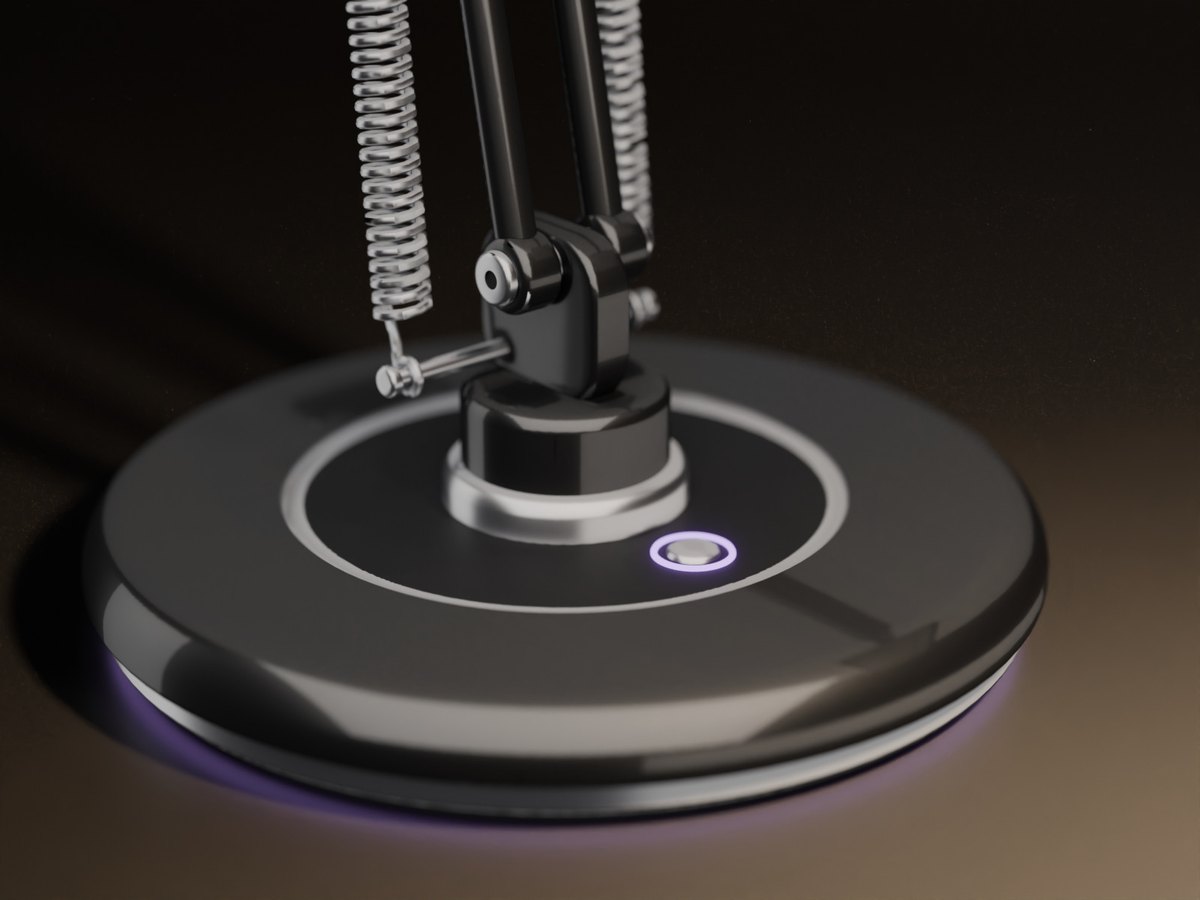
The light lines
A light pipe under the base, a ring round the button and a line round the head: SYNC, Match or Off.
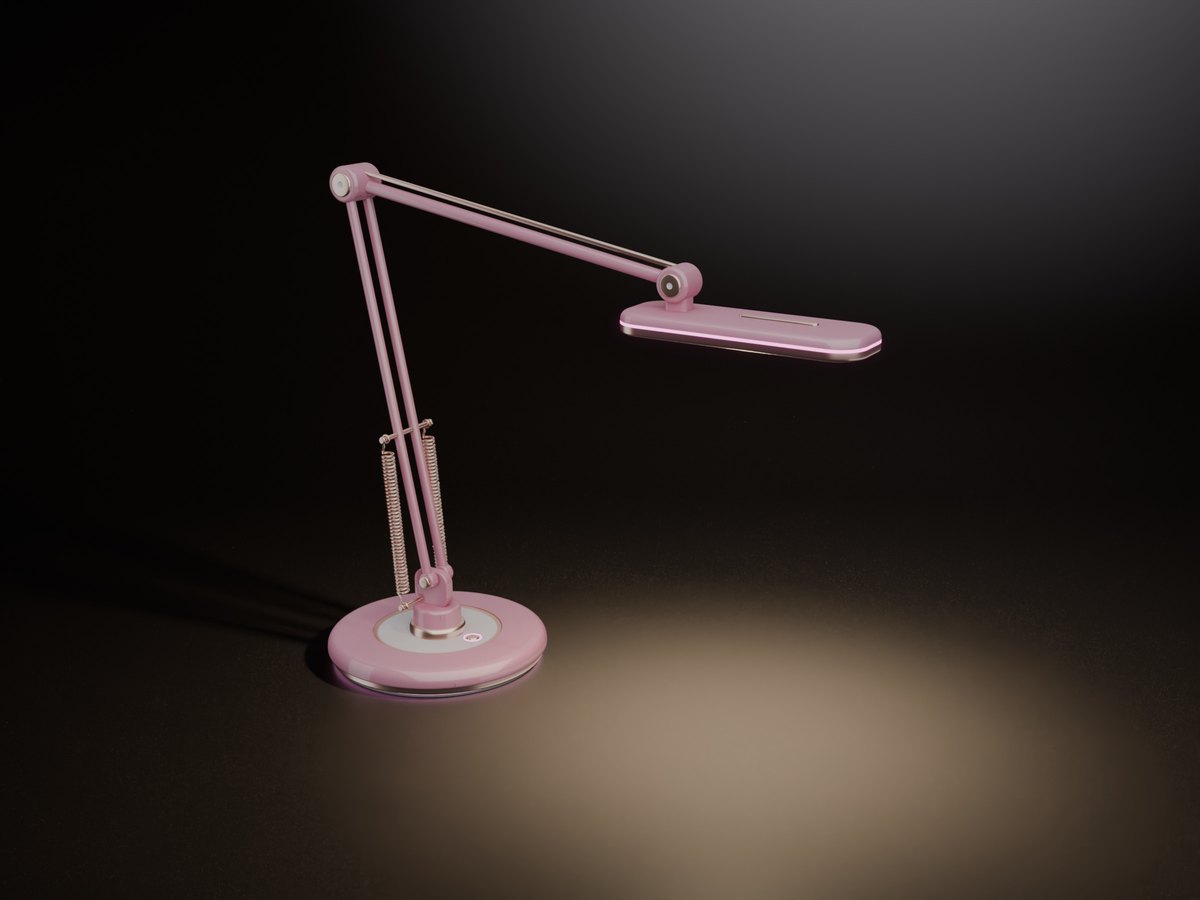
Black or Pink
The owner picks Colour in the menu. Each colour has its own texture.
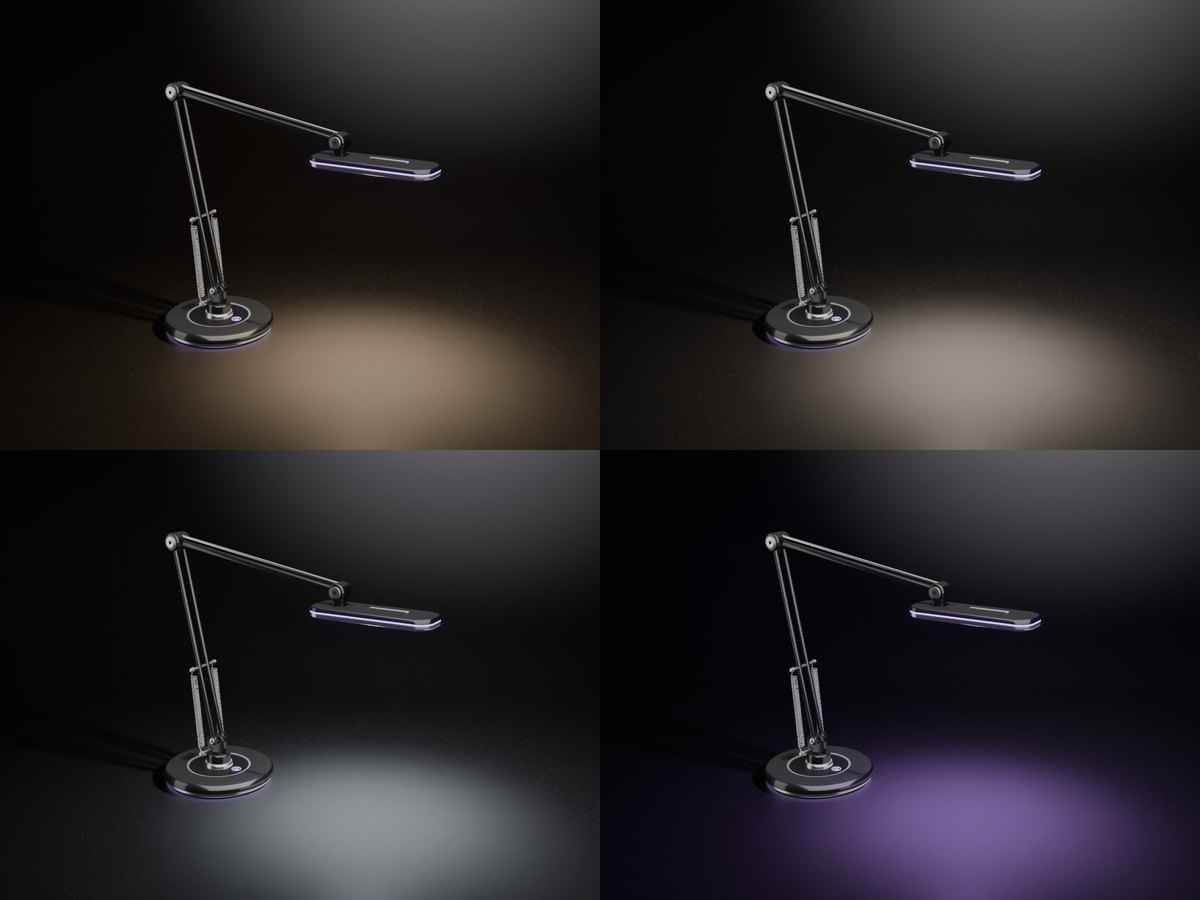
The menu
- Light: Warm, Neutral, Cool or SYNC (the colours of your Sync TV's video).
- Bright: Low, Medium or High - its light reaches 3, 4.5 or 6 m.
- The owner also has Power, Lines, Spot (the pool on the desk), Colour and Access (Only me, Group or Everyone).
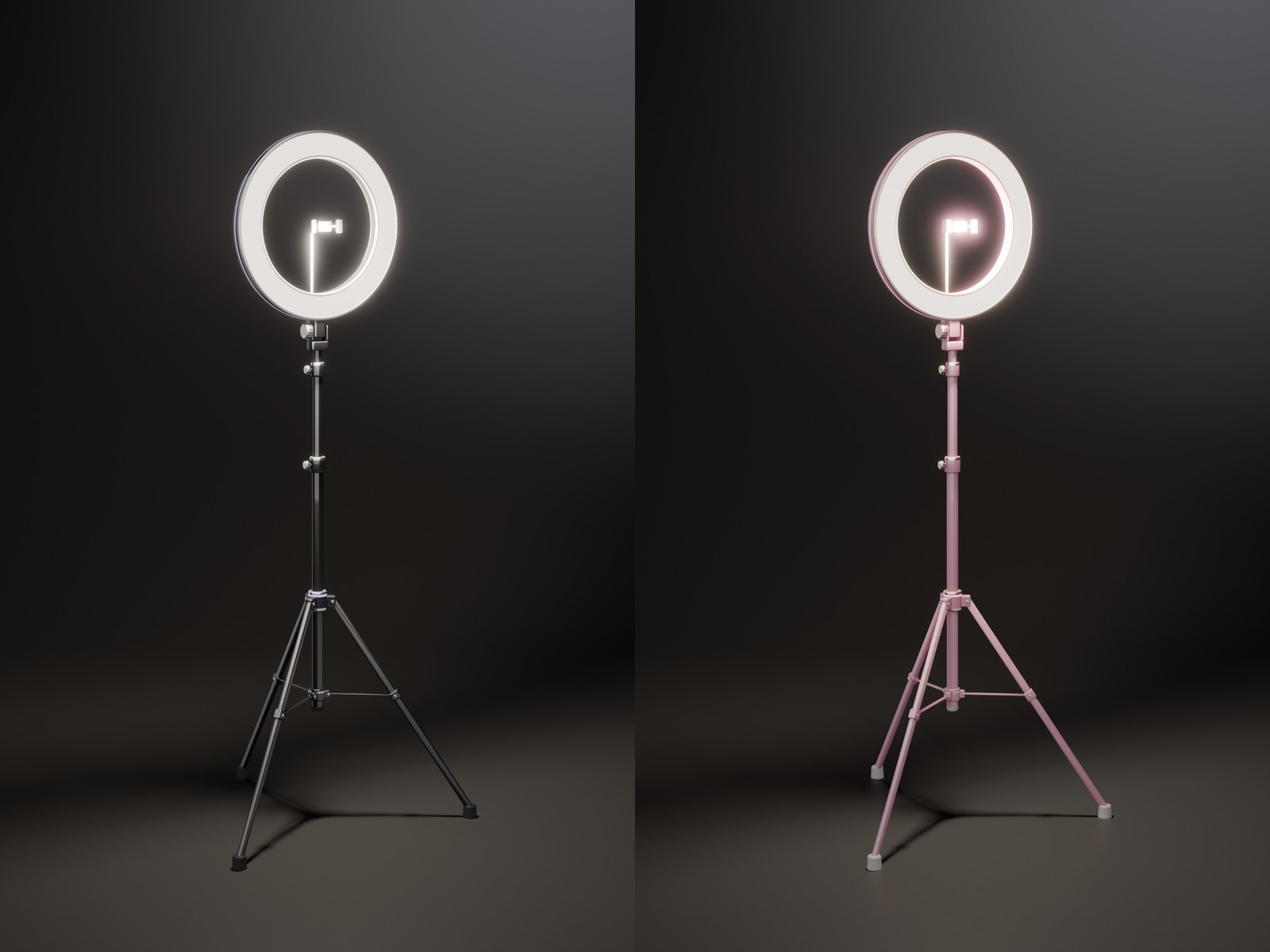
An 18-inch ring light that lights your face
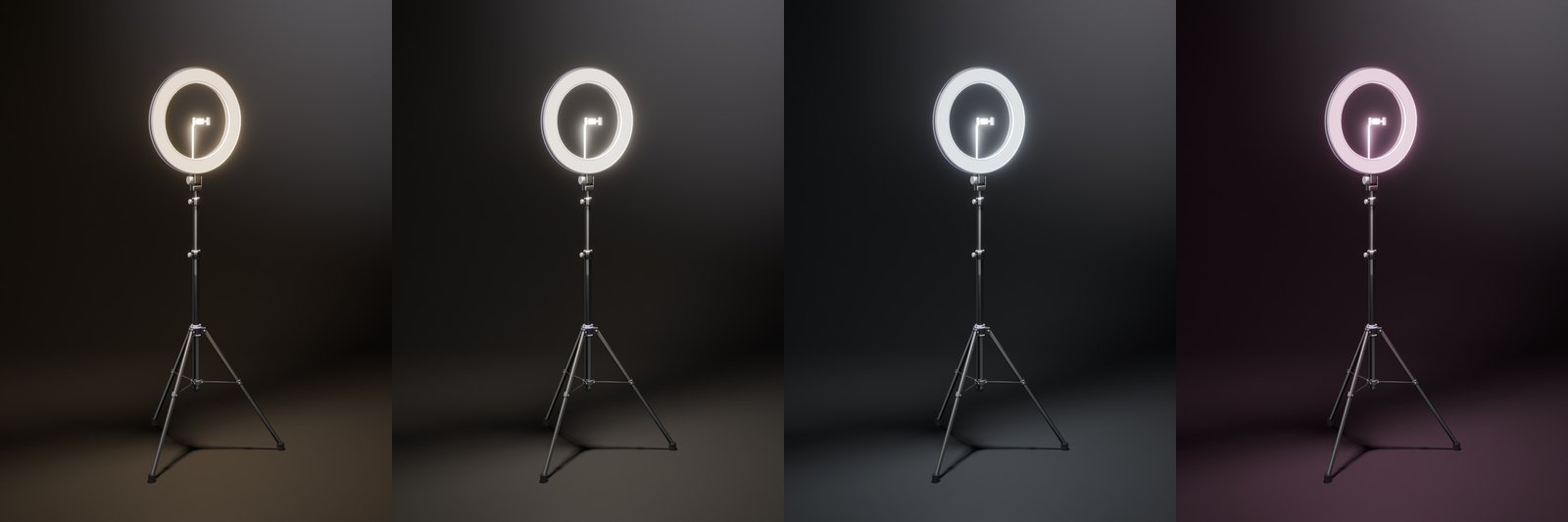
A ring light on a 175 cm tripod, with a phone holder in the middle. Its light is Second Life's own light from the ring's centre: it lights what is in front of it. Its thin light lines take the colours of your Sync TV. Black and Pink are both in the box.
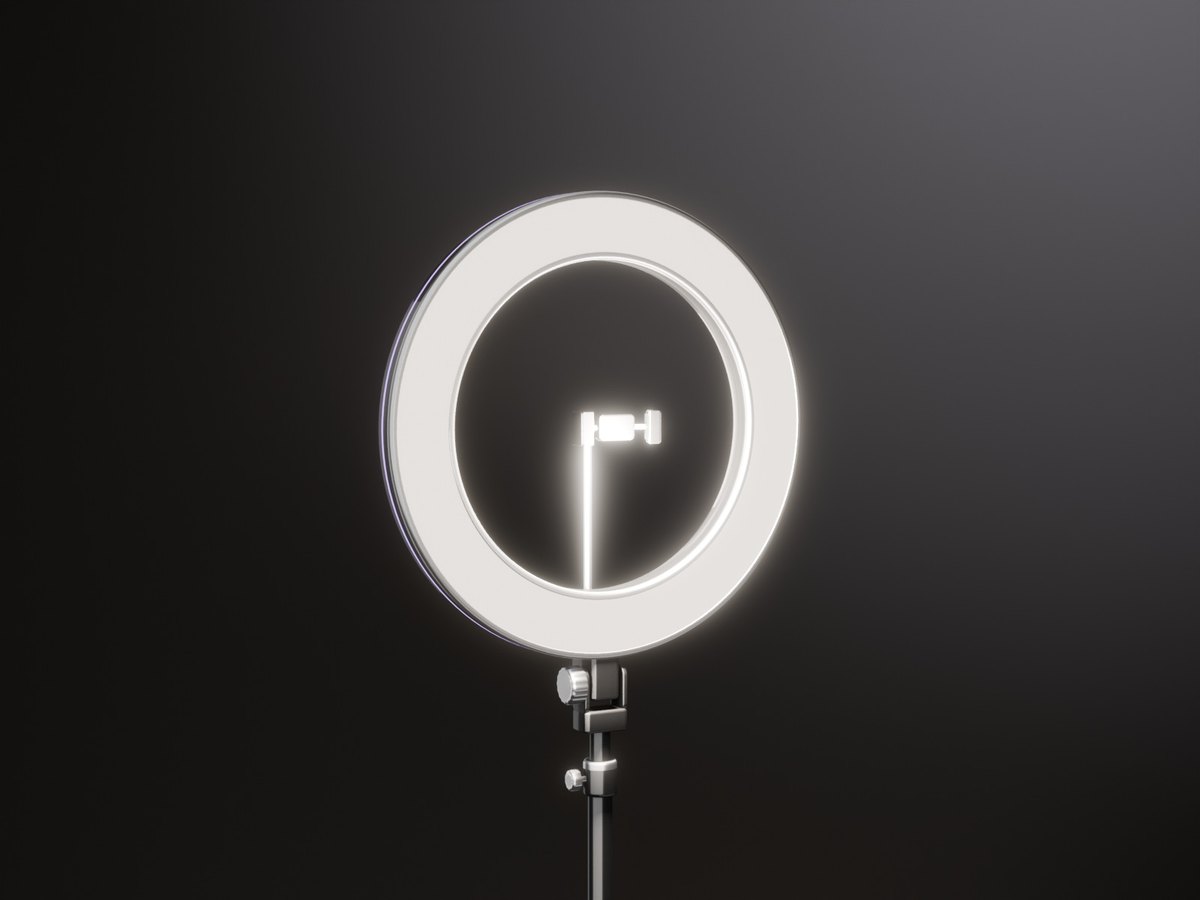
Turn it to the face
The ring looks south when you rez it. Turn it to the face you want to light: the light goes with it.
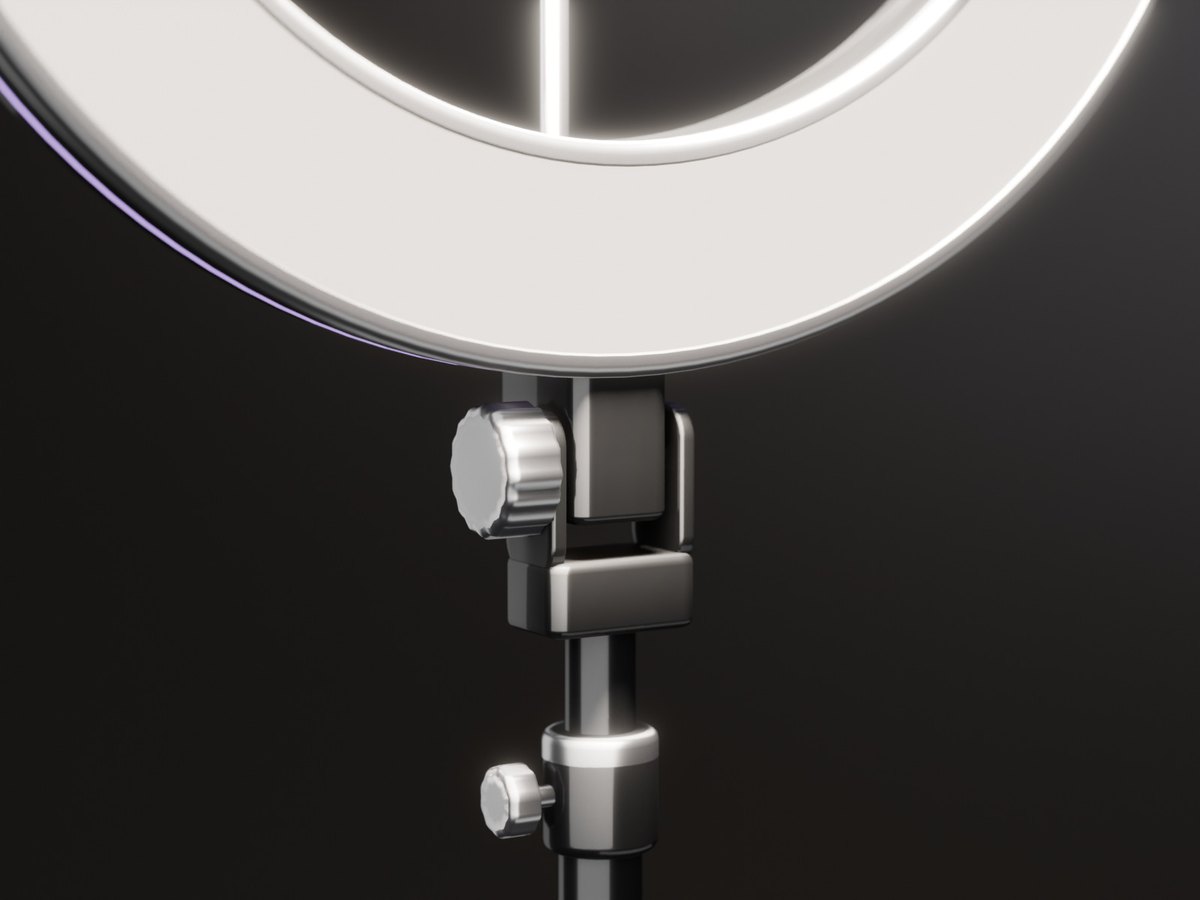
The control pod
Its status light shows the colour. Touch the ring light for its menu.
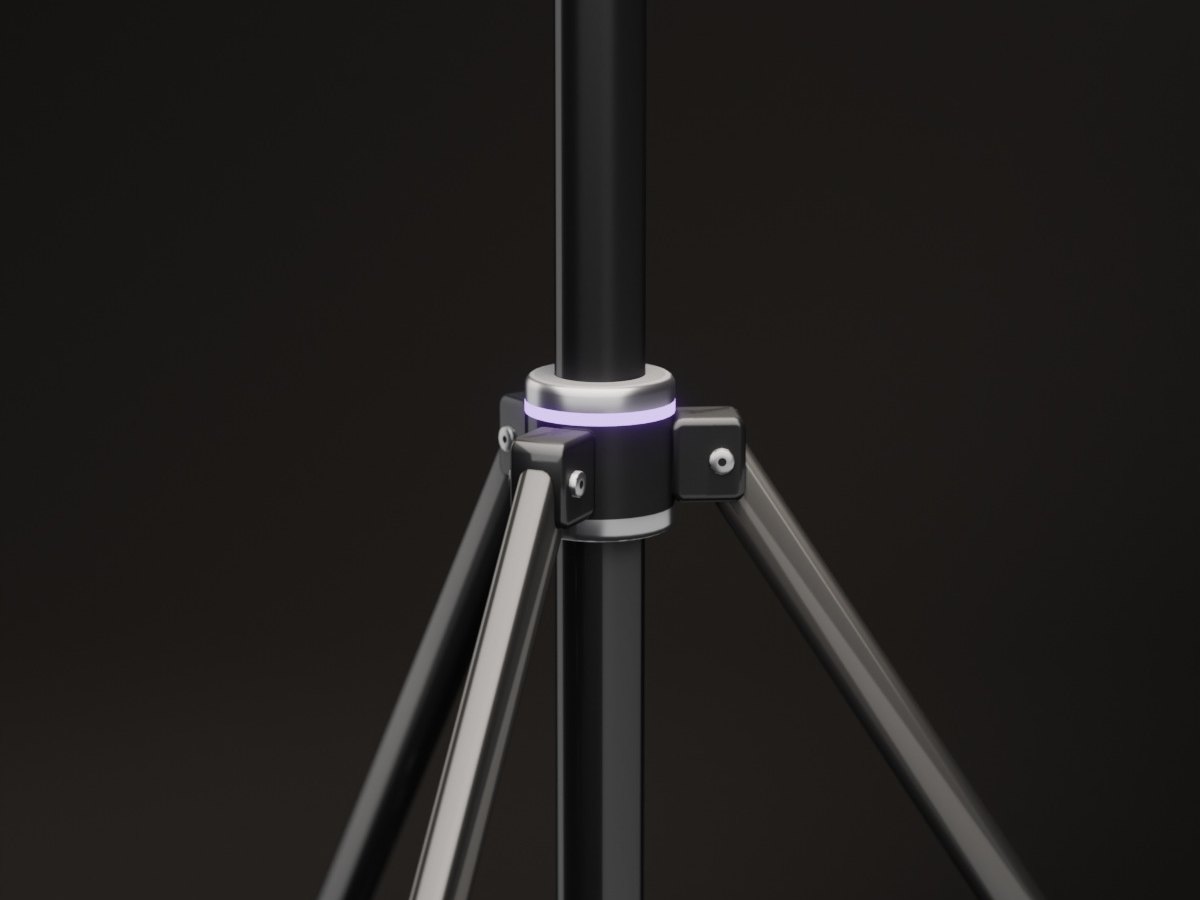
The light lines
The ring's edge, the status light and the band on the tripod: SYNC, Match or Off.
The menu
- Light: Warm, Neutral, Cool, Pink or SYNC (the colours of your Sync TV's video).
- Bright: 25, 50, 75 or 100 % - its light reaches 4 to 10 m.
- The owner also has Power, Lines, Colour and Access (Only me, Group or Everyone).
Mist and light for a calm corner
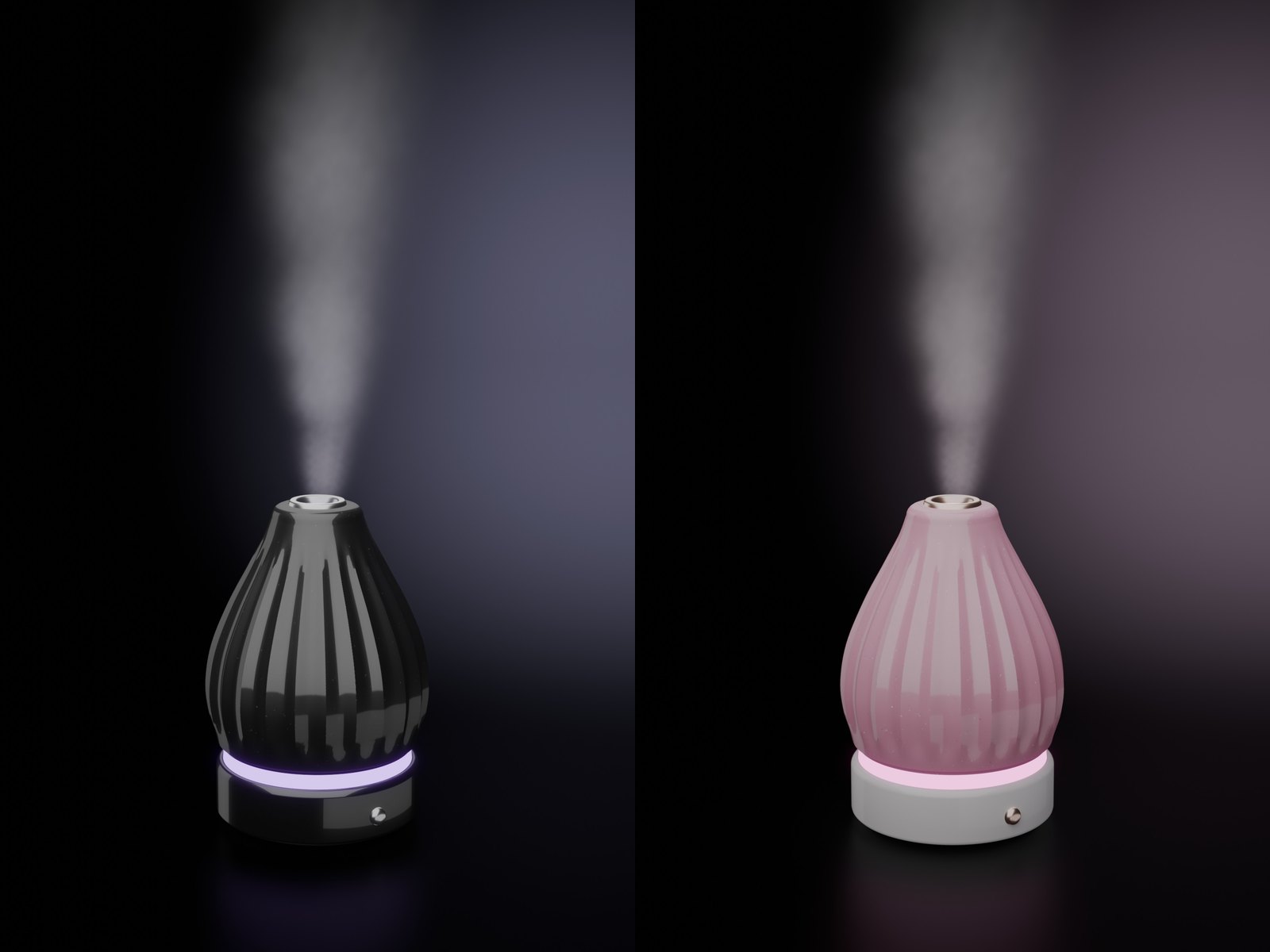
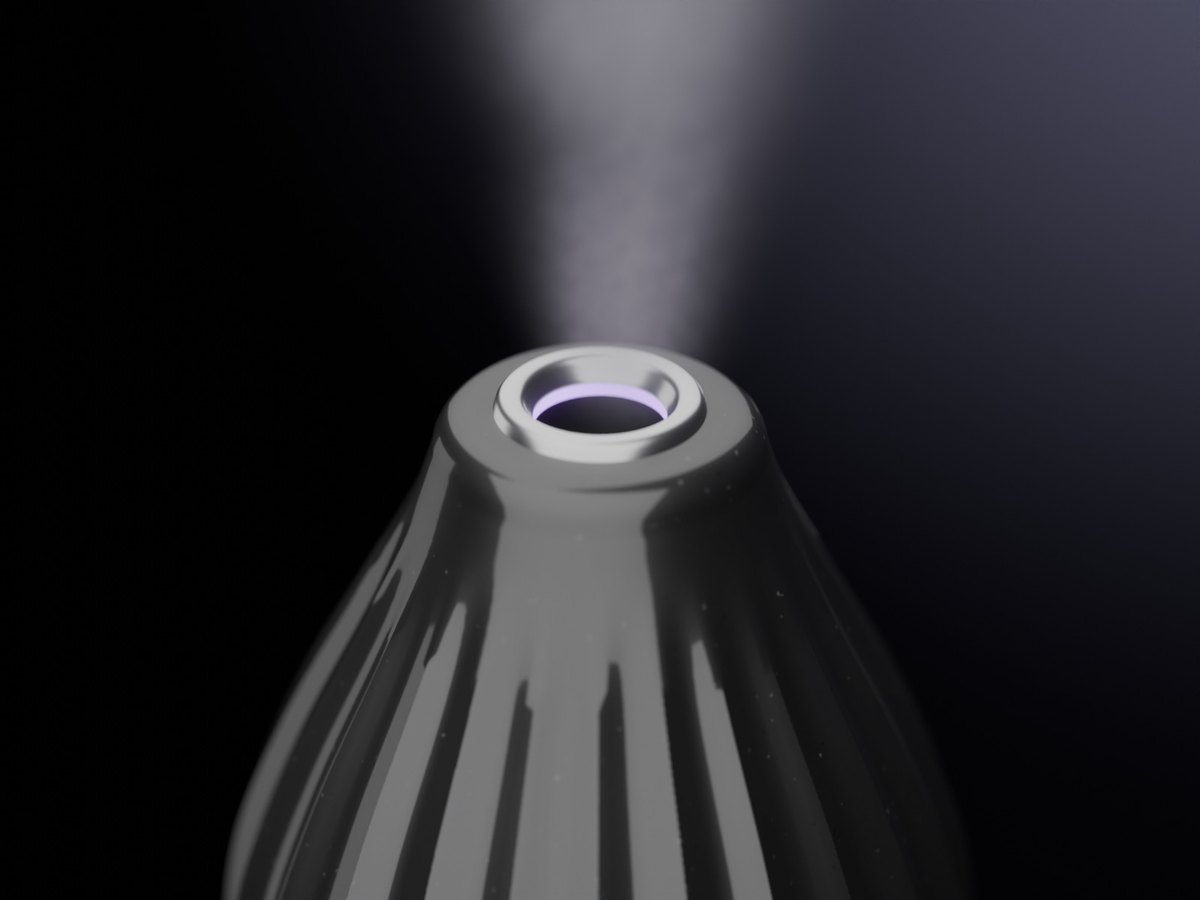
A ribbed ceramic drop on a lacquer base. A soft mist rises from it and fades away, and its light takes the colours of your Sync TV. It is decor: the mist is Second Life particles, and there is no scent. Black and Pink are both in the box.
The mist
Soft puffs rise just over the outlet, widen and fade away. They take a touch of the light's colour.
The light
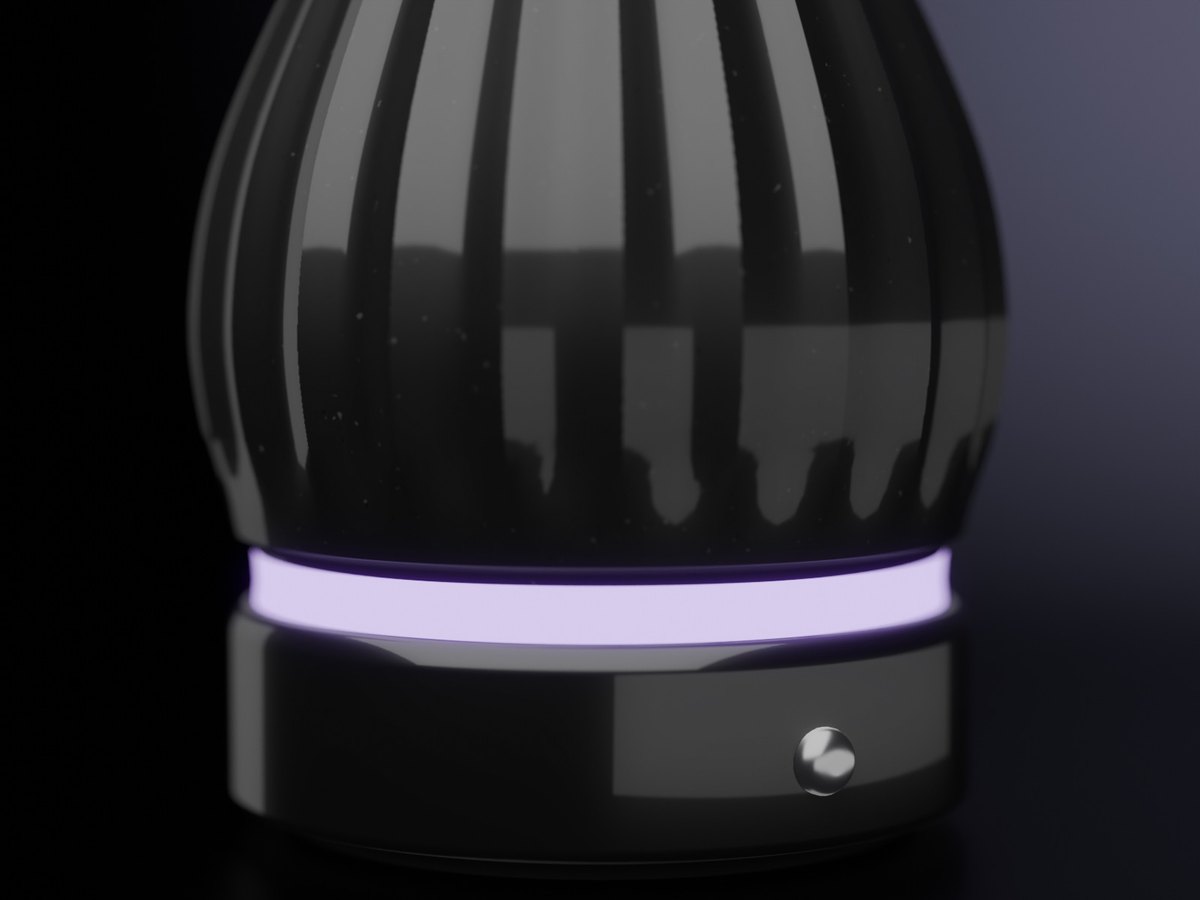
A band over the base and a ring inside the outlet: SYNC, Rainbow, Violet, Pink, Cyan, White or Off.
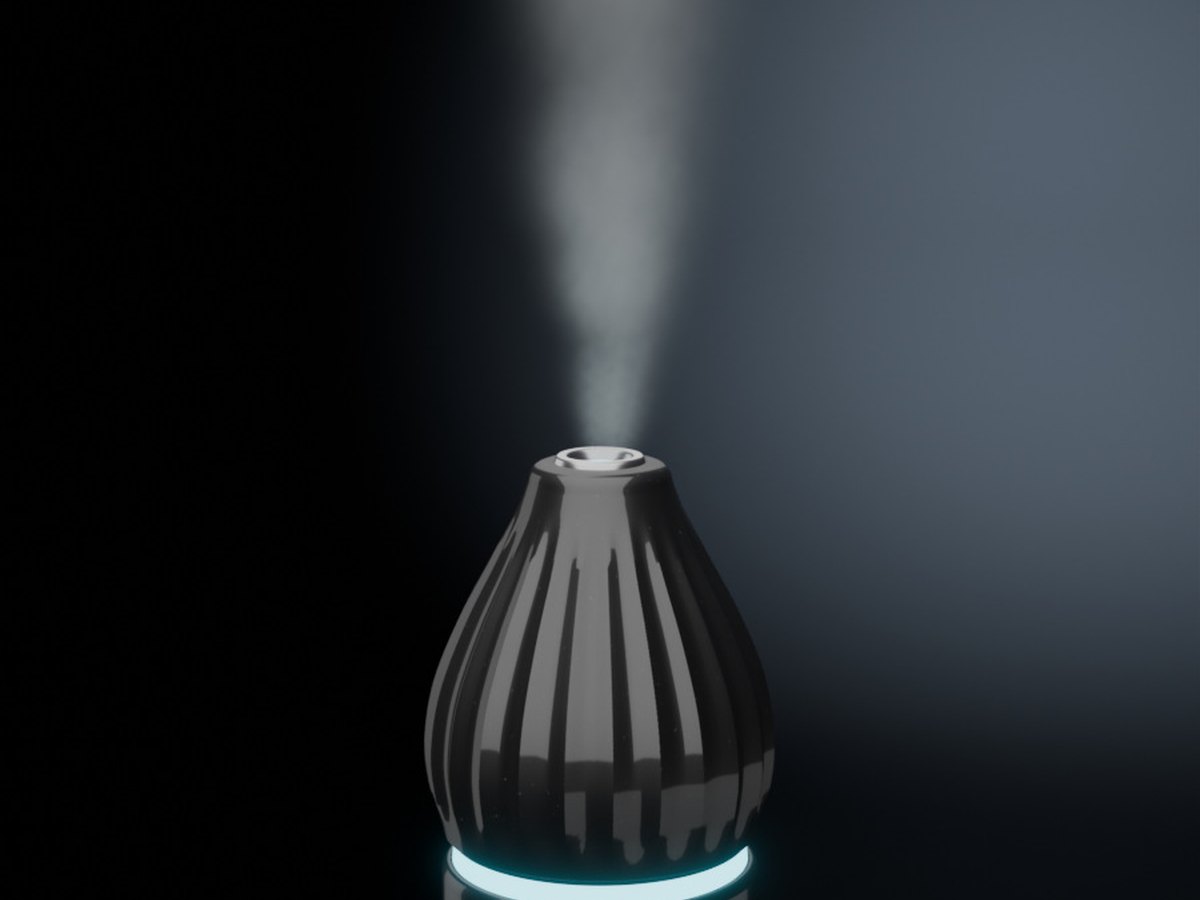
Black or Pink
The owner picks Colour in the menu. Each colour has its own texture.
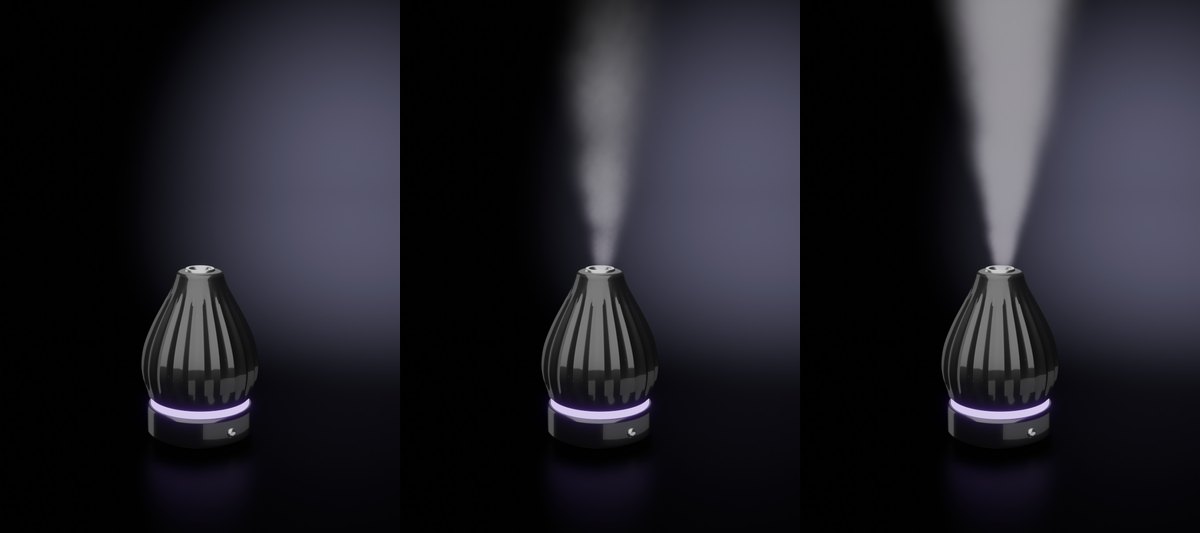
The menu
- Mist: Off, Soft (a thin, slow wisp) or Strong (a tall, dense cloud).
- Light: SYNC follows your Sync TV's video. With no TV: a slow violet, pink and cyan drift.
- The owner also has Power, Colour and Access (Only me, Group or Everyone).
Every room, every guest
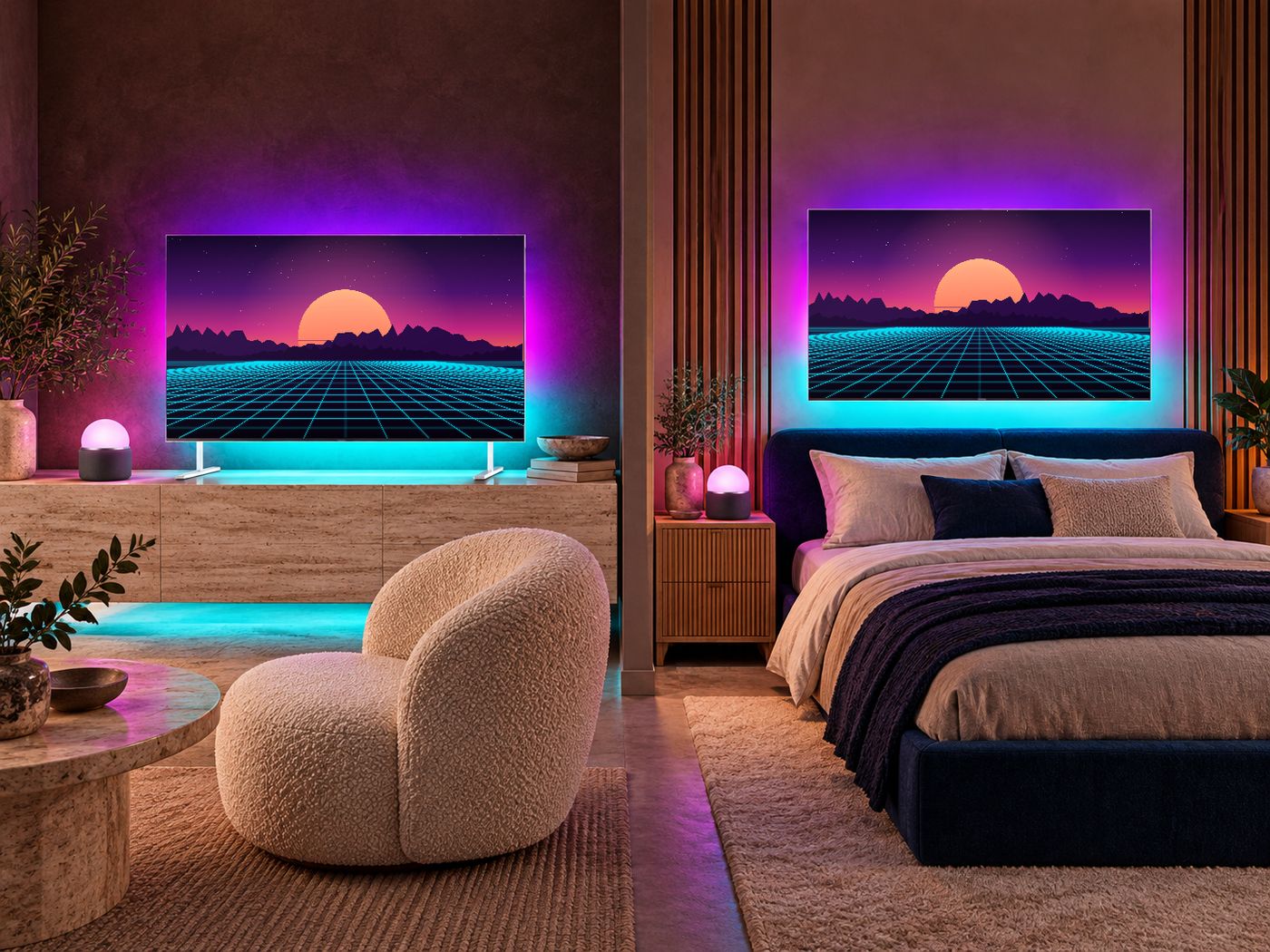
All your TVs
Settings > TV > Channel: "Show this on all my TVs". Your other TVs play the same video at the same moment. "Sound only on this TV" stops an echo between rooms.
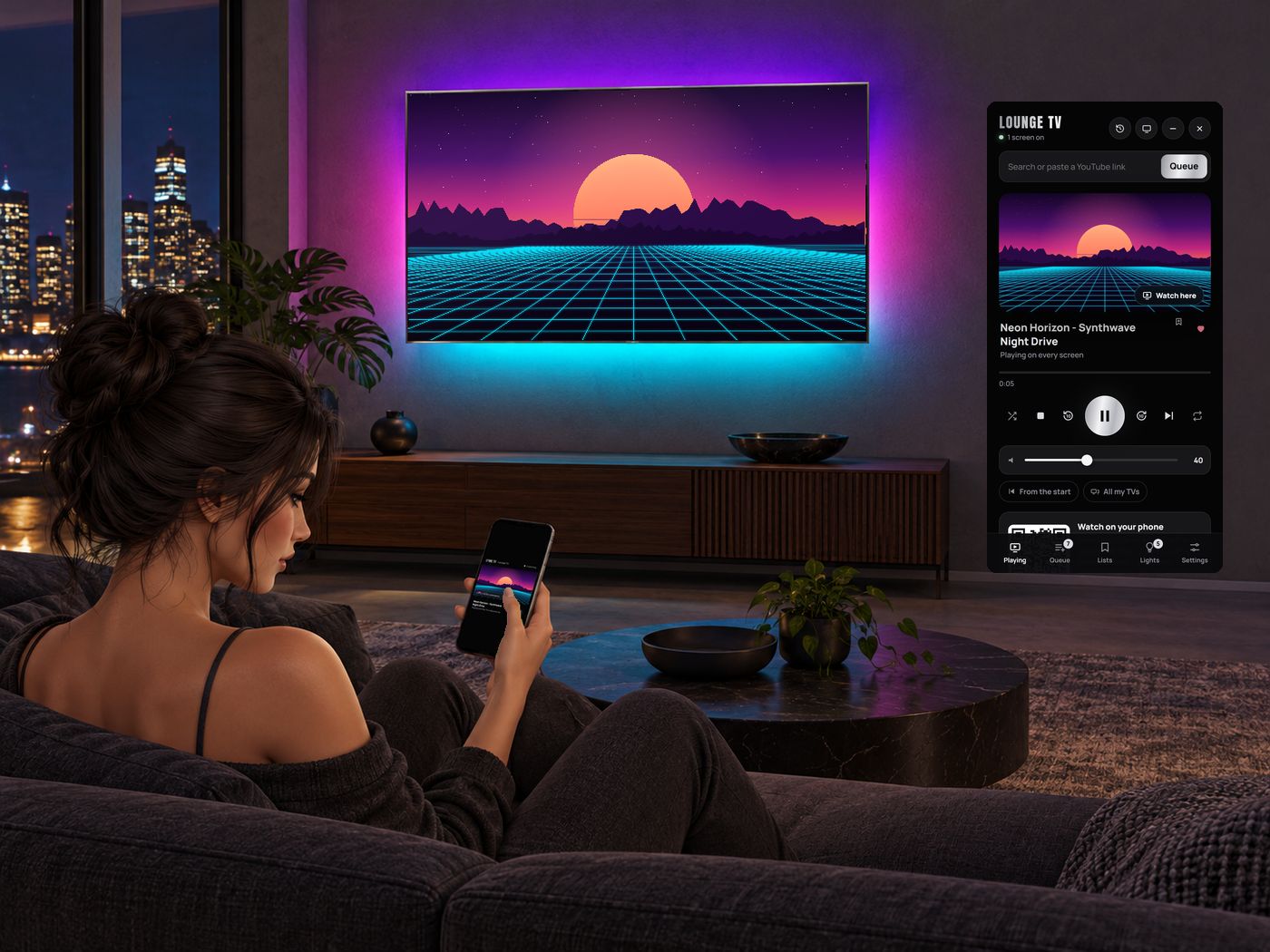
Watch here, or on your phone
"Watch here" moves the video onto your Remote HUD. "Watch on your phone" gives a link and a QR code: friends watch along in their browser.
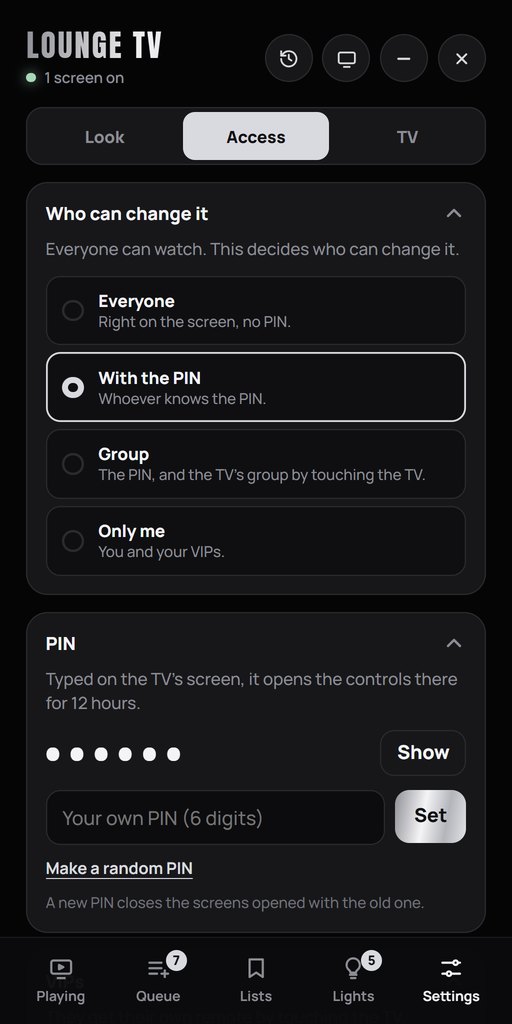
Access and guests
Everyone can always watch. Who can change it: Everyone, With the PIN, Group, or Only me. VIPs control it in every mode. Guests who may change it touch the TV for their own remote link.
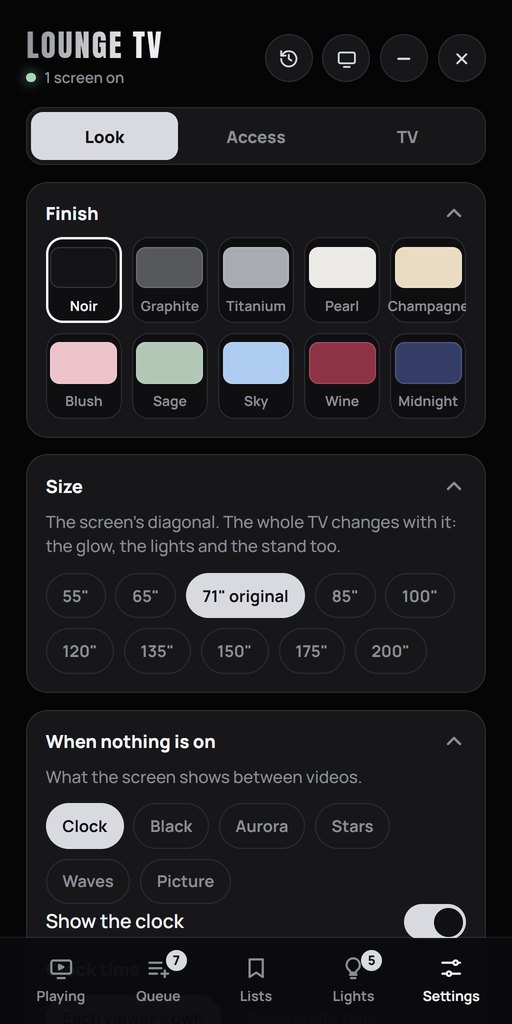
Look and size
10 finishes, sizes from 55 to 200 inch, and what the screen shows when nothing is on: a clock, Aurora, stars, waves, black or your own picture.
Tips and fixes
The TV
Can I show photos and save photo lists?
Yes. In Playing, paste a public Gyazo photo link or a direct JPG, PNG, WebP, GIF or AVIF link. The photo stays until Next or Stop. Add photos to the queue and save it in Lists, or add links directly to a saved list. Photo-only and mixed photo/video lists work. No file uploads are needed; photos load from their original host, so the links must remain public.
Choose Play now to display the photo immediately, or Queue it to add it to the queue. Photos do not advance on a timer: use Next to move on or Stop to clear the screen. Pause, seek and restart do not apply to photos. Use public HTTPS links; images larger than 20 MB are rejected. Refresh the remote for the new buttons; this feature needs no TV or HUD script replacement.
Nothing on the screen?
Turn on media (Set up, step 1) and click the screen once: "Tap to join". The owner can also use Settings > TV > Reload the screen.
Cannot paste a link?
Click the search box, then press Ctrl+V (Mac: Cmd+V). Right-click opens the viewer's menu, not Paste. Or, near your TV, type /7 and the link in local chat.
One video does not play?
Its owner keeps it off other sites. The TV goes on to the next video by itself.
A video link does not play?
The remote says why. Use the link of the file itself, not of a web page or a folder. Gyazo photos can also be shown. HEVC phone videos do not play: save them as H.264.
No sound?
Check the remote's volume and your viewer's media volume. On a channel, "Sound only on this TV" keeps your other TVs quiet (Settings > TV > Channel). On Watch here the sound starts off the first time: tap the speaker button.
Lost the remote link?
Touch the TV: a new link comes in local chat. A link that says it is not valid any more: touch the TV for a new one.
Someone else controls my TV?
Settings > Access > Only me (or With the PIN), and set a new PIN: it closes the old guest screens.
A guest cannot change the TV?
With the PIN: they click the screen and type the PIN. Group: they wear your group tag and touch the TV's frame, not the screen; no PIN. VIPs always can.
The screen says only the owner can change it?
The screen shows a 4-digit code and your Remote HUD asks "A screen asks for your controls". Tap Allow if the code is the same, and that screen is yours. In Second Life every screen is its own browser: it can not know you by itself.
The size does not change?
Second Life limits the size of a linked object. Pick a smaller size.
The Sync TV picks are gone?
In Lists, tap the Sync TV picks title to expand the card. If the card itself is missing, turn it on in Settings > TV > Sync TV picks.
Lights and speakers
A light or speaker does not link?
It must be in the same region as the TV and have the same owner. Rez it again, or tap "Count again" on the Room tab.
A light stays on when the others change?
It was touched on its own. Pick "What they show" again, or touch it.
The rings stay one colour?
Turn on Colour gradient in the speaker's Look box, and check that a video plays.
No sound from the speakers?
That is how they work: the sound plays from your Sync TV, and the speakers show it in light and motion.
No kick on the beat?
Room tab > Music pulse must be Tap the beat, Picture energy or Both. Tap the beat again when the song changes.
Lights seem late on long videos?
The colours come from YouTube's preview frames: about every second on short videos, every 2 to 10 seconds on long ones. Video links: every 0.5 to 2 seconds.
The lights and the glow stopped?
The video and the sound play, but the lights do not follow the remote or the picture any more, and Reload the screen does nothing. The TV lost its line to our server: this happened to some TVs when we moved our servers on 17 October 2026. Take the TV into your inventory and rez it again, or Edit it and use Build > Scripts > Reset Scripts (it keeps its place). Your PIN, queue, lists and settings stay.
An Orb Light's dome is invisible?
"Hide the dome" is on (Room tab, tap the orb). Turn it off.
The Sync Box gives no link?
The TV must be out and running in the same region. Touch the TV itself: its link comes the same way.
Cinema
The screen does not roll down?
Room tab, tap the projector: check Auto in the Screen box, or tap Down.
No beam from the projector?
The beam shows only while the screen is down and a video plays. Check Beam in the projector's Look box, and that the projector is on.
The projector links to the wrong TV?
Room tab, tap the projector: Linked TV, pick the right one.
Party lights
No spot where the beam lands?
The spot shows on walls and floors near the beam, best on light surfaces in a dark room.
Clicks on the TV do nothing while the laser is on?
Its lit beams cross the screen. Change its Aim, or move the laser so its beams do not cross the picture.
Mirror Ball
No dots on the walls?
Your viewer needs Advanced Lighting (on in today's viewers), and Light dots must be on in the ball's Look box. Raise Dots for brighter dots.
The ball keeps speeding up and slowing down?
Scene cut drop is on: it spins fast at every cut in the video. Turn it off on the ball's panel.
Cafe and Clock
A guest's touch does nothing?
Access is Only me. The owner opens the settings on the screen and picks Group or Everyone.
The light does not take the TV's colours?
Glow must be Sync, and the Sync TV must be in the same region, with the same owner, and playing. Nothing playing: a soft violet.
The Clock shows the wrong time?
In the settings on the screen: Time zone (SLT, or your UTC) and 24 or 12 hours.
My photos do not show on the Clock?
They must be textures in the clock's own Content tab, and their names must not start with hub_.
Sync Club
A club part did not get to its place?
It reached the region's edge or a parcel it may not enter. Move the Builder box, then Pack and Build again.
Can I use less LI?
After Build, delete any part you do not need, like the shade sails, the palms or the lounge. Keep the stage: its LED wall holds the club's brain and the DJ panel.
The club is up in the sky: what about the outside steps?
Edit the arch, tick Edit linked, select the steps and delete them.
Sync Gaming Set
A piece of the set follows another TV?
Each piece stays with the TV it linked to. Take it and rez it again next to the right TV: it links to the nearest one.
The set's lights show one colour, not the video?
On the Sync TV's remote, the lights must show The video, and the piece's own Light must be SYNC.
I cannot type in the monitor's browser?
Another media HUD may take your typing: take it off. A yellow outline after a click is your viewer's selection: press Esc.
Sync Turntable
Does the turntable play music?
No. It is decor: the arm and the platter move like a real one. Its only sound is a soft vinyl crackle (menu: Sound).
I hear no crackle?
Pick Sound > On in its menu. It sounds only while the needle is on the record, and quietly.
A guest's touch does nothing?
Access is Only me. The owner touches the turntable and picks Access: Group or Everyone.
Sync Desk Lamp and Sync Ring Light
I see no pool of light on the desk?
The lamp's menu: Spot must be on. The pool needs Advanced Lighting and shows best in a dark room.
The ring light does not light my face?
Turn the ring to face you and pick a higher Bright. It lights what is in front of the ring.
Sync Aroma Diffuser
Does the diffuser have a scent?
No. It is decor: the mist is Second Life particles, and Second Life has no scent.
The mist goes sideways?
Rez the diffuser upright. The mist rises along its own up direction.
Home
How do I play a game on the TV?
Tap Home on the remote, then click a game in the Play together row on the TV's screen. Everyone who plays joins the same room in the game: share its room link or code in chat.
My friend sees another page?
Second Life shares only the address. Each person scrolls, types and plays on their own screen. Live channels and the radio are the same for everyone.
The TV stays on a website?
A website fills the whole TV, so it has no buttons of ours. Tap the lit Home button on the remote of that TV (the TV name at the top switches TVs), or play a video.
A site with an arrow does not open?
The TV says the site opens after the TV update: that TV needs TV script v0.5.9 or newer. LECASTLE's assistant sends the update (the new TV and HUD) to everyone who bought it. The games inside the TV, the radio and the player work on every TV.
Clicks on the screen do nothing?
Something in front of the screen catches the clicks, like another object or an old projector beam. Move it away from the screen.
Netflix does not play?
Netflix and other copy-protected sites do not play in Second Life's media.
A guest cannot open Home?
Only the people who may change the TV can use Home. The owner sets who in Settings > Access: Everyone, With the PIN, Group or Only me.